
Excel library
How to Filter Cells with Comments in Excel: Easy Guide
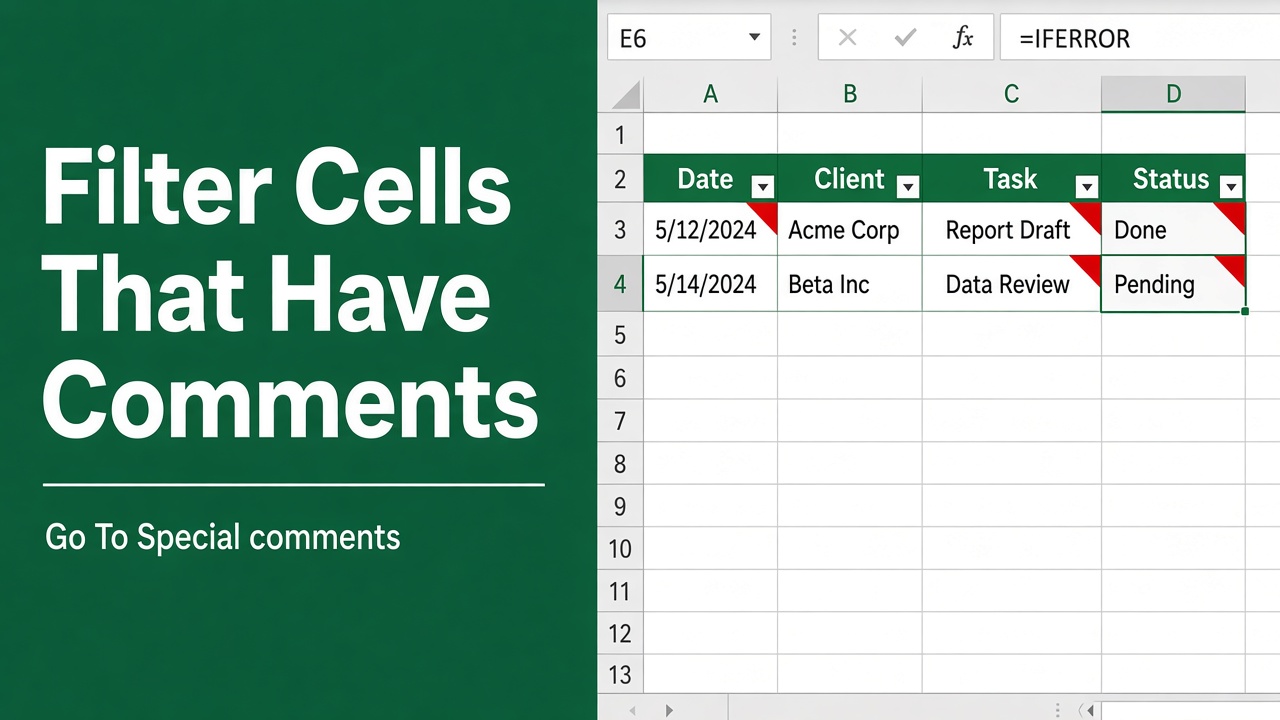
Microsoft Excel is widely used for organizing and analyzing data. One helpful feature is the ability to add comments to cells, which helps users provide extra information or context without cluttering the sheet. However, when a spreadsheet has hundreds or thousands of cells, it becomes important to filter cells that contain comments so users can quickly review, edit, or export them.
Excel has no “filter by comment” option, but this works without macros:
- Select the column, press F5 > Special > Notes (Comments in older versions), and click OK.
- Give the selected cells a fill color.
- Press Ctrl + Shift + L and use Filter by Color on that column.
For a formula you can filter on, add the small HasComment VBA function below to a helper column.
In this guide, we will explain how to filter cells with comments in Excel using different methods, including built-in tools, VBA macros, and advanced filtering techniques.
Why You Might Need to Filter Commented Cells
Filtering cells with comments helps in the following situations:
- Reviewing feedback in shared workbooks
- Auditing large datasets with notes from multiple users
- Locating important observations
- Preparing data for reports or presentations
Method 1: Use Go To Special to Locate Commented Cells
The Go To Special tool is a quick way to find all cells that contain comments or notes.
Steps:
- Open your Excel file.
- Press
Ctrl + GorF5to open the Go To dialog box. - Click on Special.
- Select Notes (in older versions, this may say Comments).
- Click OK.
All cells with notes will now be selected. However, this method does not create a filtered view. It’s best for quick highlights or copying.
Method 2: Filter by Color Without VBA
You can build a real filtered view with built-in tools only:
- Select the column that contains the notes (or the whole data range).
- Press F5 > Special, choose Notes (Comments in older versions), and click OK.
- With those cells selected, apply a fill color from Home > Fill Color.
- Turn on filters with Ctrl + Shift + L, open the column’s dropdown, and choose Filter by Color > your fill color.
Only rows with notes are shown. Repeat step 2–3 after adding new notes. Go To Special finds notes; threaded comments in Microsoft 365 are listed in the Comments pane (Review > Show Comments).
Method 3: Use VBA to Extract Cells with Comments
Since Excel lacks a built-in comment filter, VBA is the most powerful option. It lets you scan through the entire worksheet and extract only the cells that contain comments.
Example VBA Code:
Sub FilterCellsWithComments()
    Dim cell As Range
    Dim commentSheet As Worksheet
    Dim outputRow As Long

    Set commentSheet = Worksheets.Add
    commentSheet.Name = "Comments Extracted"
    outputRow = 1

    For Each cell In ActiveSheet.UsedRange
        If Not cell.Comment Is Nothing Then
            commentSheet.Cells(outputRow, 1).Value = cell.Address
            commentSheet.Cells(outputRow, 2).Value = cell.Value
            commentSheet.Cells(outputRow, 3).Value = cell.Comment.Text
            outputRow = outputRow + 1
        End If
    Next cell
End Sub
What This Code Does:
- Creates a new sheet called Comments Extracted
- Scans through the used range in the active worksheet
- Copies the cell address, value, and comment text
- Outputs them in a table format
This is useful for reviewing all comments in one place and can be customized to include more metadata like sheet name, user name, etc.
Method 4: Add a Helper Column to Mark Commented Cells
If you want to filter cells with comments using built-in filters, a helper column is the easiest approach.
Steps:
- Insert a new column next to your data.
- Use a custom function or formula (requires VBA) to check if a cell has a comment.
Here’s how to create a user-defined function:
VBA Function to Detect Comments:
Function HasComment(rng As Range) As Boolean
    Application.Volatile
    HasComment = Not (rng.Comment Is Nothing And rng.CommentThreaded Is Nothing)
End Function
After inserting the above code into a module:
- In your helper column, enter:
=HasComment(A2)This will return TRUE if the cell has a note or a threaded comment. (CommentThreaded exists only in Microsoft 365; in Excel 2019 and earlier use HasComment = Not rng.Comment Is Nothing.) Adding a note doesn’t trigger recalculation, so press F9 before filtering, and save the file as .xlsm to keep the function.
- Apply a Filter and choose TRUE to display only the rows with comments.
Method 5: Use Power Query to Identify Notes or Comments
If you are working with a structured data table, Power Query (also known as Get & Transform) can be used to reshape data. Unfortunately, Power Query doesn’t have native support for Excel comments, but you can combine it with VBA for advanced workflows.
Example:
- Use a VBA script to extract cells with comments to a new table
- Load that table into Power Query
- Apply transformations or filters as needed
This approach is useful for large datasets or for integrating comments into dashboards and reports.
Method 6: Use VBA to Highlight Commented Cells
Although this won’t create a filterable list, highlighting cells with comments visually can make them easier to spot.
VBA-Based Conditional Formatting Trick:
Since Excel formulas can’t detect comments directly, we can use VBA to apply color to all commented cells.
Sub HighlightCellsWithComments()
    Dim cell As Range
    For Each cell In ActiveSheet.UsedRange
        If Not cell.Comment Is Nothing Then
            cell.Interior.Color = RGB(255, 255, 0) ' Yellow
        End If
    Next cell
End Sub
This script highlights all cells with comments, helping users manually filter them using color filters.
Comparison of Methods to Filter Cells with Comments
| Method | Filtering Capability | Automation | Excel Skill Level |
|---|---|---|---|
| Go To Special | No | Manual | Beginner |
| VBA Extraction | Yes | High | Intermediate |
| Helper Column + Filter | Yes | Medium | Intermediate |
| Power Query + VBA | Yes | High | Advanced |
| Conditional Formatting | Visual Only | Medium | Beginner to Intermediate |
Best Practices for Working with Comments in Excel
To improve your experience when using comments in Excel, follow these best practices:
Keep Comments Concise
Avoid long blocks of text. Use bullet points or short phrases to keep things readable.
Use Comments for Clarification
Only use comments to add context or explain calculations. Avoid putting critical data inside a comment.
Name Contributors (for collaboration)
When working in shared workbooks, include initials or names to track who added the comment.
Regularly Review Comments
Use filters or extraction techniques outlined above to routinely check comments and ensure they are still relevant.
Final Thoughts
While Excel doesn’t provide a direct built-in feature to filter cells with comments, there are several workarounds that offer great flexibility. Whether you prefer using VBA macros, helper columns, or highlighting methods, each approach serves a different use case depending on your workflow.
Start with the method that best fits your comfort level and gradually experiment with more advanced techniques like VBA and Power Query for better automation.
FAQs
Can I filter cells with comments directly in Excel?
Not directly, but you can without VBA: select the column, use F5 > Special > Notes to select the cells with notes, give them a fill color, then use Filter by Color. A HasComment VBA function in a helper column also works.
How can I extract all commented cells to a new sheet?
You can use a VBA macro to loop through your worksheet and copy all cells with comments to a new sheet. This lets you review or export them easily in a structured format.
Can I use conditional formatting to identify commented cells?
Conditional formatting can’t detect comments directly through formulas, but you can use a VBA script to apply a background color to cells with comments, helping you spot them visually.
Is there a formula to detect if a cell has a comment?
Excel formulas cannot detect comments by default. However, you can create a custom VBA function, such as HasComment, that returns TRUE if a comment exists in a specified cell.
Can Power Query filter comments in Excel?
Power Query does not support comments directly. You can use a VBA macro to extract comments to a table and then load that table into Power Query for filtering or reporting.