
Excel library
How to Add Prefix in Excel without Formula: Expert Guide
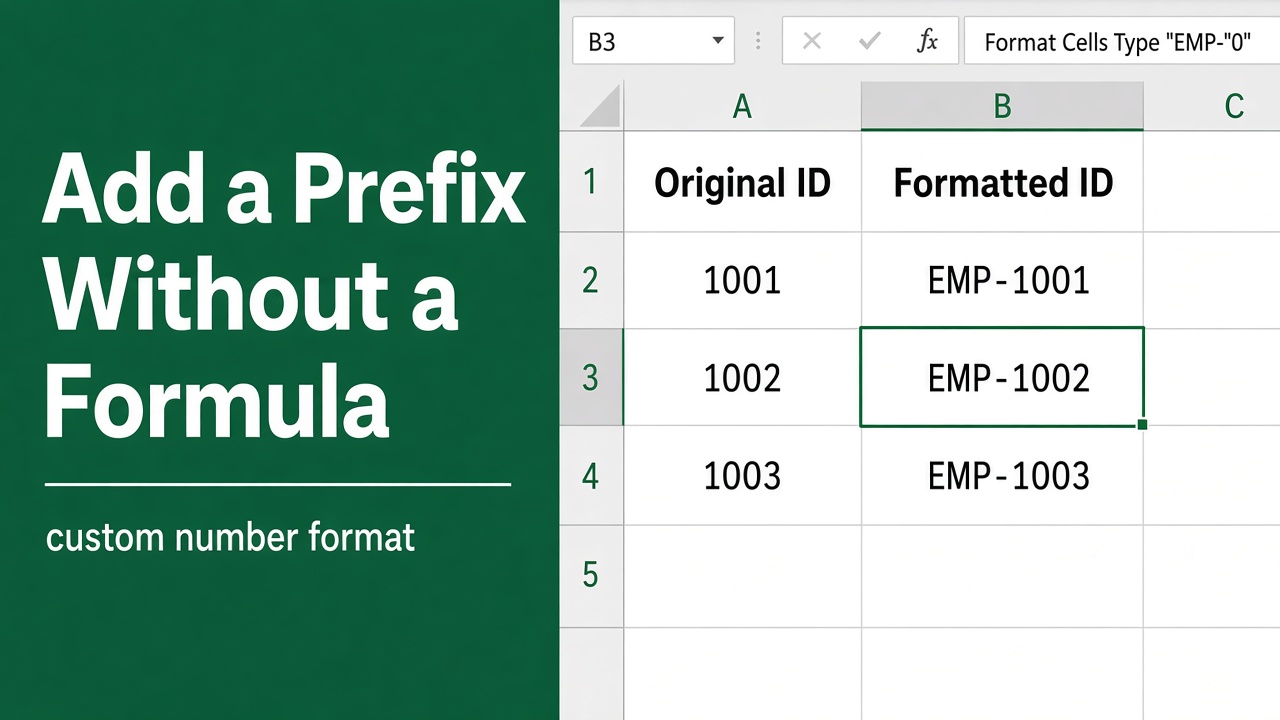
Are you looking for an easy way to add a prefix to your data in Microsoft Excel without using complex formulas? Adding prefixes to cells in Excel, such as “ID-” before an identification number or “SKU-” before a product code, is a common task that helps organize and standardize your spreadsheet data. In this article, we’ll show you step-by-step methods to quickly add prefixes in Excel without formulas, saving you time and effort.
- Flash Fill: in the next column, type the first value with its prefix (e.g. SKU-1001), go to the cell below, and press Ctrl + E.
- Display only: Ctrl + 1 > Custom, type
"SKU-"0(numbers) or"SKU-"@(text). The value itself doesn’t change. - Power Query: Transform > Format > Add Prefix.
If a formula is acceptable, ="SKU-"&A2 is the simplest option; paste the results as values afterwards.
What is a Prefix in Excel?
In Excel, a prefix refers to characters, such as letters, numbers, or symbols, that are added to the beginning of a cell’s existing content. Prefixes are often used to categorize, label, or provide additional context to data. Some common examples of prefixes in Excel include:
- Adding “ID-” before identification numbers
- Applying “SKU-” to product codes or stock keeping units
- Putting “YEAR-” before dates
- Inserting “DEPT-” before department codes
Adding prefixes to your Excel data makes it easier to sort, filter, and analyze information, especially when working with large datasets. Prefixes can also help maintain consistency and avoid confusion when multiple users are working on the same spreadsheet.
Why Add Prefixes in Excel?
There are several reasons why you might want to add prefixes to your Excel data:
- Categorization: Prefixes help categorize data into distinct groups, making it easier to identify and work with specific subsets of information.
- Standardization: By applying consistent prefixes to your data, you ensure that all entries follow the same format, reducing errors and inconsistencies.
- Sorting and Filtering: Prefixes make it easier to sort and filter your data based on specific criteria, allowing you to quickly find and analyze relevant information.
- Readability: Adding prefixes to your data can make it more readable and understandable, especially when working with complex or extensive datasets.
Methods to Add Prefix in Excel Without Formula
While using formulas like CONCAT or & is a common way to add prefixes in Excel, there are several methods that allow you to add prefixes without formulas. Let’s explore these options:
Method 1: Using Flash Fill
Excel’s Flash Fill feature is a powerful tool that automatically fills data based on patterns it recognizes in your dataset. Here’s how to use Flash Fill to add prefixes:
- In a column adjacent to your data, type the first value with its prefix, for example SKU-1001.
- Select the cell below it.
- Go to the Data tab on the Excel ribbon.
- Click on Flash Fill in the Data Tools group.
Excel will intelligently recognize the pattern and automatically fill the remaining cells with the prefix added to your data. Flash Fill is particularly useful when you have a large dataset and want to save time on manually entering prefixes.
Method 2: Using a Custom Number Format
A custom number format shows a prefix without changing the cell’s value, so numbers stay numbers and still sort and add up correctly:
- Select the cells and press Ctrl + 1.
- Choose Custom.
- In Type, enter the prefix in quotes followed by a format code:
"ID-"0for numbers (1001 shows as ID-1001),"ID-"0000to pad to four digits (7 shows as ID-0007), or"SKU-"@for text. - Click OK.
Because the prefix is only displayed, it isn’t included when you export to CSV or look the value up. If you need the prefix in the actual data, use Flash Fill or Power Query.
Method 3: Using Power Query
- Select your data and choose Data > From Table/Range.
- Select the column, then choose Transform > Format > Add Prefix.
- Type the prefix, for example
SKU-, and click OK. - Click Home > Close & Load. Refresh the query later to prefix new rows automatically.
Note that Excel’s Find and Replace can’t add text to the start of every cell (it has no “beginning of cell” code), and Text to Columns only splits data; it can’t join a prefix column to your values.
You can also make first letter capital without formula.
Advantages of Adding Prefixes Without Formulas
Using the methods described above to add prefixes without formulas offers several benefits:
- Simplicity: These methods are straightforward and easy to understand, even for Excel beginners. You don’t need to have extensive knowledge of Excel formulas to use them effectively.
- Speed: Adding prefixes without formulas is faster than creating and applying complex formulas to your data. You can quickly add prefixes to large datasets with just a few clicks.
- Compatibility: Non-formula methods work with all versions of Excel, ensuring compatibility across different systems. This is particularly useful when sharing spreadsheets with colleagues or clients who may be using older versions of Excel.
- Reduced file size: By avoiding formulas, your Excel file size remains smaller, making it easier to share and store. This is especially important when working with large datasets or when you need to email your spreadsheet to others.
- Flexibility: These methods allow you to add prefixes to specific cells, rows, or columns, giving you greater control over your data. You can easily customize your prefixes to suit your specific needs and requirements.
Tips for Adding Prefixes in Excel
To make the most of adding prefixes to your Excel data, consider these tips:
- Use descriptive prefixes: Choose prefixes that clearly describe the data they precede, making it easier to understand and analyze your spreadsheet. For example, use “EMP-” for employee IDs or “INV-” for invoice numbers.
- Maintain consistency: Use the same prefix style throughout your dataset to ensure uniformity and avoid confusion. Decide on a prefix format and stick to it consistently.
- Plan ahead: Decide on your prefixing strategy before beginning data entry to save time and effort in the long run. Consider how you want to categorize and organize your data, and choose prefixes accordingly.
- Combine with other Excel features: Use prefixes in combination with filters, sorting, and PivotTables to further analyze and visualize your data. Prefixes can help you quickly identify and isolate specific subsets of data for more in-depth analysis.
- Document your prefixes: Keep a record of the prefixes you use and their meanings, especially if you’re working with a large or complex dataset. This will help you and others understand and work with your data more effectively.
Adding Prefixes in Excel vs. Other Spreadsheet Software
While this article focuses on adding prefixes in Microsoft Excel, the concepts and methods discussed can be applied to other spreadsheet software like Google Sheets or Apache OpenOffice Calc. However, the specific steps or feature names may vary slightly between applications.
| Software | Pattern Fill | Display-Only Prefix | Prefix Tool |
|---|---|---|---|
| Microsoft Excel | Flash Fill (Ctrl + E) | Custom number format | Power Query Add Prefix |
| Google Sheets | Smart Fill (Ctrl + Shift + Y) | Custom number format | Find and replace with regular expressions (^ → prefix) |
Regardless of the spreadsheet software you use, adding prefixes to your data is a valuable skill that can greatly enhance your data management and analysis capabilities. By understanding the principles behind adding prefixes, you can adapt these methods to suit your specific software and requirements
Final Thoughts
Adding prefixes to your Excel data doesn’t have to involve complicated formulas. By using methods like Flash Fill, a custom number format, or Power Query, you can quickly and easily add prefixes to your cells without formulas. These techniques not only save time but also simplify your spreadsheet, making it more organized and easier to work with.
Incorporate prefixes into your Excel workflow to categorize, label, and provide context to your data. With the methods and tips provided in this article, you can confidently add prefixes to your Excel cells without relying on formulas, improving your overall data management and analysis skills. Remember to choose descriptive prefixes, maintain consistency, and combine prefixes with other Excel features to get the most out of your spreadsheet data.
FAQs
Can I add prefixes to multiple columns at once?
Yes. Select all the columns and apply a custom number format such as "ID-"0 to show the prefix, or add the prefix to each column in Power Query (Transform > Format > Add Prefix). Flash Fill works one column at a time.
What if I want to add different prefixes to different rows?
Put each row’s prefix in a helper column and join them with a formula, =B2&A2, then copy and Paste Special > Values. Flash Fill can also pick up a pattern, such as a prefix that depends on another column, if you type a few examples.
How can I remove prefixes from my data?
To remove prefixes from your data, you can use the Find and Replace method. Simply find the prefix text and replace it with an empty string to remove it from your cells.
Can I use these methods to add suffixes instead of prefixes?
Yes. Put the text after the format code in a custom format, such as 0" kg" or @"-EU"; use Transform > Format > Add Suffix in Power Query; or type an example with the suffix and press Ctrl + E for Flash Fill.
Do these methods work in other spreadsheet software besides Excel?
While the specific steps or feature names may vary slightly, the concepts and methods discussed in this article can be applied to other spreadsheet software like Google Sheets or Apache OpenOffice Calc. By understanding the principles behind adding prefixes, you can adapt these methods to suit your specific software and requirements.