
Windows 11
How to Find WiFi Password on Windows 11?
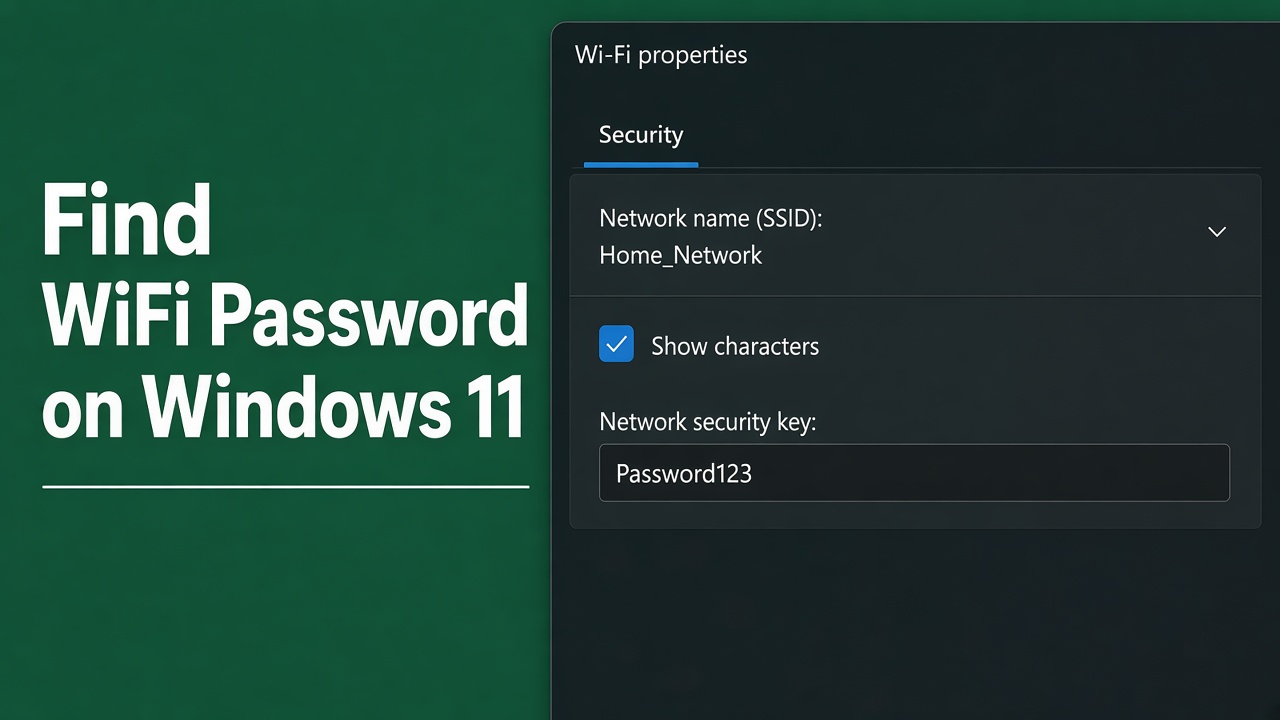
Forgetting your WiFi password can be frustrating, especially when you need to connect a new phone, laptop, smart TV, or another device. Fortunately, if your Windows 11 PC is already connected to the network or has connected to it before, you can usually retrieve the saved password without resetting your router.
There are several ways to find a WiFi password on Windows 11, including the Settings app, Control Panel, Command Prompt, and PowerShell. This guide explains the easiest methods step by step.
Quick Ways to Find Your WiFi Password in Windows 11
The best method depends on whether you want the password for your current WiFi connection or a network you connected to previously.
| Method | Best For | Difficulty |
|---|---|---|
| Windows 11 Settings | Current WiFi network | Easy |
| Control Panel | Current WiFi network | Easy |
| Command Prompt | Current and saved networks | Medium |
| PowerShell | Saved WiFi networks | Medium |
| Router settings | WiFi network management | Medium |
For most people, checking the Windows 11 WiFi settings is the quickest option.
How to Find WiFi Password on Windows 11 Using Settings
Newer versions of Microsoft Windows 11 make it easy to view the password for a WiFi network directly through Settings.
Step 1: Open Windows Settings
Press Windows + I on your keyboard to open the Settings app.
You can also right-click the Start button and select Settings.
Step 2: Open WiFi Settings
Go to:
Network & internet > Wi-Fi
Select the WiFi network whose password you want to view. Depending on your Windows 11 version, you may need to open Manage known networks and select the network.
Step 3: View the WiFi Security Key
Look for the option to view the WiFi security key or WiFi password.
Click View next to the appropriate option. Windows will display the saved network password.
You can now use this password to connect another device to the same wireless network.
How to Find Your WiFi Password Using Control Panel
The classic Control Panel provides another simple way to check the password of the WiFi network currently connected to your PC.
Open Network and Sharing Center
Search for Control Panel from the Windows 11 Start menu and open it.
Select:
Network and Internet > Network and Sharing Center
Next to Connections, click the name of your current WiFi network.
Open Wireless Properties
In the WiFi Status window, select Wireless Properties.
Open the Security tab.
You should see a field called Network security key. The characters will initially be hidden.
Check the Show characters box.
Your current WiFi password will appear in the Network security key field.
This method is particularly useful if your computer is already connected to the wireless network.
How to Find Saved WiFi Passwords Using Command Prompt
What if you need the password for a network that you are not currently connected to?
Windows stores WiFi profiles for networks your PC has previously connected to. You can use Command Prompt to access these saved network details.
Step 1: Find Saved WiFi Networks
Open the Start menu, type Command Prompt, and launch it.
Enter:
You can also change administrator account in Windows 11.
netsh wlan show profilesWindows will display the WiFi profiles saved on your computer.
Find the name of the network whose password you need.
Step 2: Display the Saved WiFi Password
Enter the following command, replacing NetworkName with the actual WiFi network name:
netsh wlan show profile name="NetworkName" key=clearLook under Security settings.
Find Key Content. The text next to it is the saved WiFi password.
For example, if your WiFi network is called HomeWiFi, you would enter:
netsh wlan show profile name="HomeWiFi" key=clearThis is one of the most useful methods when you need to find an old WiFi password on Windows 11.
How to Check WiFi Password Using PowerShell
You can also use Windows PowerShell or Windows Terminal to access saved wireless network information.
Right-click the Start button and select Terminal.
To see saved WiFi profiles, run:
netsh wlan show profilesOnce you know the network name, run:
netsh wlan show profile name="NetworkName" key=clearFind Key Content under Security settings.
Although you are using Windows Terminal or PowerShell, the underlying netsh command works in much the same way as it does in Command Prompt.
How to Find the WiFi Password Through Your Router
If Windows does not have the WiFi profile saved, another option is to check your wireless router.
Some routers have the default WiFi network name and password printed on a sticker on the bottom or back. Look for labels such as:
- WiFi Password
- Wireless Key
- WLAN Key
- Network Key
- Security Key
Keep in mind that the printed password may no longer work if someone has changed the router’s WiFi credentials.
You may also be able to sign in to your router’s administration interface and check its wireless or security settings. The exact process varies between router manufacturers.
Why Can’t I See My WiFi Password?
Sometimes Windows 11 may not display the password you expect.
One common reason is that the computer has never connected to that particular WiFi network. Windows can only retrieve a saved WiFi password when the relevant wireless profile exists on the computer.
The password may also have been changed on the router since your PC originally connected.
If your computer is connected using Ethernet rather than WiFi, the Control Panel method may not show an active wireless connection. In this situation, check Manage known networks or use the Command Prompt method to look for saved WiFi profiles.
Is It Safe to View a Saved WiFi Password?
Yes. Viewing the password for your own WiFi network or a network you’re authorized to use is a normal Windows feature.
However, WiFi passwords should still be treated as sensitive information. Avoid sharing screenshots containing passwords or leaving Command Prompt windows displaying the network security key on shared computers.
If you suspect someone has obtained your home WiFi password without permission, change the wireless password through your router and use WPA2 or WPA3 security when supported.
Which Method Should You Use?
If you simply want to find the WiFi password on Windows 11 for the network you’re currently using, start with the Settings app or Control Panel.
For a WiFi network your computer connected to previously, Command Prompt is usually the most flexible option because it can display saved wireless profiles and their security keys.
Windows 11 keeps this information available so you don’t have to remember every network password manually. As long as the WiFi profile remains saved on your PC, retrieving the password usually takes only a minute or two.