
Windows 11
How to Take a Screenshot on Windows 11: Easy Guide
Taking a screenshot is one of the easiest ways to save something you see on your computer screen. You may want to capture an error message, save an online receipt, share part of a conversation, or create a tutorial.
Windows 11 includes several built-in screenshot tools, so you usually do not need to install any extra software. You can capture your entire screen, a specific window, or just a selected area.
In this guide, you will learn how to take a screenshot on Windows 11 using keyboard shortcuts, the Snipping Tool, and other simple methods.
Quick Ways to Take a Screenshot on Windows 11
Windows 11 offers several screenshot options. The best method depends on what you want to capture and whether you want the image to be saved automatically.
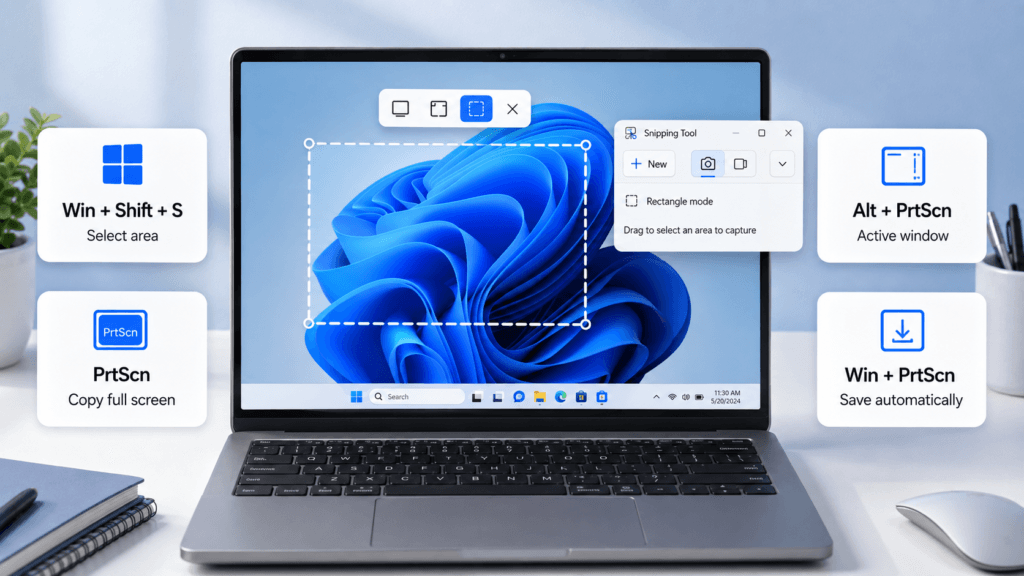
| Method | What It Captures | Automatically Saves? |
|---|---|---|
| PrtScn | Entire screen | Usually no |
| Windows + PrtScn | Entire screen | Yes |
| Windows + Shift + S | Selected area or window | No |
| Alt + PrtScn | Active window | No |
| Snipping Tool | Custom screenshot | Optional |
For most users, Windows + Shift + S is the most flexible option because it lets you select exactly what you want to capture.
How to Take a Screenshot Using Windows + Shift + S
One of the easiest ways to screenshot on Windows 11 is with the Snipping Tool shortcut.
Press:
Windows key + Shift + S
Your screen will become slightly darker, and a small toolbar will appear at the top.
You can choose from several capture modes:
Rectangular Snip
Drag your mouse around the part of the screen you want to capture. This is useful when you only need a specific section of a webpage, application, or document.
Freeform Snip
Draw a custom shape around the area you want to save.
Window Snip
Select an open application window, such as Microsoft Edge, Google Chrome, File Explorer, or another program.
Full-Screen Snip
Capture everything currently visible on your display.
After taking the screenshot, Windows copies it to the clipboard. A notification may also appear. Click the notification to open the screenshot in the Snipping Tool, where you can crop, draw, highlight, or save the image.
How to Screenshot the Entire Screen With PrtScn
Most Windows keyboards include a Print Screen key. It may appear as:
PrtScn, PrtSc, or Print Scr
Pressing the Print Screen key captures your entire display and copies the screenshot to the clipboard.
You can then open an app such as:
- Microsoft Paint
- Microsoft Word
- Outlook
- Photoshop
- Another image editor
Press Ctrl + V to paste the screenshot.
You can then save it as a PNG, JPG, or another image format.
On some laptops, you may need to press Fn + PrtScn instead.
How to Automatically Save a Screenshot in Windows 11
If you do not want to manually paste and save every screenshot, use:
Windows key + PrtScn
Windows captures the entire screen and automatically saves the image.
Your display may briefly dim to confirm that the screenshot has been taken.
Where Are Screenshots Saved in Windows 11?
Screenshots taken with Windows + PrtScn are normally stored in:
Pictures > Screenshots
You can open File Explorer, select Pictures, and then open the Screenshots folder.
The files are usually saved as PNG images with names such as:
Screenshot (1).png
If your Pictures folder is synchronized with Microsoft OneDrive, your screenshots may instead be stored inside your OneDrive folders depending on your settings.
How to Screenshot One Window Only
Sometimes you only want to capture the currently active program instead of everything on your desktop.
First, click the window you want to capture.
Then press:
Alt + PrtScn
Windows copies an image of the active window to your clipboard.
Open Paint or another application and press Ctrl + V to paste it.
This method is useful when you want to capture an application without including your desktop, taskbar, or other open windows.
How to Use the Snipping Tool in Windows 11
Windows 11 includes a dedicated app called Snipping Tool.
To open it:
- Click the Start menu.
- Type Snipping Tool.
- Open the app.
- Click New.
- Select the area you want to capture.
The Snipping Tool also lets you edit screenshots after taking them.
You can crop the image, draw on it, highlight important information, copy it to the clipboard, or save it to your computer.
Take a Delayed Screenshot
The Snipping Tool also includes a delay option.
You can set a short delay before the screenshot is captured. This can be helpful when you need to open a menu, dropdown, tooltip, or another element that disappears when you click elsewhere.
How to Take a Screenshot on a Windows 11 Laptop
Taking a screenshot on a Windows 11 laptop works almost the same way as on a desktop PC.
However, laptop keyboards often combine multiple functions into the same keys.
Depending on your laptop model, you may need combinations such as:
Fn + PrtScn
or
Fn + Windows + PrtScn
The exact shortcut can vary between manufacturers such as Dell, HP, Lenovo, ASUS, Acer, and Samsung.
The Windows + Shift + S shortcut is generally the easiest option because it works on most Windows 11 computers.
Best Screenshot Method for Windows 11
The best method depends on what you need.
Use Windows + Shift + S when you want to capture a specific part of the screen. Use Windows + PrtScn when you want to capture the entire display and automatically save the screenshot.
Use Alt + PrtScn when you only need the active application window.
Once you learn these simple Windows 11 screenshot shortcuts, capturing and sharing anything on your screen becomes much faster. Since all of these tools are built directly into Microsoft Windows 11, you can take screenshots without installing additional software.
Frequently Asked Questions
How do I take a screenshot on Windows 11?
The easiest way to take a screenshot on Windows 11 is to press Windows + Shift + S. This opens the Snipping Tool overlay, where you can capture a selected area, a specific window, or the full screen.
Where are screenshots saved in Windows 11?
If you use Windows + PrtScn, Windows normally saves your screenshots automatically in the Pictures > Screenshots folder. Screenshots taken with other shortcuts may be copied to the clipboard instead.
What does the PrtScn key do in Windows 11?
The PrtScn or Print Screen key can capture your computer screen. Depending on your Windows settings, it may copy the full screen to the clipboard or open the Snipping Tool so you can select an area to capture.
How do I screenshot only one window in Windows 11?
Click the window you want to capture and press Alt + PrtScn. Windows copies a screenshot of the active window to your clipboard. You can then paste it into Paint, Word, an email, or another application.
How do I take a screenshot on a Windows 11 laptop?
You can usually press Windows + Shift + S on a Windows 11 laptop. Some laptops may require you to press the Fn key along with PrtScn, such as Fn + PrtScn, depending on the keyboard layout.
Can I edit a screenshot after taking it in Windows 11?
Yes. You can open screenshots in the Snipping Tool to crop, highlight, draw, and make simple edits. You can also use Microsoft Paint for resizing, adding text, drawing shapes, and saving the image in different formats.