
Excel library
How to Combine Two Columns in Excel?
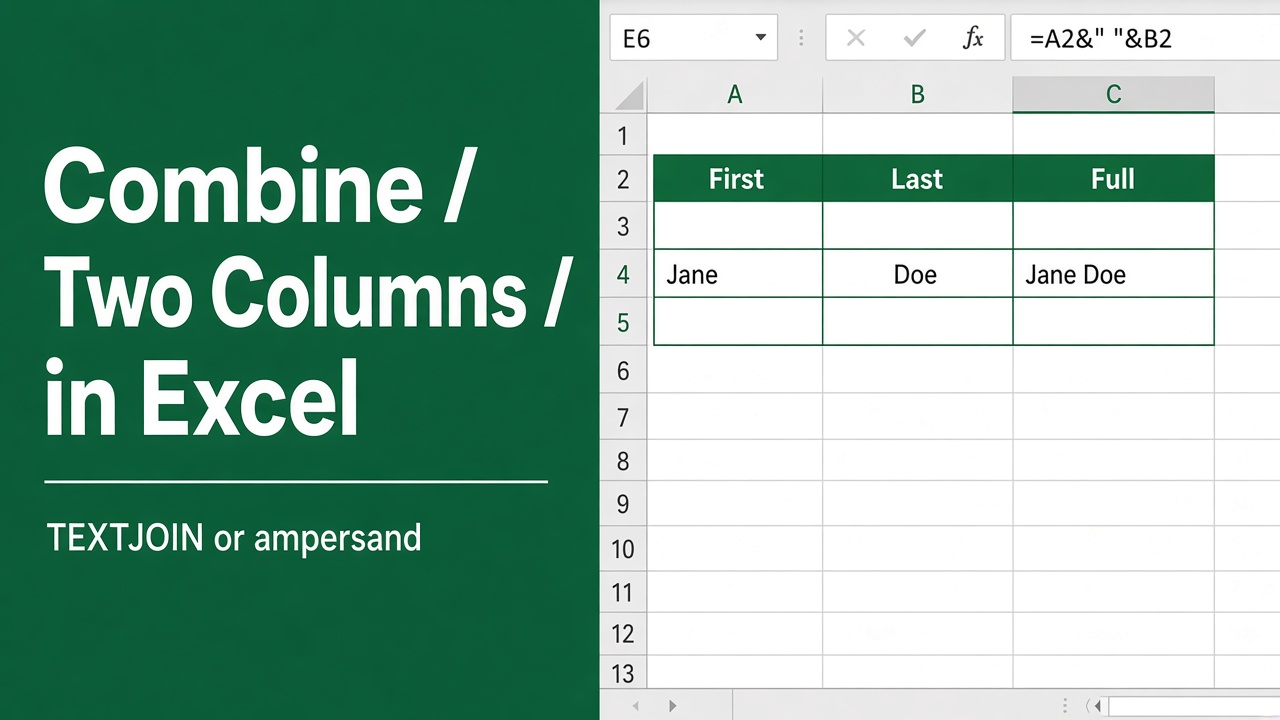
Combining data from two columns is one of the most useful tasks in Microsoft Excel. Whether you want to merge first and last names, join city and state, or create a complete address, Excel offers several simple methods to do the job.
In this guide, you’ll learn how to combine two columns in Excel using formulas, built-in functions, and the Flash Fill feature. Each method works for different situations, helping you choose the fastest and most effective option.
Combine Two Columns Using the Ampersand (&) Operator
The ampersand (&) operator is one of the easiest ways to join text in Excel.
Basic Formula
If your data is in cells A2 and B2, use:
=A2&B2This joins the contents without any space.
Example
| A | B | Formula | Result |
|---|---|---|---|
| John | Smith | =A2&B2 | JohnSmith |
Add a Space Between Words
To insert a space, include a space inside quotation marks.
=A2&" "&B2Result:
| A | B | Result |
|---|---|---|
| John | Smith | John Smith |
You can also insert other characters.
| Formula | Output |
|---|---|
| =A2&”, “&B2 | New York, NY |
| =A2&”-“&B2 | INV-1001 |
| =A2&”/”&B2 | 2025/001 |
The & operator works in almost every modern version of Microsoft Excel.
Use the CONCAT Function
The CONCAT function is a newer replacement for the older CONCATENATE function. It combines text from multiple cells into one.
Syntax
=CONCAT(text1, text2)Example
=CONCAT(A2," ",B2)Result:
John Smith
Unlike the ampersand operator, CONCAT can also combine multiple text strings more easily when working with several columns.
Example with Three Columns
=CONCAT(A2," ",B2,", ",C2)If:
| A | B | C |
|---|---|---|
| John | Smith | Manager |
The result becomes:
John Smith, Manager
Combine Columns with the TEXTJOIN Function
If you use Excel 2019, Excel 2021, or Microsoft 365, TEXTJOIN is one of the most powerful options.
Syntax
=TEXTJOIN(delimiter, ignore_empty, text1, text2)Example
=TEXTJOIN(" ",TRUE,A2,B2)Output:
John Smith
Why TEXTJOIN Is Helpful
The TEXTJOIN function can automatically ignore empty cells.
For example:
| A | B | Result |
|---|---|---|
| John | Smith | John Smith |
| Sarah | (blank) | Sarah |
This prevents extra spaces from appearing in your combined text.
Combine Two Columns Without Using Formulas
If you only need the final values and not formulas, Flash Fill is a quick solution.
Steps
- Enter the combined value manually in the first row.
- For example, type John Smith.
- Select the next empty cell.
- Press Ctrl + E.
- Excel automatically fills the remaining rows.
Flash Fill recognizes patterns and combines the columns for you.
This method is ideal for one-time data cleanup.
Replace Formulas with Values
After combining columns, you may want to keep only the finished text.
Follow these steps:
- Select the cells containing the formulas.
- Press Ctrl + C.
- Right-click the selected area.
- Choose Paste Special.
- Select Values.
The formulas disappear, leaving only the combined text.
This is especially useful before sharing a workbook or exporting data.
Common Ways to Combine Excel Columns
The table below compares the most popular methods.
| Method | Best For | Supports Empty Cells | Easy to Use |
|---|---|---|---|
| & Operator | Everyday tasks | No | Excellent |
| CONCAT | Multiple text strings | No | Very Good |
| TEXTJOIN | Modern Excel versions | Yes | Excellent |
| Flash Fill | One-time merging | Yes | Excellent |
Common Mistakes to Avoid
Even simple formulas can produce unexpected results if you are not careful.
Forgetting Spaces
Using:
=A2&B2creates:
JohnSmith
Instead, use:
=A2&" "&B2Using the Wrong Function
Older versions of Excel may not support TEXTJOIN or CONCAT. If you are using Excel 2016 or earlier, the & operator or CONCATENATE function may be your best option.
Leaving Hidden Spaces
Extra spaces in your original data can create inconsistent results.
Use the TRIM function to remove unnecessary spaces.
=TRIM(A2)&" "&TRIM(B2)This creates cleaner text and improves data quality.
Tips for Working with Combined Data
A few simple practices can make your spreadsheet easier to manage:
- Use cell references instead of typing text repeatedly.
- Keep the original columns until you verify the results.
- Use TEXTJOIN when working with optional or empty fields.
- Convert formulas to values before deleting the source columns.
- Check for extra spaces using the TRIM function.
- Save a backup copy before making large changes to your worksheet.
Frequently Asked Questions
How do I combine two columns in Excel with a space?
Use the ampersand operator with a space inside quotation marks. For example, if the values are in cells A2 and B2, enter =A2&" "&B2. This combines both cells while adding a space between them.
How do I combine two columns in Excel without losing data?
Create the combined result in a new empty column rather than changing the original columns. After checking the results, copy the combined cells and use Paste Special > Values before deleting the source columns.
Which Excel function is best for combining two columns?
The best method depends on your Excel version and data. The ampersand operator is simple and works in most versions. CONCAT is useful for joining several text values, while TEXTJOIN is ideal when you want to add a separator and ignore empty cells.
How do I combine two columns in Excel and ignore blank cells?
Use the TEXTJOIN function. For example, enter =TEXTJOIN(" ",TRUE,A2,B2). The space acts as the separator, and TRUE tells Excel to ignore empty cells.
Can I combine two Excel columns without using a formula?
Yes. You can use Flash Fill. Type the desired combined result in the first cell of a new column, select the next cell, and press Ctrl + E. Excel will identify the pattern and fill the remaining rows automatically.
How do I keep combined text after deleting the original columns?
Copy the cells containing the combined formulas, then use Paste Special > Values. This replaces the formulas with fixed text, allowing you to delete the original columns without affecting the combined results.