
Excel library
How to Add Text at the End of a Cell in Excel (5 Ways)
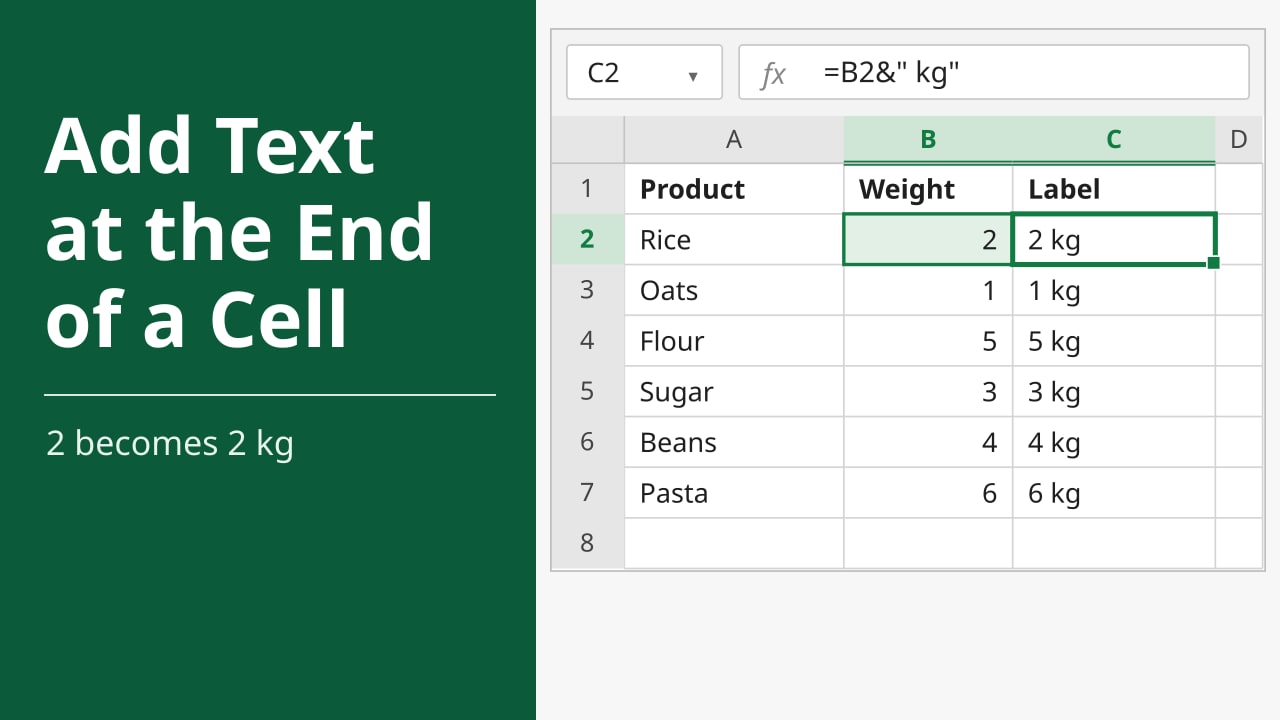
You have weights, codes, or names, and every cell needs the same extra text on the end.
Adding text at the end of a cell joins a suffix, so 2 becomes 2 kg. In this tutorial, I'll show you how to add text at the end of a cell in Excel.
- Select the cell beside the value, such as C2.
- Type
=B2&" kg"and press Enter. Put your suffix inside the quotes, with a space if you want one. - Copy the formula down the column.
The & formula suits most sheets. It works in every Excel version, and it updates when the source cell changes.
All five methods use the same list in A1:B7. Products are in column A and weights are in column B. The labels we want are 2 kg, 1 kg, 5 kg, 3 kg, 4 kg, and 6 kg.
| Product | Weight |
|---|---|
| Rice | 2 |
| Oats | 1 |
| Flour | 5 |
| Sugar | 3 |
| Beans | 4 |
| Pasta | 6 |
Method 1: Using & to Add Text at the End of a Cell in Excel
Use the & operator when you want real text that updates if the weight changes. It works in every version of Excel. The labels go in column C.
- Select cell C2.
- Type the formula below.
- Press Enter. Cell C2 shows 2 kg.
- Double-click the fill handle on C2, the small square at its bottom-right, so the formula fills through C7.
=B2&" kg"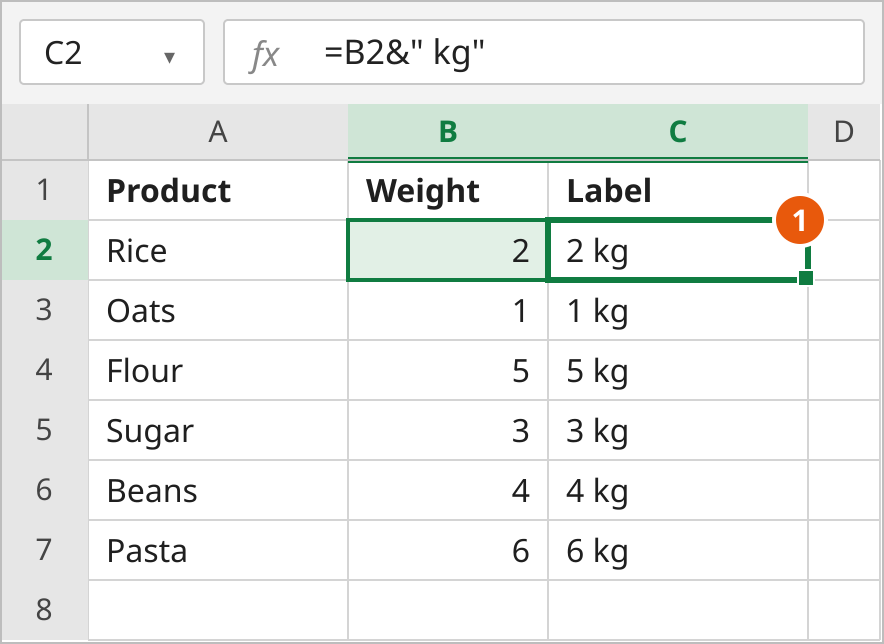
How this works
The & operator joins the value on its left to the text in quotes. Excel turns 2 into text, then adds a space and kg. Leave the space out and the cell shows 2kg. Column B is unchanged, so SUM(B2:B7) is still 21. Column C is text, so SUM(C2:C7) returns 0. For blank padding instead of a word, see how to add spaces after text.
Turn the formulas into values
- Select C2:C7 and press Ctrl+C.
- On the Home tab, click the arrow under Paste, then click Values.
- Select C2. The formula bar now shows 2 kg, not a formula.
On Windows, Ctrl+Alt+V, then V, then Enter does the same thing. In Microsoft 365, Ctrl+Shift+V pastes values in one step.
Note: After you paste values, editing a weight does not update the label.
Method 2: Using CONCAT or CONCATENATE
CONCAT does the same join as & if you prefer a function. It is in Excel 2019 and later, and in Microsoft 365. Perpetual Excel 2016 and earlier use CONCATENATE instead. The CONCATENATE formula guide covers that function.
- Select cell C2.
- Type the formula below.
- Press Enter.
- Fill the formula down to C7.
=CONCAT(B2," kg")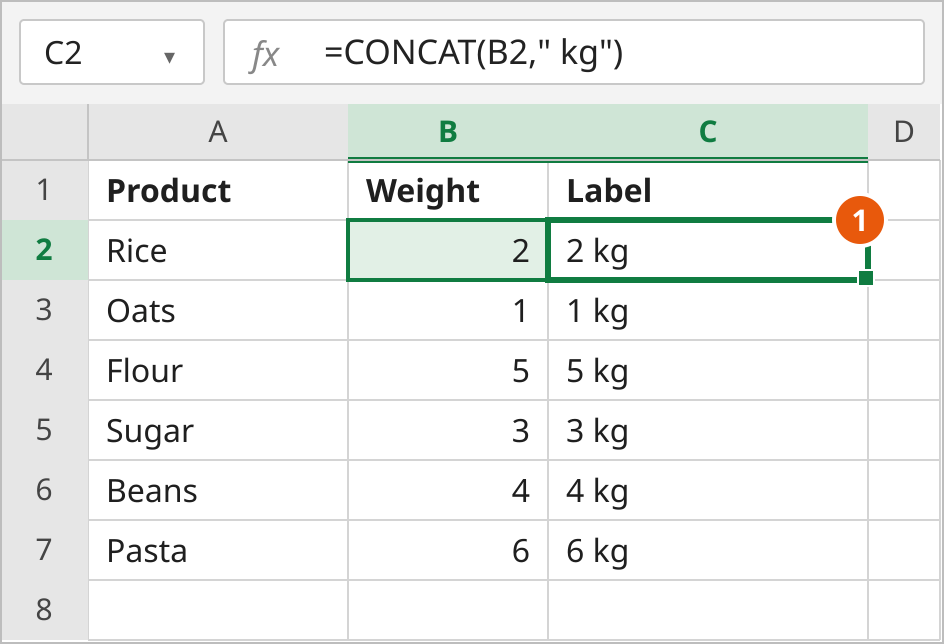
The labels match Method 1. In older Excel, use this formula instead.
=CONCATENATE(B2," kg")How this works
CONCAT sticks its arguments together in order and inserts nothing between them, so the space sits inside the quotes. A range such as A2:B2 has no separator of its own. To join two columns, see how to combine two columns in Excel. To join many cells and skip blanks, use TEXTJOIN in Excel 2019 and later, including Microsoft 365, as shown in combining text from multiple cells.
Method 3: Using a Custom Number Format
Use a custom number format when the cell should look like 2 kg but must stay the number 2. The suffix is display only, so sums still work.
- Select B2:B7.
- Press Ctrl+1 on Windows, or Command+1 on a Mac, to open Format Cells. Or click the small arrow at the corner of the Number group on the Home tab.
- On the Number tab, click Custom.
- In the Type box, enter the format below, then click OK.
0" kg"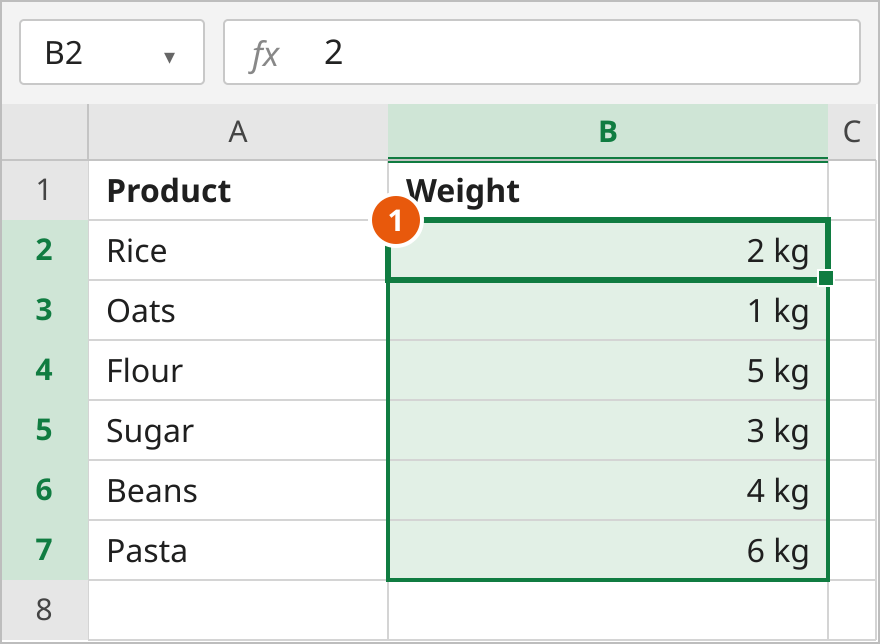
B2 still stores 2. SUM(B2:B7) returns 21.
How this works
A custom format paints text onto the number. The 0 stands for the digits. Characters inside quotes are shown after those digits. The stored value does not change, which is why the formula bar still shows 2.
For text already in a cell, @ stands for that text. The format below turns Rice into Rice pack.
@" pack"To put text at the start of the cell instead, see how to add a prefix in Excel without a formula.
Note: 0" kg" rounds the display to a whole number. A weight of 1.5 would look like 2 kg while the cell still held 1.5. Use 0.0" kg" for one decimal. Paste values from these cells and you get 2, not 2 kg.
Method 4: Using Flash Fill
Use Flash Fill when you want real text and you do not need the labels to update later. On Windows it is in Excel 2013 and later.
- In C2, type the example below. This teaches the pattern.
- Select cell C3.
- On the Data tab, click Flash Fill. On Windows, Ctrl+E does the same thing.
- Check C3:C7. They should read 1 kg, 5 kg, 3 kg, 4 kg, and 6 kg.
2 kg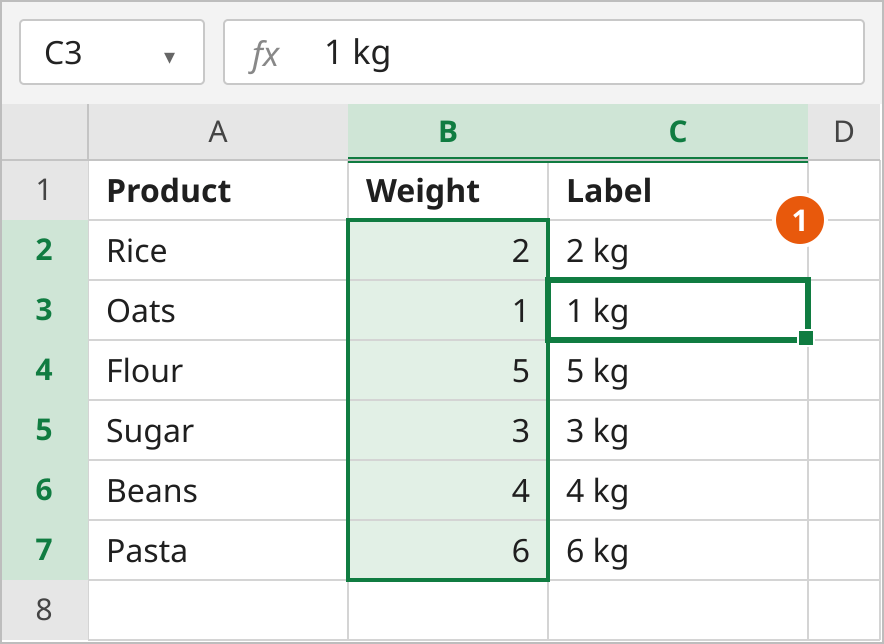
How this works
Flash Fill repeats your example down the column. The results are values, so the formula bar for C3 shows 1 kg. Change B4 from 5 to 8 and C4 stays 5 kg.
Note: If nothing fills, type 1 kg in C3, select C4, and click Flash Fill again. On Windows, check Automatically Flash Fill under File > Options > Advanced if the preview never appears.
Method 5: Using Power Query Add Suffix
In Microsoft 365, use Power Query when a table you refresh should get the same suffix again. The original sheet stays as it is, and the result loads to a new sheet.
- Select any cell in A1:B7.
- On the Data tab, in Get & Transform Data, click From Table/Range.
- If Create Table opens, leave My table has headers checked and click OK.
- In the Power Query Editor, select the Weight column. Click the data type icon on its header and choose Text.
- On the Add Column tab, click Format, then Add Suffix.
- Type a space followed by kg, as below, and click OK.
- Right-click the new column header, click Rename, and type Label.
- On the Home tab, click Close & Load.
kg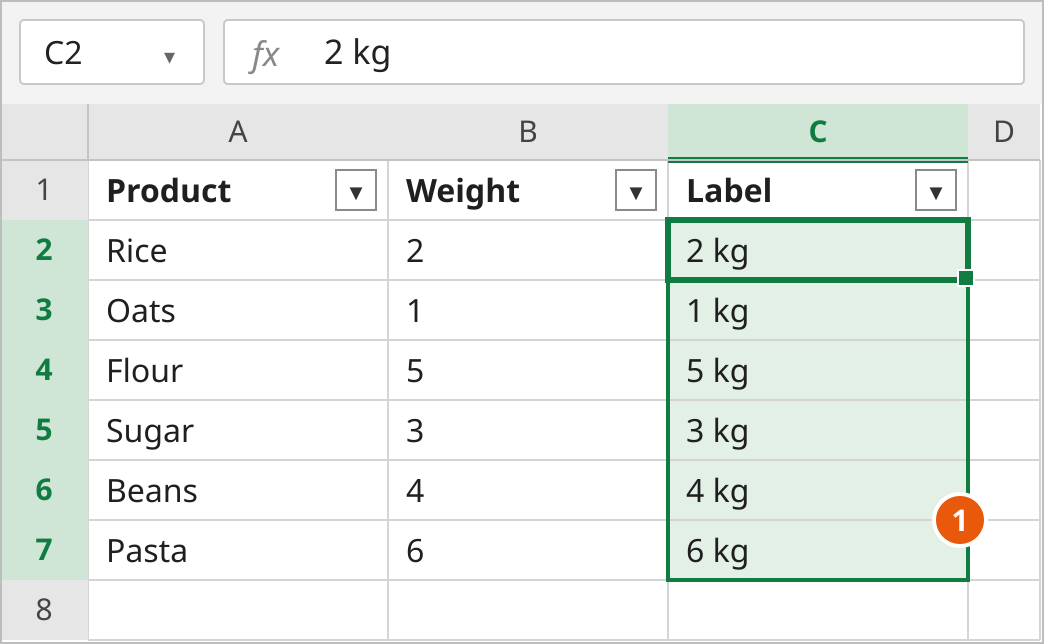
How this works
Add Suffix appends the characters you typed into a new column. Label is text, so you cannot sum it. Weight in this result is text too, because the steps set its type to Text. The source sheet still holds the numbers. Transform > Format > Add Suffix would rewrite Weight instead of adding a column. Right-click the result and click Refresh after the source table changes.
FAQs
How do I add text at the end of a cell without a formula?
Why is there no space before kg?
Can I still calculate with the number after adding kg?
How do I add text at the end of a text cell?
What happens if the cell contains a date?
Conclusion
For most lists, use =B2&" kg". It is short, it works in every Excel version, and it updates when the weight changes. Switch to the custom format 0" kg" when the cell has to stay a number you can sum. Use Flash Fill for a one-off column of real text, and Power Query when the same suffix should come back on every refresh.