
Excel library
How to Use Windows Excel Shortcuts on a Mac (3 Easy Ways)
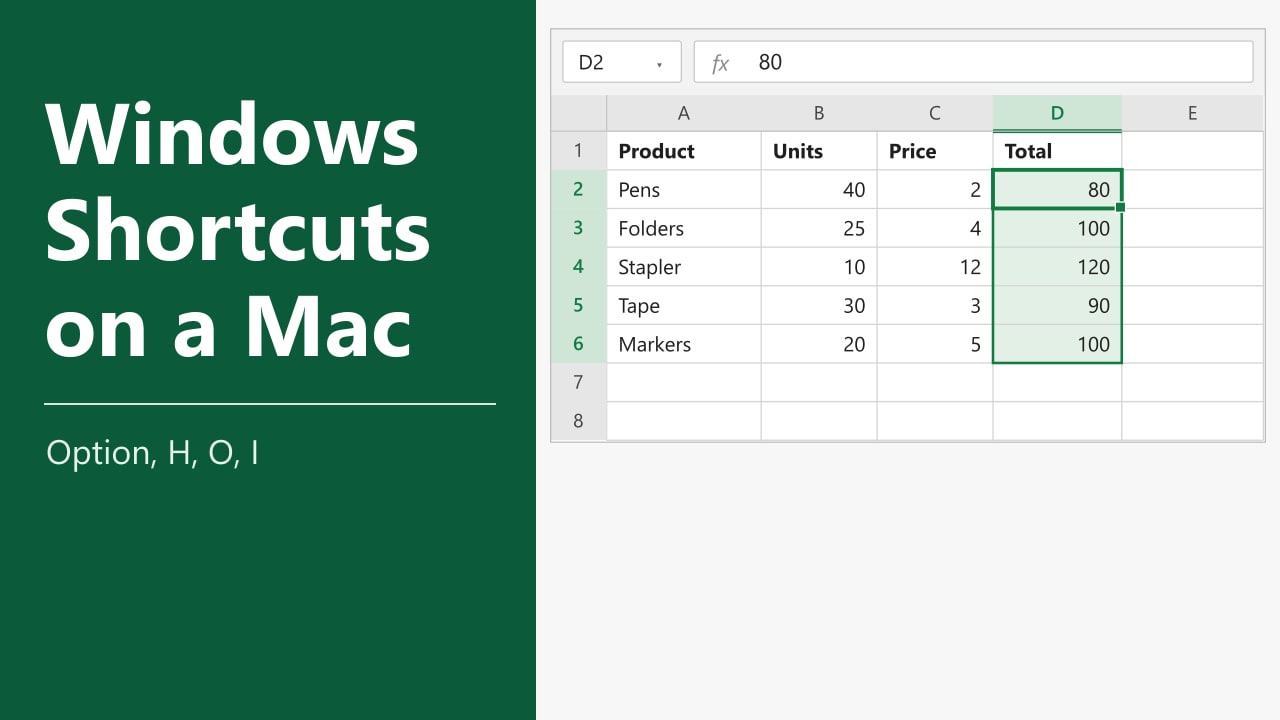
You spent years on Windows, so Alt, H, O, I and Alt, H, V, V live in your fingers. Then a Mac lands on your desk and half of those shortcuts do nothing. Most Ctrl shortcuts carry over with the Command key, but the Alt ribbon sequences need a few extra steps, and in this tutorial, I'll show you how to use Windows Excel shortcuts on a Mac.
- Use Command wherever Windows uses Ctrl (Cmd + C, Cmd + V, Cmd + Z).
- In Excel, open Preferences (or Settings) > Accessibility and set the KeyTips activation keystroke to Option.
- Tap Option, then type the letters one after another, for example H, O, I to fit a column.
If the Windows letters you remember stop working partway, a small add-on called RibbonBridge (Method 1) fills in the missing ones.
Why Windows Shortcuts Don't Work Out of the Box on a Mac
Two things change when you move to Excel for Mac. The Ctrl key is mostly replaced by Command (⌘), and the Alt key becomes Option (⌥). The second change is the harder one, because tapping Alt on Windows opens the whole ribbon keyboard system, while tapping Option on a Mac does nothing until you switch it on.
Our example data is a small order list. Product names are in A1:A6 and the totals in D2:D6 are formulas that multiply units by price.
Method 1: Use RibbonBridge to Get the Windows Letters Back
RibbonBridge is a small Mac app that builds on Excel's KeyTips. It adds the Windows letters to the items that have none, so the sequences you already know work as typed in Excel, PowerPoint and Word. If you rely on long sequences every day, this is the method that saves you from relearning anything.
Get RibbonBridge for 20% off with code EXCELSAMURAI
Pay €12 instead of €15. The price rises to €25 on 1 December, so you save the most if you buy this month.
- One-time purchase, no subscription
- 7-day free trial, only an email address needed
- Works in Excel, PowerPoint and Word for Mac
Try RibbonBridge free for 7 days
Affiliate link: I earn a commission if you buy, at no extra cost to you.
- Go to ribbonbridge.com, download the app and start the free 7-day trial. It asks only for an email address.
- Open the app and allow the Accessibility permission when macOS asks. The developer says it is used only inside Office, after a lone Option tap.
- Turn on KeyTips in Excel and set the activation keystroke to Option. The steps are in Method 3.
- Select a cell in Excel.
- Tap Option, then type the Windows letters, for example H, V, V.
Here are three sequences from the developer's own examples. Each one is written the Windows way, with the Mac Option symbol in front.
| Shortcut | What it does |
|---|---|
| ⌥ H O I | Fits the column width to its longest entry |
| ⌥ H V V | Pastes values only |
| ⌥ H B A | Adds all borders to the selection |
Example: Paste Values with ⌥ H V V
Say you want to turn the totals in D2:D6 from formulas into plain numbers.
- Select D2:D6. Cell D2 currently holds a formula.
- Press Cmd + C to copy.
- Tap Option, then press H, V, V one after another.
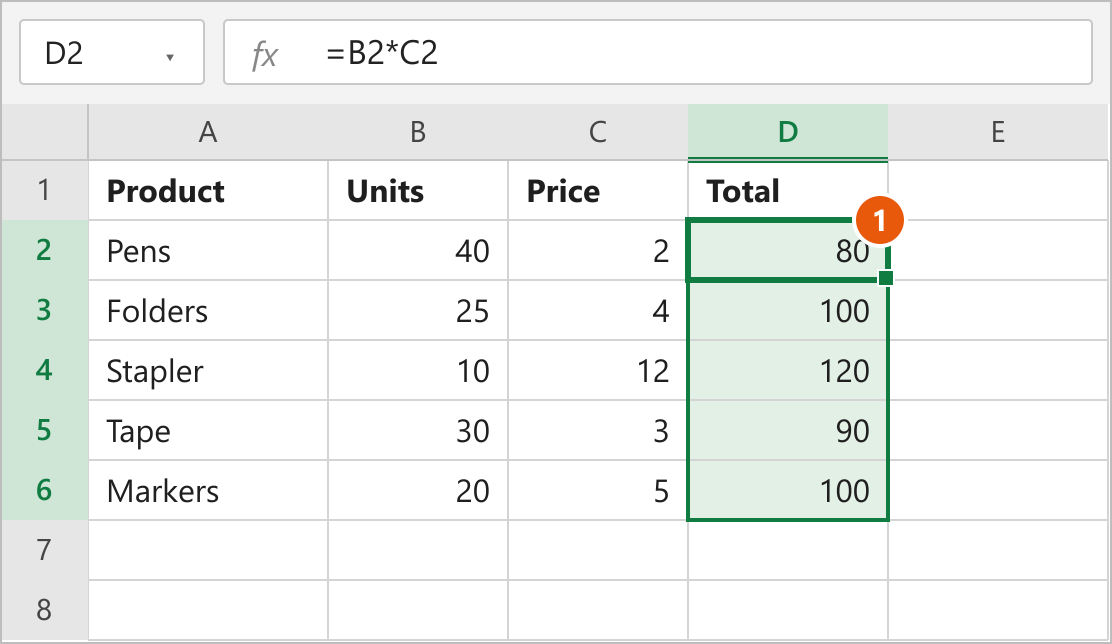
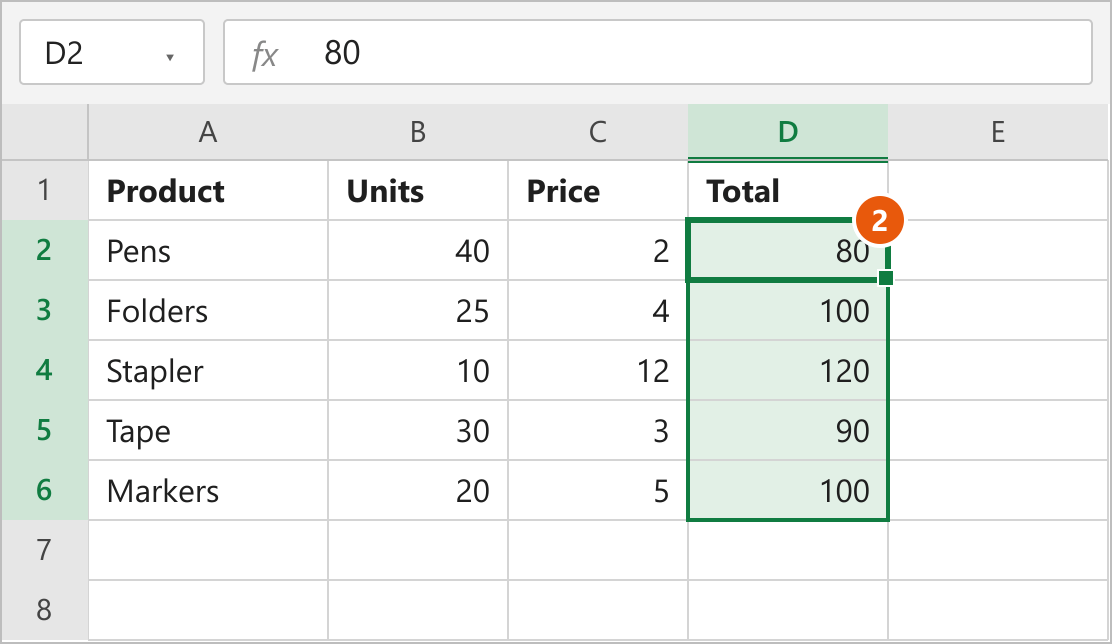
How this works: Tapping Option starts KeyTips, H opens the Home tab, the first V opens the Paste menu and the second V picks Values. The formulas are replaced by their results, and the formatting stays as it was. We have a separate guide on the paste values shortcut on Mac if you want the native alternatives.
Example: Fit a Column with ⌥ H O I
- Click any cell in column A.
- Tap Option.
- Press H, then O, then I.
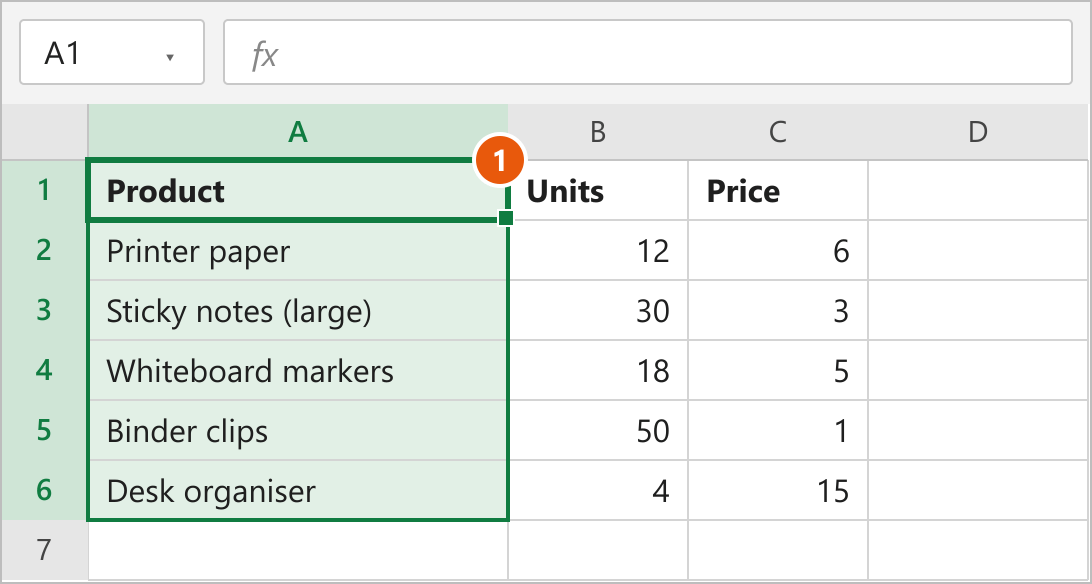
How this works: H is Home, O is the Format menu and I is AutoFit Column Width. The column grows or shrinks to match the longest value in it. This is the same sequence we describe in our article on the shortcut to adjust column width.
Function Keys and AutoSum
Two smaller things come with the tool. It makes the top row of keys act as F1 to F12 inside Office without holding fn, while brightness and volume keys still work in other apps. It also gives you AutoSum on Option + =, the same keys as Alt + = on Windows. The F4 key for cycling cell references is the one most people miss on a Mac, and our guide to the F4 shortcut on Mac covers it.
You can switch the function key behaviour off in the app, and you can block F1 so it does not open Help in Excel. macOS also has its own setting for standard function keys, if you prefer to change it system-wide.
Price, Trial and Requirements
RibbonBridge is a one-time purchase with no subscription, and one licence covers one Mac. The price is €15 at the time of writing and rises to €25 on 1 December. Readers of this site can use the code EXCELSAMURAI for 20% off, which brings it to €12. The 7-day trial lets you test your own shortcuts before paying.
It needs macOS 13 or later and Microsoft 365 for Mac with KeyTips turned on. It supports the English (Alt H) and German (Alt R) Windows layouts only, so Spanish, French and other Windows shortcut languages are not covered.
One licence covers Excel, PowerPoint and Word for Mac, so the same sequences work in all three. Set the KeyTips activation keystroke to Option in each app's Accessibility preferences.
Method 2: Swap Ctrl for Command
This is the free way to cover the shortcuts you use most. For these, press the same letter as on Windows and replace Ctrl with Command.
| Action | Windows | Mac |
|---|---|---|
| Copy | Ctrl + C | Cmd + C |
| Paste | Ctrl + V | Cmd + V |
| Cut | Ctrl + X | Cmd + X |
| Undo | Ctrl + Z | Cmd + Z |
| Redo | Ctrl + Y | Cmd + Y |
| Save | Ctrl + S | Cmd + S |
| Bold | Ctrl + B | Cmd + B |
| Select all | Ctrl + A | Cmd + A |
| Format Cells | Ctrl + 1 | Cmd + 1 |
| Jump to the edge of the data | Ctrl + Arrow | Cmd + Arrow |
Note: Not every shortcut follows this pattern. Ctrl + Arrow on a Mac is claimed by macOS for switching desktops, which is why Excel uses Cmd + Arrow instead. Our guide to Excel shortcut keys for Mac lists more of the exceptions.
Method 3: Turn On KeyTips and Use the Option Key
KeyTips are the little letters that pop up over the ribbon when you tap Alt on Windows. Excel for Mac has them too, but they are switched off by default. Microsoft says they need Office version 16.89 or later.
- Click Excel in the Mac menu bar and choose Preferences (newer builds call it Settings).
- Click Accessibility.
- Under KeyTips, set Activation keystroke to Option. This matches the Alt key on a PC.
- Close the window and click any cell.
- Tap Option once and let go. Letters appear over the ribbon tabs.
- Press a letter, for example H for the Home tab, and keep going until you reach the command. Press Esc to cancel.
This works the same way as Windows: you tap the key, then type the letters one at a time. You do not hold Option down.
Where Built-in KeyTips Fall Short
The letters shown follow Excel for Mac's own layout, so a sequence you remember from Windows may stop partway or end somewhere else. According to the developer of the tool in Method 1, KeyTips on the Mac cover ribbon tabs and buttons but not items inside dropdown menus such as Borders. If that has bitten you, Method 1 is the fix. For a longer list of Option-key combinations, see our article on how to use Alt shortcuts on Mac Excel.
FAQs
Is there an Alt key on a Mac?
Do Windows Ctrl shortcuts work on a Mac?
Do I need RibbonBridge to use Alt shortcuts on a Mac?
Why does nothing happen when I tap Option in Excel?
Will RibbonBridge change how Option works for typing?
Conclusion
If you rely on long Windows sequences every day, RibbonBridge (Method 1) is the quickest route, and the 7-day trial lets you try your own shortcuts before you pay. If you only need the basics, Command in place of Ctrl and Excel's built-in KeyTips are free. Remember the RibbonBridge price goes up on 1 December.