
Excel library
How to Share an Excel File for Editing by Multiple Users
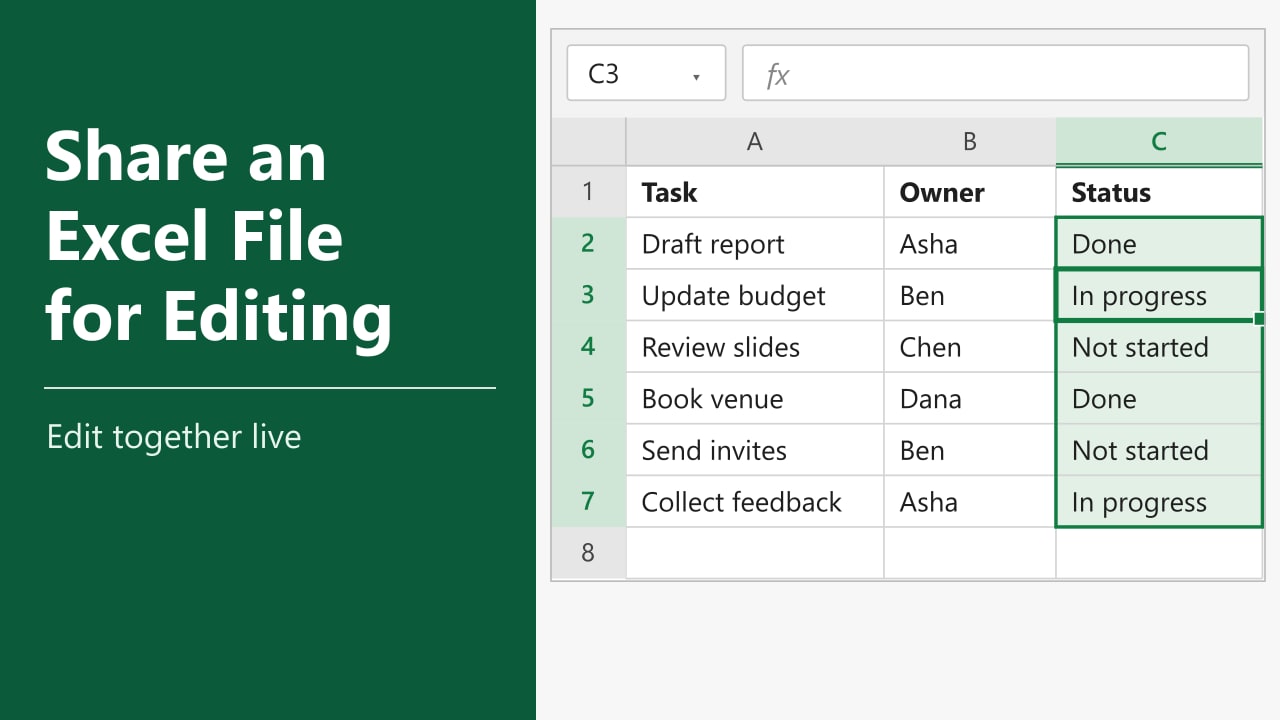
You send a workbook to a colleague, they open it, and a minute later you see the message that the file is locked for editing. Only one person can work in an Excel file at a time when it is passed around as an attachment, and the rest of the team has to wait or end up with copies that do not match. Excel can fix this by letting several people edit the same file together, and in this tutorial I’ll show you how to share an Excel file for editing by multiple users.
- Save the workbook to OneDrive or SharePoint.
- Click Share at the top right of the Excel window.
- Type the email addresses, set the permission to Can edit, and click Send.
Everyone who opens the file can then edit it at the same time. Method 1 below walks through it.
What You Need Before You Share
Real-time editing works only when the file lives in the cloud. Excel for Microsoft 365 and recent versions such as Excel 2021 can co-author a workbook saved to OneDrive or SharePoint, and the people you invite can also edit in Excel for the web with just a browser. The file also needs the .xlsx format; older .xls files cannot be co-authored.
Our example is a small task tracker in A1:C7 with a task, an owner and a status for each row. Several people will update the Status column, so it is a good fit for shared editing.
Method 1: Share the Workbook With Specific People
Use this method when you know who needs access. Each person gets an email with a link to the file, and you control whether they can edit or only view.
Start with the tracker open in Excel.
- Click File, then Save As, and choose your OneDrive or a SharePoint location.
- Give the file a name and click Save. The title bar now shows that the file is saved to the cloud.
- Click the Share button in the top-right corner of the Excel window.
- In the box that says Add a name, group, or email, type the email address of each person.
- Open the permission drop-down next to the box and choose Can edit.
- Add a short message if you like, then click Send.
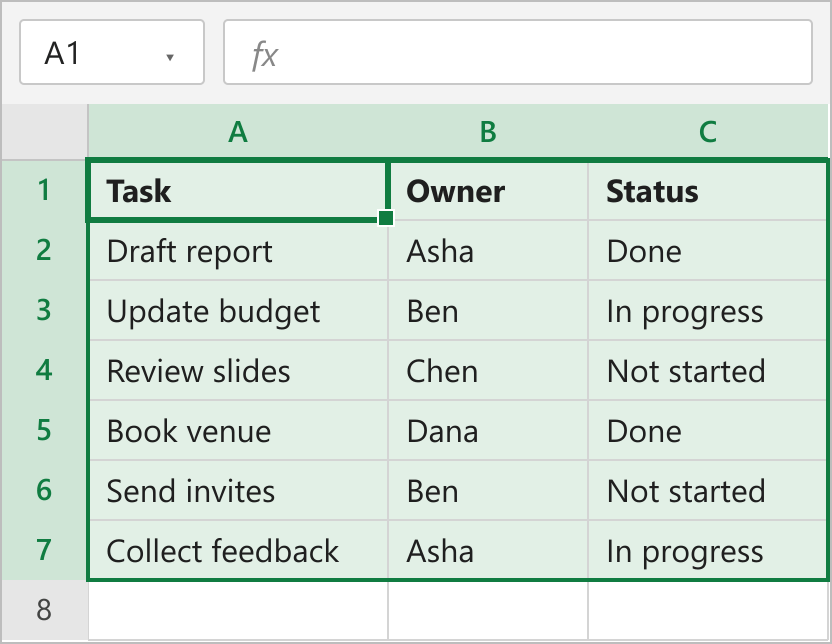
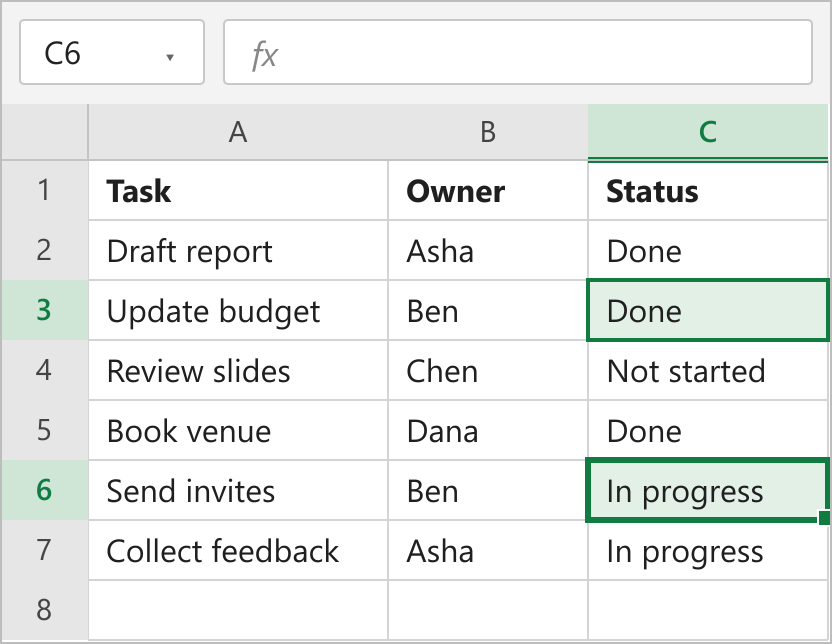
Each person receives an email and can open the workbook in Excel for the web or in the desktop app. When two people are in the file, Excel shows who else is editing, and changes appear in the cells within a few seconds.
How this works
Because the file is stored online, everyone opens the same copy instead of their own attachment. Excel merges the edits as they are made, so there is no “locked for editing” message and no second version to reconcile. If you choose Can view instead of Can edit, the person can read the file but not change it.
Note: Turn on AutoSave at the top left of the window. With AutoSave on, your changes are saved to the cloud as you type and other people see them quickly.
Method 2: Share the Workbook With a Link
Use this method when you want to paste the link into a chat message or an email yourself, or when the group is too large to type every address. You choose who the link works for.
- Save the workbook to OneDrive or SharePoint, as in Method 1.
- Click Share in the top-right corner.
- Click Copy link. Excel creates a link and copies it.
- To change who can use it, click the link setting that appears under the link, such as Anyone with the link can edit.
- In the settings that open, pick who the link works for and make sure Allow editing is ticked, then click Apply.
- Paste the link into an email or a chat message and send it.
The options you see depend on your account. Work and school accounts often limit links to people inside the organization, while a personal account may allow anyone with the link.
How this works
A link with editing allowed opens the same cloud file for everyone who has it. This is quick, but anyone who receives the link can pass it on, so for private data it is safer to pick a setting that works only for specific people. If you only want to give access to one sheet, see our guide on how to share only one sheet in Excel Online.
See who changed what
To find out who edited a cell, go to the Review tab and click Show Changes. To go back to an earlier copy after a mistake, click File, then Info, then Version History.
Method 3: Use the Legacy Shared Workbook Feature
Use this method only when the file must stay on a shared network folder and cannot go to OneDrive or SharePoint. The older Share Workbook (Legacy) command is hidden in current versions of Excel, so you add it to the Quick Access Toolbar first. Microsoft recommends co-authoring instead, and this older feature has limits, such as no option to insert tables.
- Click File, then Options, then Quick Access Toolbar.
- In the Choose commands from list, select Commands Not in the Ribbon.
- Select Share Workbook (Legacy), click Add, and then click OK.
- Click the new Share Workbook (Legacy) button in the Quick Access Toolbar.
- On the Editing tab, tick Allow changes by more than one user at the same time, then click OK.
- Save the workbook in a network folder that your teammates can open.
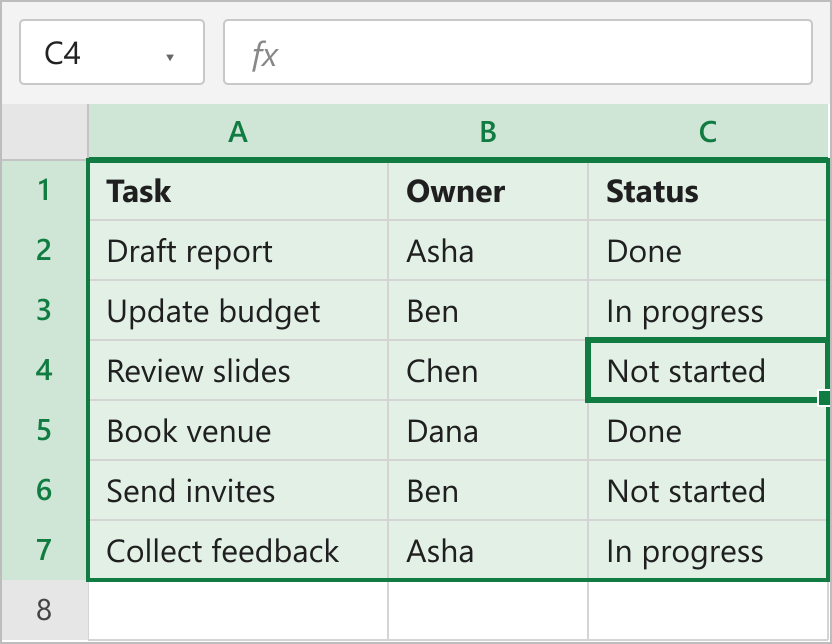
When you turn the setting on, Excel adds [Shared] to the file name in the title bar. Your teammates open the file from the network folder and edit it at the same time.
How this works
The shared file keeps a log of changes, and Excel merges them each time someone saves. If two people change the same cell, Excel asks which change to keep. Because of this extra bookkeeping, the legacy method is slower and less reliable than co-authoring, so I’d use it only when the cloud is not an option.
Tips for Editing Together Without Problems
- Give each person their own rows or columns when you can, so edits rarely touch the same cell.
- Keep the file in .xlsx format. Co-authoring does not work with older formats.
- If a feature is missing for someone, ask them to open the file in the desktop app with Open in Desktop App from Excel for the web.
- Remove access from people who no longer need it. In the Share pane, change their permission or stop sharing.