
Excel library
Excel Formula to Count Days from Date to Today (4 Ways)
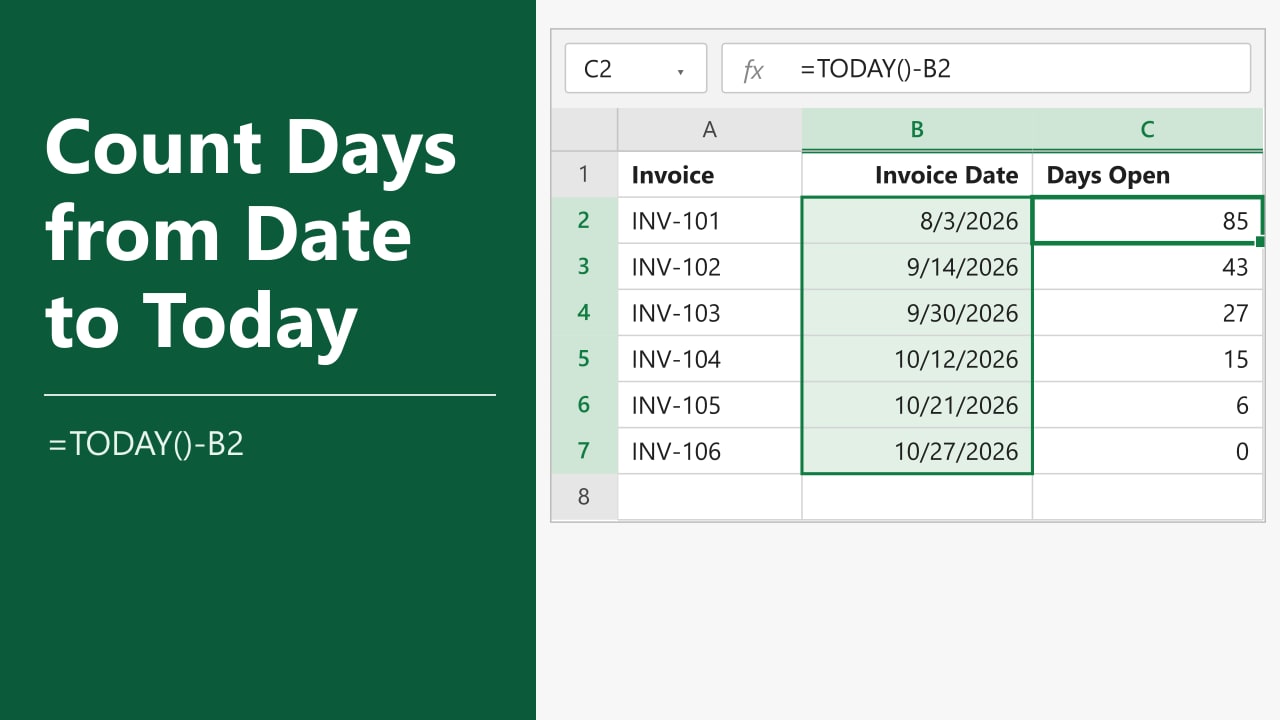
You track invoices, tickets or tasks, and you want a column that shows how many days have passed since each one started, without retyping anything each morning. Excel stores every date as a whole number, so subtracting a date from today's date gives you the number of days between them. In this tutorial, I'll show you the Excel formula to count days from a date to today automatically, plus three alternatives for different needs.
- Click the cell next to your first date (for example C2 when the date is in B2).
- Type =TODAY()-B2 and press Enter.
- If the result looks like a date, set the cell format to General, then copy the formula down.
The count goes up by one every day on its own, because TODAY always returns the current date.
All four methods below use the same small dataset: six invoice numbers in A2:A7 and their invoice dates in B2:B7. The screenshots were taken on 10/27/2026, so that is "today" in every example. When you try the formulas, your numbers will be higher because your today is later.
Method 1: Subtract the Date from TODAY
This is the simplest way to count days from a date to today in Excel, and it works in every version.
- Select cell C2.
- Type the formula below and press Enter.
- If C2 shows a date such as 3/25/1900, go to the Home tab and pick General from the Number Format box.
- Double-click the fill handle at the bottom right of C2 to copy the formula down to C7.
=TODAY()-B2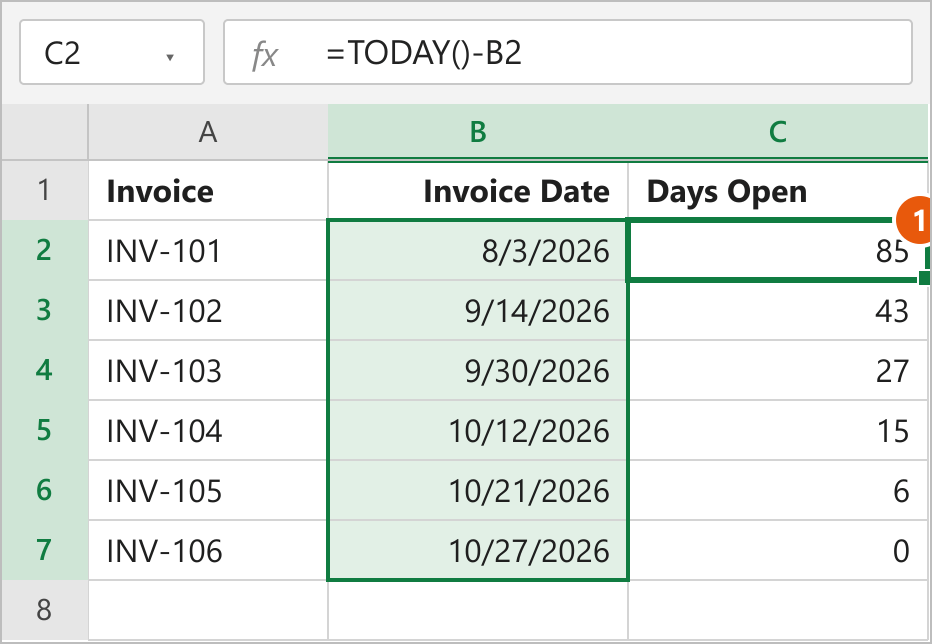
How this works
The TODAY function returns the current date with no time attached. Behind the scenes, 10/27/2026 is the number 46322 and 8/3/2026 is 46237. Subtracting one from the other gives 85, the number of days between them. The invoice dated today (INV-106) shows 0.
TODAY is a volatile function, which means it recalculates whenever the workbook does, including every time you open the file. That is what makes the count update automatically. To learn more about this function, see this guide to the Excel formula for today's date.
Note: Excel often copies the date format from B2 into the result cell, so 85 shows up as 3/25/1900. The number is correct; only the format is wrong. Switching the cell to General or Number fixes it.
Method 2: Using the DAYS Function
Use the DAYS function if you prefer a formula that says what it does. It gives the same answer as Method 1 and is available in Excel 2013 and later.
- Select cell C2.
- Type the formula below. The end date goes first, then the start date.
- Press Enter.
- Copy the formula down to C7.
=DAYS(TODAY(),B2)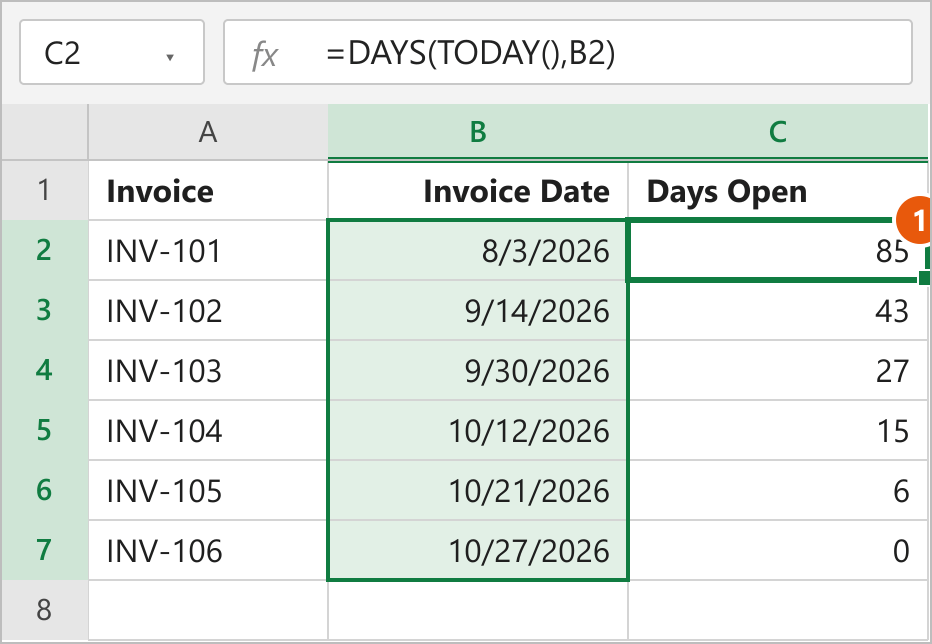
How this works
DAYS takes two arguments, end_date and start_date, and returns the number of days between them. Here the end date is TODAY() and the start date is the invoice date in B2. DAYS returns a plain number, so you are less likely to run into the date-format problem from Method 1.
Note: The order matters. If you write DAYS(B2,TODAY()), you get -85 instead of 85.
Method 3: Using the DATEDIF Function
DATEDIF is handy when you might later want the gap in months or years instead of days, since you only change one letter.
- Select cell C2.
- Type the formula below. Excel will not suggest DATEDIF as you type, so enter it in full.
- Press Enter and copy the formula down to C7.
=DATEDIF(B2,TODAY(),"d")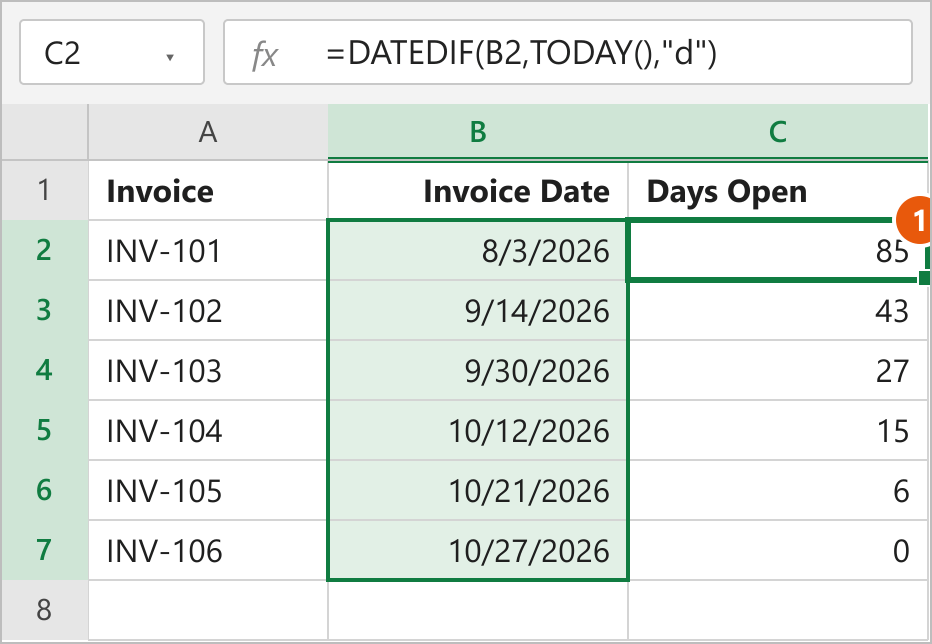
How this works
DATEDIF takes a start date, an end date and a unit. The "d" unit returns complete days, so the results match the first two methods. Swap it for "m" to get complete months or "y" for complete years. The DATEDIF function guide covers every unit.
Note: DATEDIF returns a #NUM! error when the start date is later than the end date. If your list can contain future dates, use Method 1 or 2 instead, which return a negative number.
Method 4: Count Working Days with NETWORKDAYS
If weekends should not count, for example when you measure how long a support ticket has been open, use NETWORKDAYS.
- Select cell C2.
- Type the formula below and press Enter.
- Copy the formula down to C7.
- To skip holidays too, list the holiday dates in a range such as F2:F10 and add it as a third argument.
=NETWORKDAYS(B2,TODAY())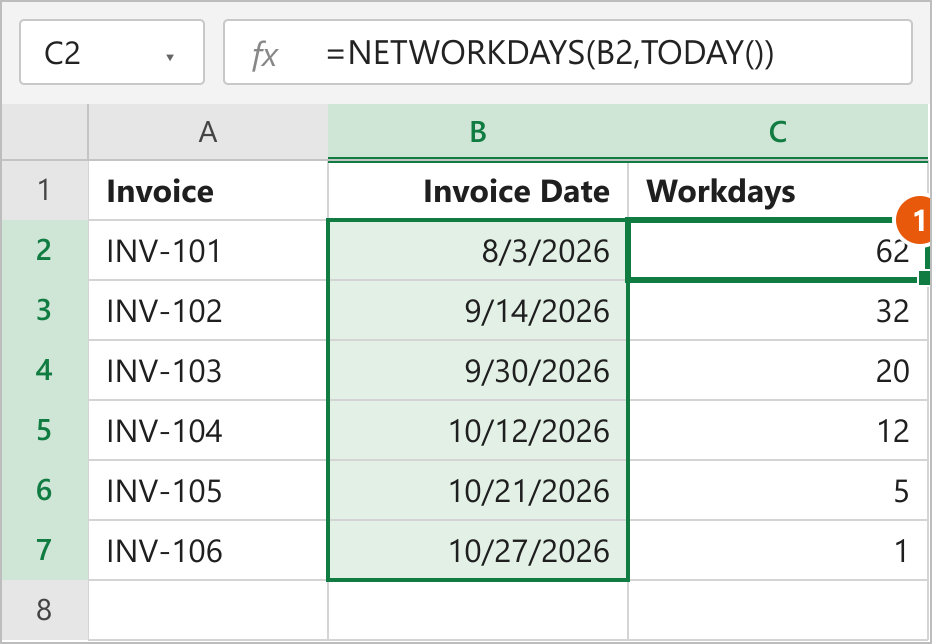
How this works
NETWORKDAYS counts the Monday to Friday dates between the start and end date, and it counts both ends. That is why INV-106, dated today, shows 1 instead of 0. Subtract 1 from the formula if you want it to behave like the other methods. With holidays, the formula becomes =NETWORKDAYS(B2,TODAY(),$F$2:$F$10).
Note: If your weekend is not Saturday and Sunday, use NETWORKDAYS.INTL, which lets you choose the weekend days. For the reverse task, see how to add days to a date without weekends.
How to Handle Blank Date Cells
An empty date cell counts as zero, so =TODAY()-B5 returns today's serial number (46322 on 10/27/2026) for a row with no date. Wrap the formula in IF to leave those rows empty.
- Select cell C2.
- Type the formula below and press Enter.
- Copy it down to C7. Row 5 stays blank until you enter a date in B5.
=IF(B2="","",TODAY()-B2)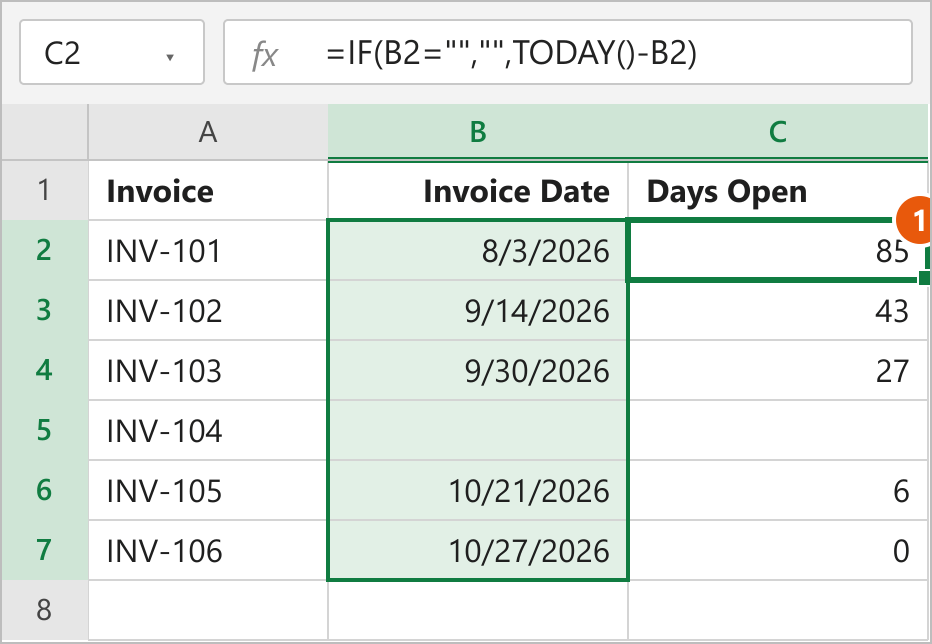
The IF function checks whether B2 is empty. If it is, the formula returns an empty string; if not, it runs the normal subtraction. The same wrapper works around DAYS, DATEDIF and NETWORKDAYS.
For more ways to compare two fixed dates, see the Excel formula for difference between two dates.
FAQs
Why does my days formula show a date instead of a number?
Does the count update by itself every day?
How do I count days from today until a future date?
How do I include today in the count?
Can I freeze the count so it stops changing?
Conclusion
For most lists, =TODAY()-B2 is the formula I'd use. It is short, works in every Excel version and updates on its own. Pick DAYS if you want a clearer formula, DATEDIF if you may switch to months or years later, and NETWORKDAYS when weekends and holidays should not count.