
Excel library
How to Calculate the Difference Between Two Columns in a Pivot Table
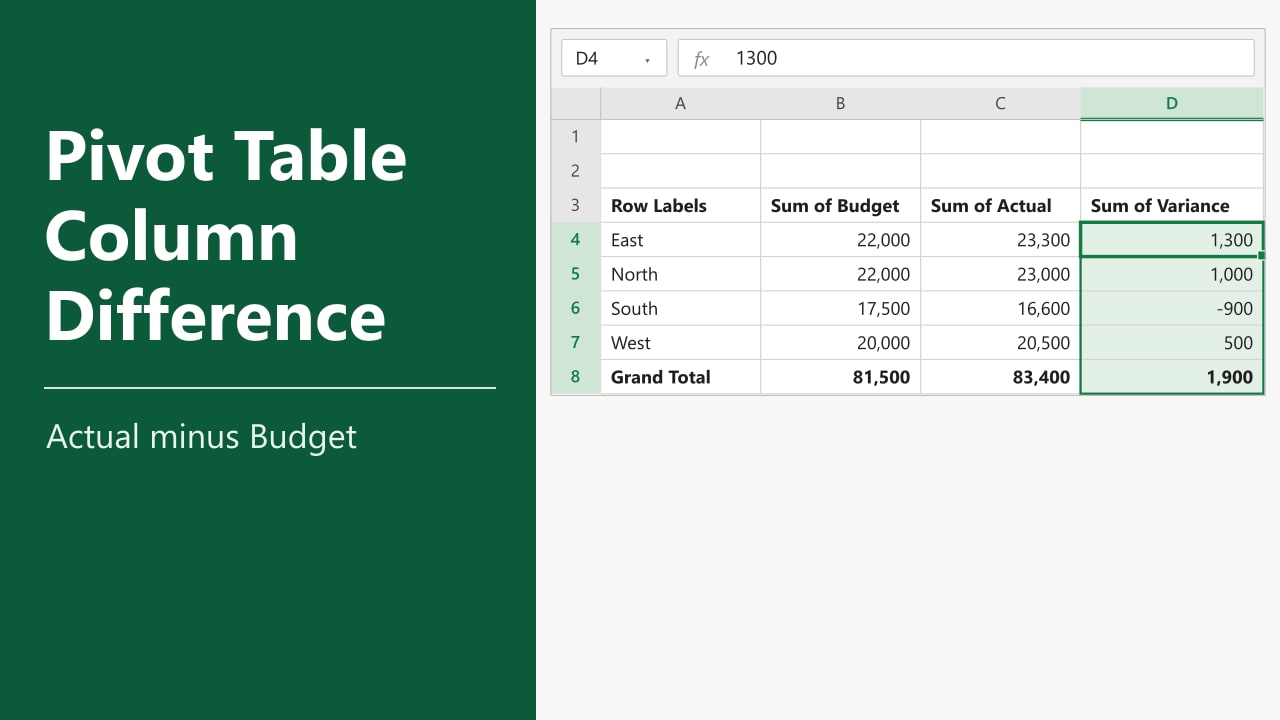
You have a pivot table with Budget and Actual side by side, and the one number your manager asks for is the gap between them. A pivot table has no built-in subtract button, so the difference has to come from a calculated field, a value setting, or a formula next to the report. In this tutorial, I'll show you how to calculate the difference between two columns in a pivot table using all three.
- Click inside the pivot table and go to PivotTable Analyze > Fields, Items, & Sets > Calculated Field.
- Name it Variance and enter
=Actual-Budgetin the Formula box. - Click Add, then OK. A new Sum of Variance column appears.
If your two columns are items of one field, such as two years, use Show Values As > Difference From instead (Method 2).
Which Method Fits Your Pivot Table?
The right method depends on where the two columns come from. If they are two separate fields in your source data, like Budget and Actual, use a calculated field. If they are two items of the same field, like 2025 and 2026 under a Year field, use Difference From. A formula outside the pivot table works in both cases but does not move with the report.
Method 1: Using a Calculated Field
Use a calculated field when the two columns are separate fields in the source data. Our source data is in A1:C9, with a Region, a Budget and an Actual value on each row.
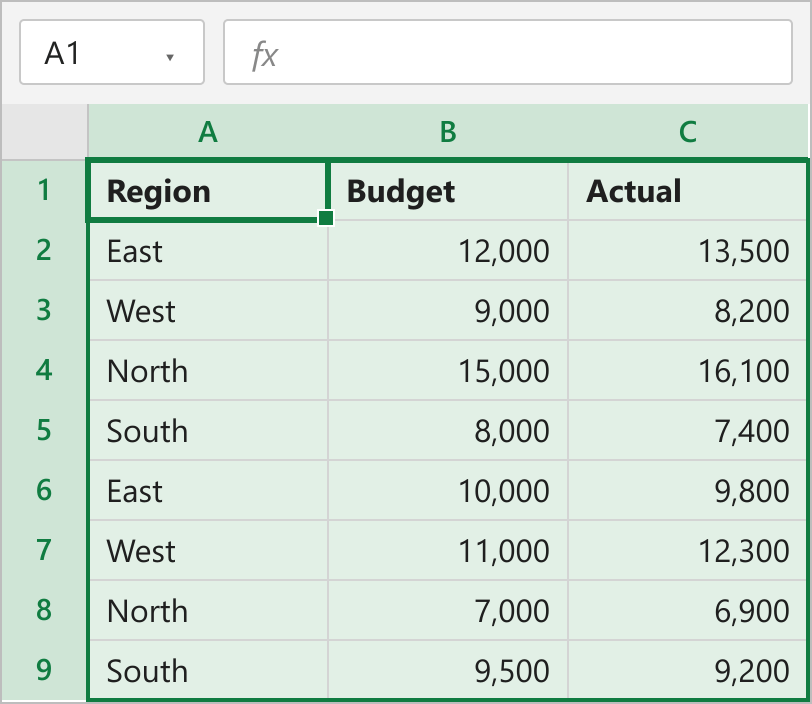
The pivot table built from it has Region in the Rows area and Budget and Actual in the Values area. Here is how to add the difference:
- Click any cell inside the pivot table.
- Go to the PivotTable Analyze tab and, in the Calculations group, click Fields, Items, & Sets > Calculated Field.
- In the Name box, type Variance.
- Clear the Formula box and type an equals sign. Double-click Actual in the Fields list, type a minus sign, then double-click Budget.
- Click Add, then OK.
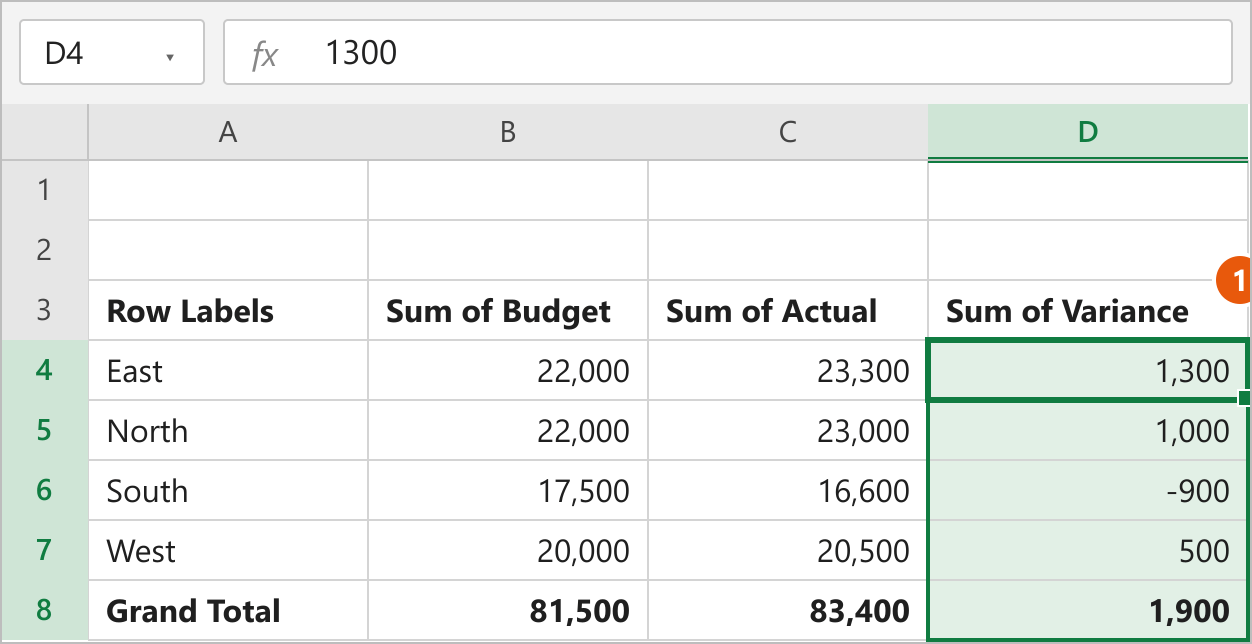
=Actual-BudgetExcel adds a Sum of Variance column to the right of the other values.
How This Works
A calculated field is a formula that uses other fields in the pivot table as its inputs. Excel first sums Actual and Budget for each region, then subtracts the two totals. East has a budget of 22,000 and actual sales of 23,300, so its variance is 1,300. South comes in under budget, so it shows -900. The grand total is 83,400 minus 81,500, or 1,900.
The field stays in the pivot table when you refresh, filter or rearrange it. The guide on adding a calculated field in a pivot table covers editing and removing these fields.
Note: A calculated field always works on the sums of its fields, even if you change Budget to show an average. Also, the Calculated Field option is greyed out for pivot tables built on the Data Model; there you need a DAX measure instead.
Method 2: Using Show Values As Difference From
Use this method when the two columns are items of one field. Here the source data has Region, Year and Sales columns, and the pivot table has Region in Rows, Year in Columns and Sales in Values.
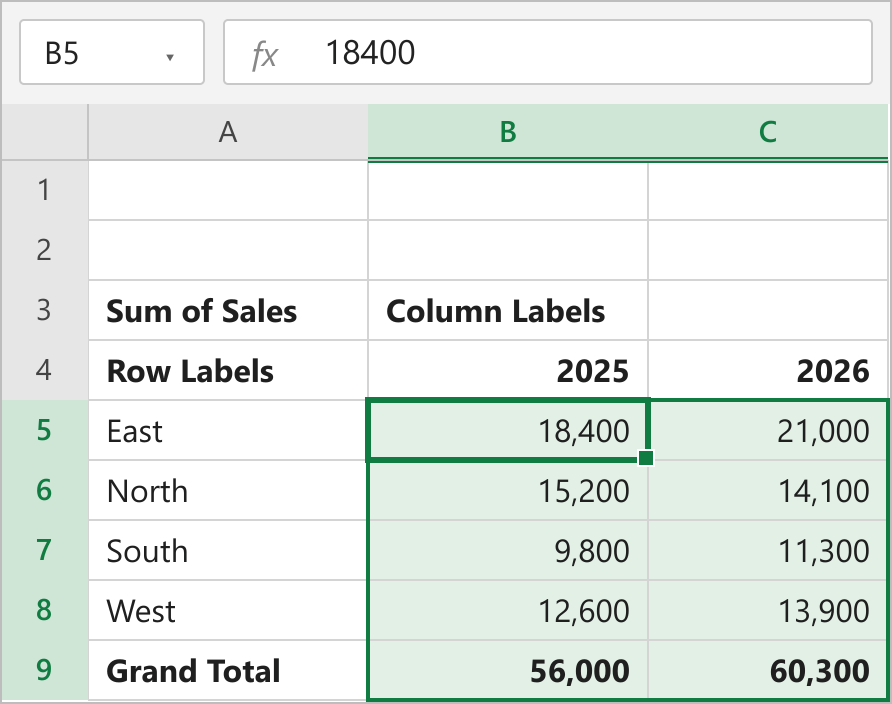
A calculated field cannot subtract 2025 from 2026 here, because both columns come from the same Sales field. Follow these steps instead:
- Right-click any number in the Sum of Sales values, such as cell B5.
- Point to Show Values As and click Difference From.
- In the dialog, set Base Field to Year.
- Set Base Item to 2025, then click OK.
How This Works
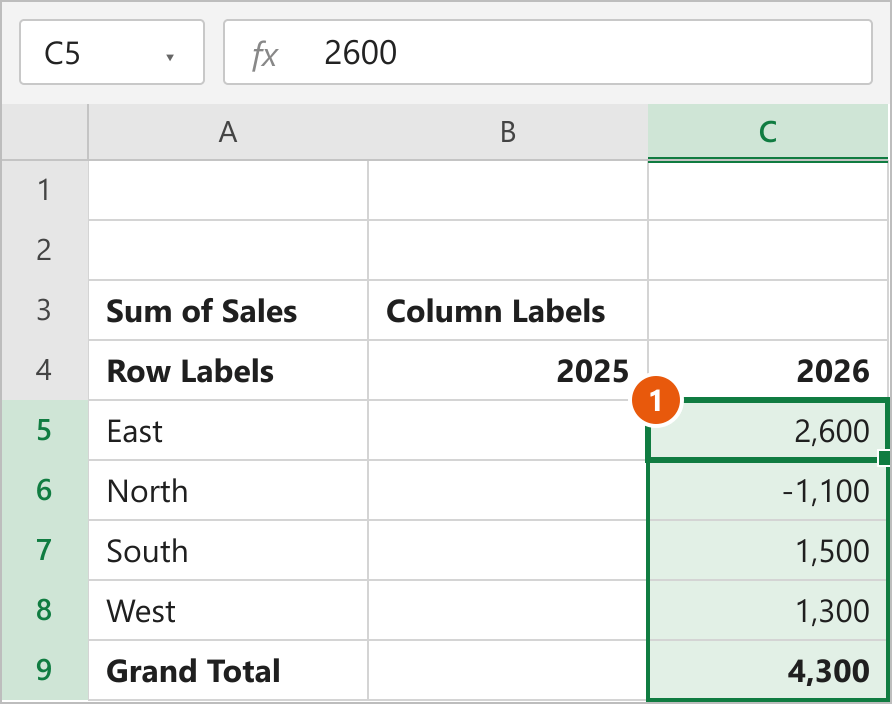
Difference From keeps the underlying sums but displays each one minus the base item in the same row. East sold 21,000 in 2026 and 18,400 in 2025, so its 2026 cell shows 2,600. North dropped, so it shows -1,100. The 2025 column is blank because it is the base and has nothing to compare against.
If you have more than two years, pick (previous) as the base item. Each year is then compared with the year before it.
Show the Difference as a Percentage
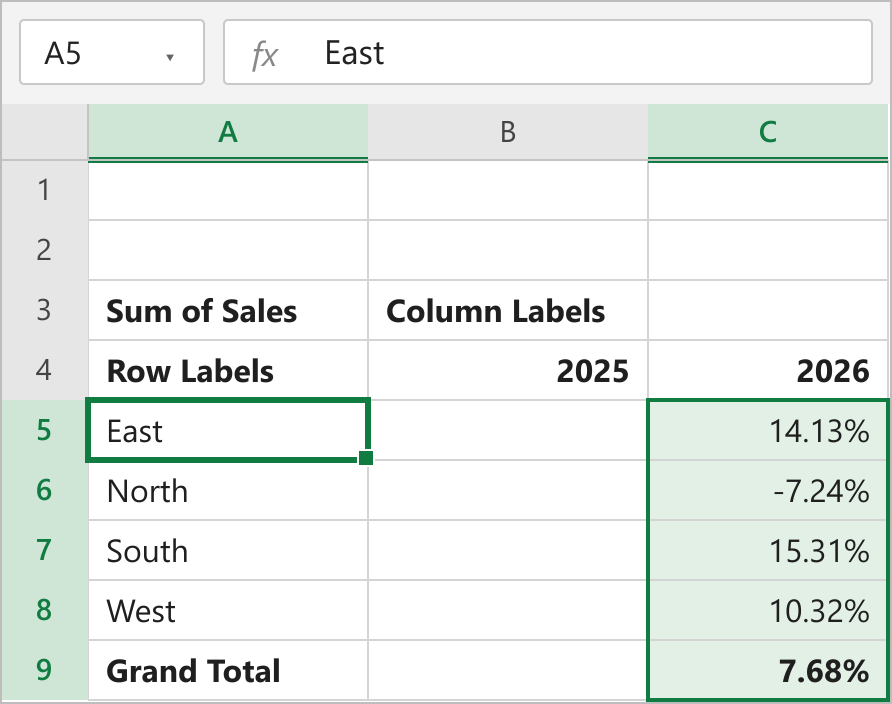
To see the change as a percentage, repeat the steps but choose % Difference From. East grew by 2,600 on a 2025 base of 18,400, which shows as 14.13%. The grand total row shows the overall change of 7.68%.
Note: Difference From replaces the original numbers. To keep both, drag Sales into the Values area a second time and apply the setting only to that copy. I also turned off the row grand totals (Design > Grand Totals > On for Columns Only), since a total across both years means little next to a difference.
Method 3: Using a Formula Outside the Pivot Table
Use a regular formula when you need a quick one-off result or want to format the difference column freely. We'll use the Budget and Actual pivot table from Method 1, without the calculated field, in A3:C8.
- Click inside the pivot table, go to PivotTable Analyze, click the arrow next to Options, and untick Generate GetPivotData.
- Type Variance in cell E3, leaving column D empty as a buffer.
- Select cell E4 and type the formula below.
- Press Enter and drag the fill handle down to E8.
=C4-B4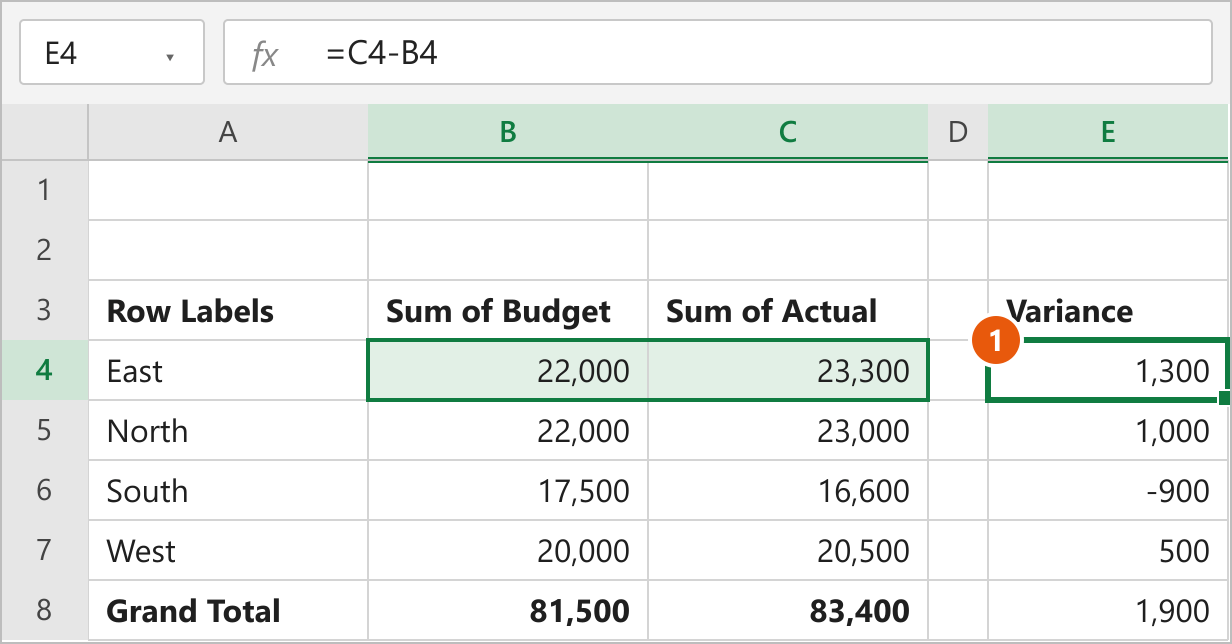
How This Works
The formula subtracts the Budget cell from the Actual cell in the same row, just like on any worksheet. E4 returns 1,300 for East and E8 returns 1,900 for the grand total. Turning off Generate GetPivotData matters because, with it on, clicking a pivot cell inserts a GETPIVOTDATA function with fixed labels, so it returns East's numbers on every row when you fill it down. The guide to writing an Excel formula without GETPIVOTDATA covers this setting in more detail.
If you prefer GETPIVOTDATA, because it finds the value by name even when the pivot changes shape, this version returns the same 1,300 for East:
=GETPIVOTDATA("Actual",$A$3,"Region","East")-GETPIVOTDATA("Budget",$A$3,"Region","East")Note: Plain cell references do not follow the pivot table. If a refresh adds a region or you change the layout, the formulas can point at the wrong rows, so check them after every change.
FAQs
Why is the Calculated Field option greyed out?
Can I subtract two years with a calculated field?
How do I reverse the sign of the difference?
Does the difference update when the source data changes?
How do I remove the Sum of text from the column name?
Conclusion
For two separate fields like Budget and Actual, a calculated field is the method I'd use, because it lives inside the pivot table and survives every refresh and layout change. When the two columns are items of one field, such as two years, Difference From or % Difference From is the right tool. Keep the outside formula for quick checks, and for other kinds of subtraction in a pivot, see how to subtract in an Excel pivot table.