
Excel library
How to Make a Bell Curve in Excel (2 Easy Methods)
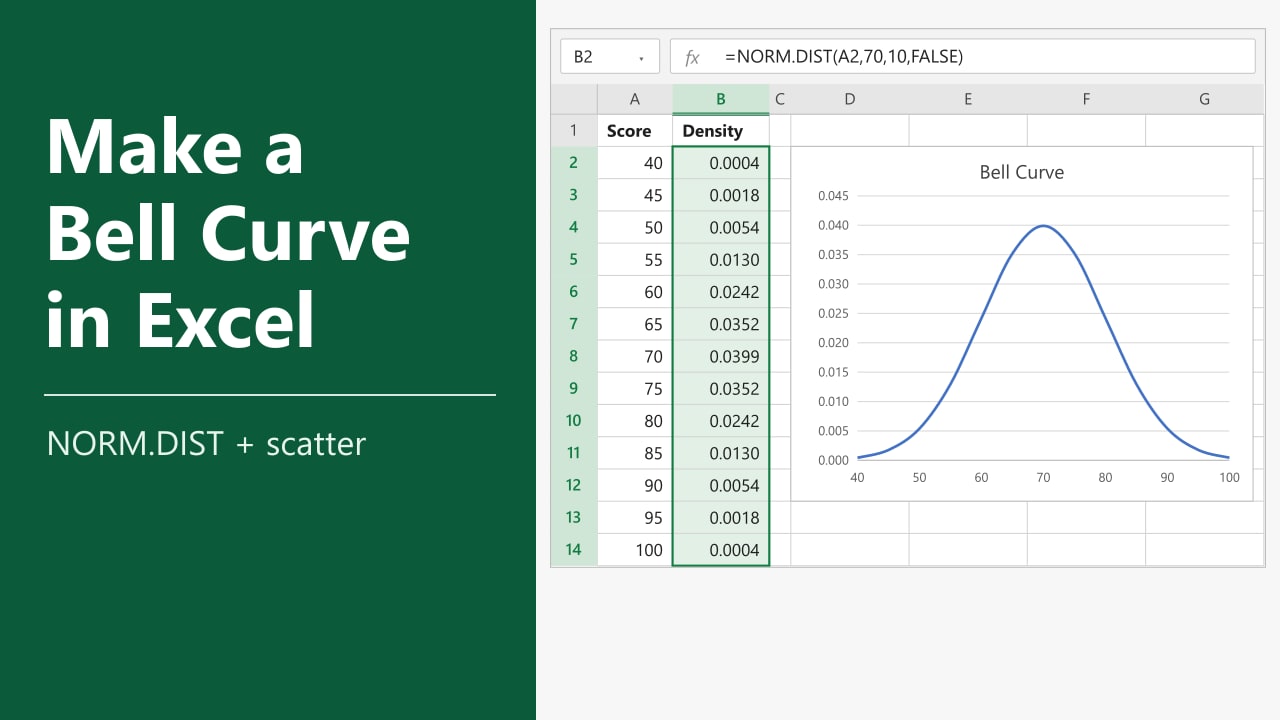
You have a set of test scores or measurements, and someone asks you to show how they are spread around the average. A bell curve does that in one picture: a smooth, symmetric hump that peaks at the mean and tapers off on both sides. In this tutorial, I'll show you how to make a bell curve in Excel, first from a known mean and standard deviation and then from your own data.
- List x values from mean - 3 SD to mean + 3 SD in column A.
- In B2, enter =NORM.DIST(A2,mean,sd,FALSE) and fill it down.
- Select both columns and go to Insert > Scatter with Smooth Lines.
If you want the curve to match real data, use Method 2, which works out the mean and standard deviation for you.
What Is a Bell Curve?
A bell curve is the graph of a normal distribution. Its shape depends on two numbers: the mean, which sets where the peak sits, and the standard deviation, which sets how wide the curve is. About 68% of values in a normal distribution fall within one standard deviation of the mean, and about 99.7% fall within three.
Excel has no built-in bell curve chart. You build one by calculating the height of the curve at a series of points and plotting those points as a smooth line.
Method 1: Using NORM.DIST With a Known Mean and Standard Deviation
Use this method when you already know the mean and standard deviation, for example a test that is designed to average 70 with a standard deviation of 10.
The mean is in E2 and the standard deviation is in E3. Column A holds scores from 40 to 100 in steps of 5, which covers three standard deviations on each side of 70.
- Type 70 in cell E2 and 10 in cell E3.
- Enter 40 in A2 and 45 in A3, select both cells, and drag the fill handle down to A14 so the list ends at 100.
- Select cell B2 and type the formula below.
- Press Enter, then double-click the fill handle to copy the formula down to B14.
=NORM.DIST(A2,$E$2,$E$3,FALSE)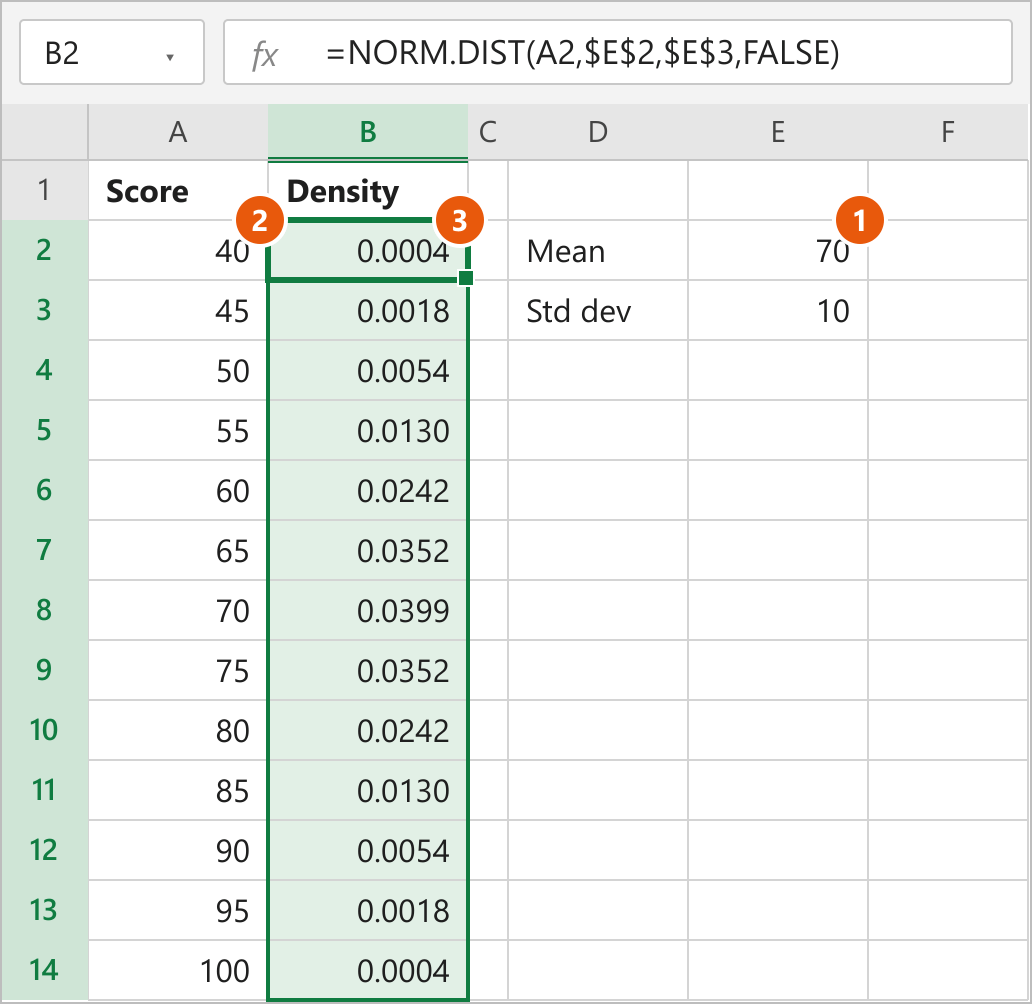
Now turn the two columns into a chart.
- Select A1:B14.
- Go to the Insert tab and, in the Charts group, click Insert Scatter (X, Y) or Bubble Chart.
- Choose Scatter with Smooth Lines.
- Right-click the horizontal axis and select Format Axis. Under Bounds, set Minimum to 40 and Maximum to 100.
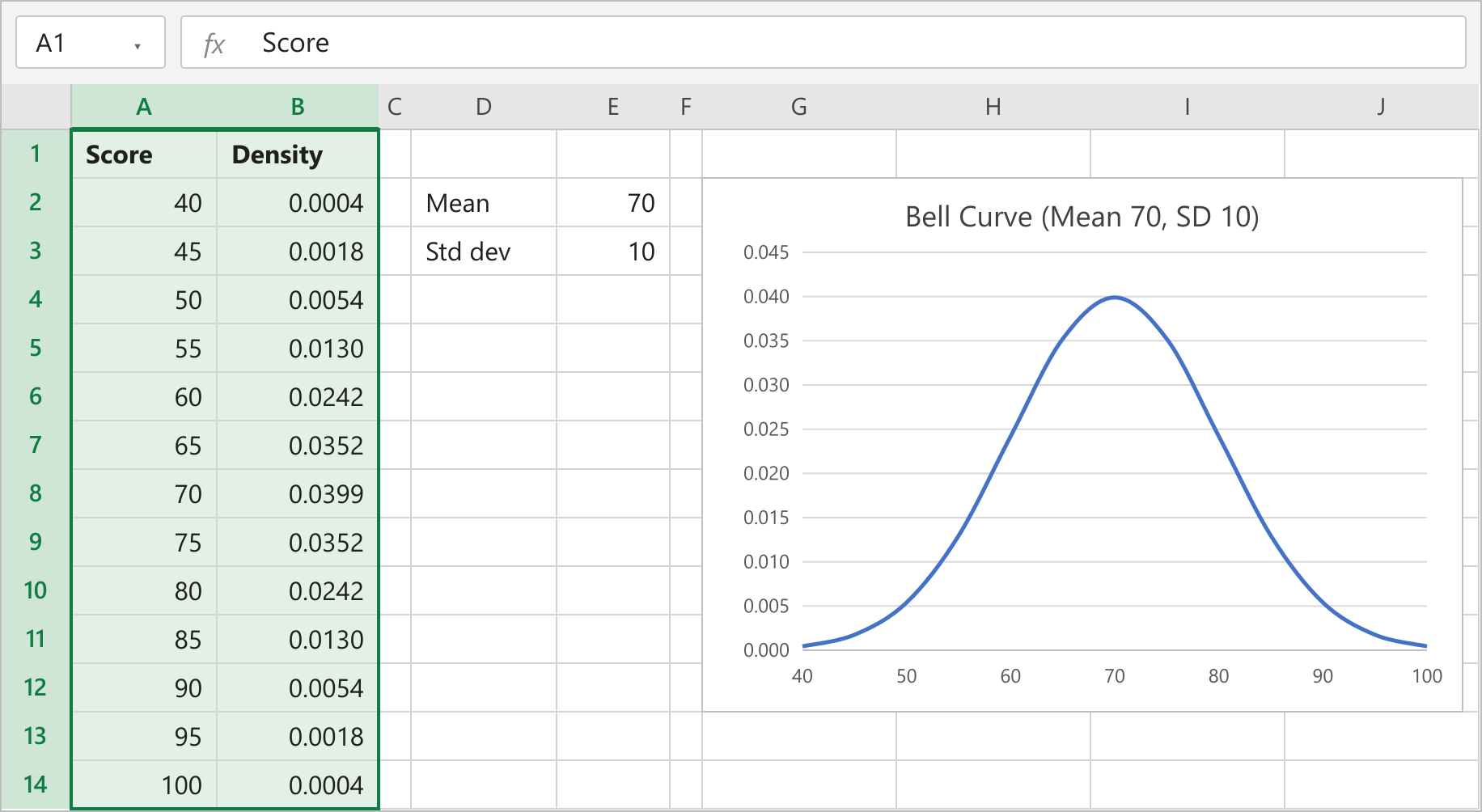
- Click the chart title and type a new one, such as "Bell Curve (Mean 70, SD 10)".
How This Works
NORM.DIST takes a value, a mean, a standard deviation and a cumulative flag. With the last argument set to FALSE, it returns the probability density, which is the height of the bell curve at that value. The highest point is 0.0399 at the mean of 70, and the heights match on both sides: 60 and 80 both return 0.0242.
The dollar signs in $E$2 and $E$3 lock those references, so every row uses the same mean and standard deviation when you fill the formula down. The scatter chart then uses column A for the horizontal axis and column B for the height.
Fixing the axis bounds matters. Excel often starts a scatter chart's horizontal axis at 0, which squeezes the curve to one side.
Note: If you set the last argument to TRUE, NORM.DIST returns the cumulative probability instead, and the chart becomes an S-shaped curve rather than a bell.
Method 2: Making a Bell Curve From Your Own Data
Use this method when you have real values, such as exam scores, and want a bell curve that matches their average and spread.
Our data is ten student scores in A1:B11. The first step is to calculate the mean and standard deviation.
- Type Mean in D2 and Std dev in D3.
- In E2, enter =AVERAGE(B2:B11).
- In E3, enter =STDEV.S(B2:B11).
=AVERAGE(B2:B11)
=STDEV.S(B2:B11)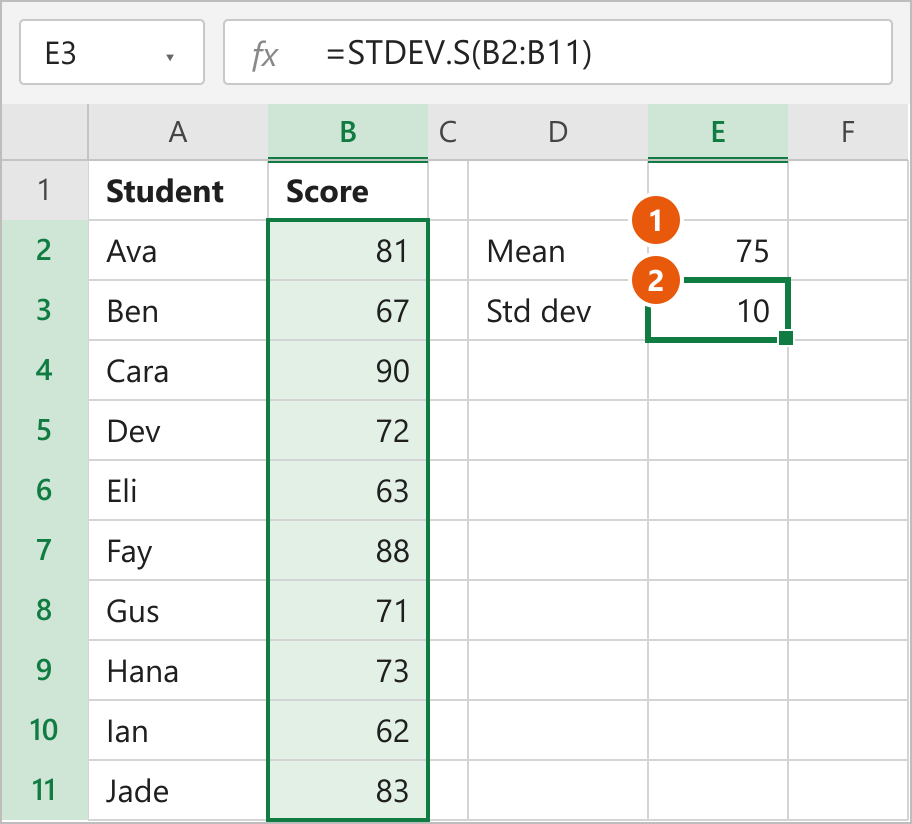
The scores average 75, and STDEV.S returns 10. If you want more detail on that second function, see this guide on calculating standard deviation in Excel.
Next, build the x values for the curve and their heights.
- Type x in G1 and Density in H1.
- Select G2 and enter the SEQUENCE formula below. It spills 13 values from 45 to 105.
- Select H2 and enter the NORM.DIST formula below. It spills a height next to each x value.
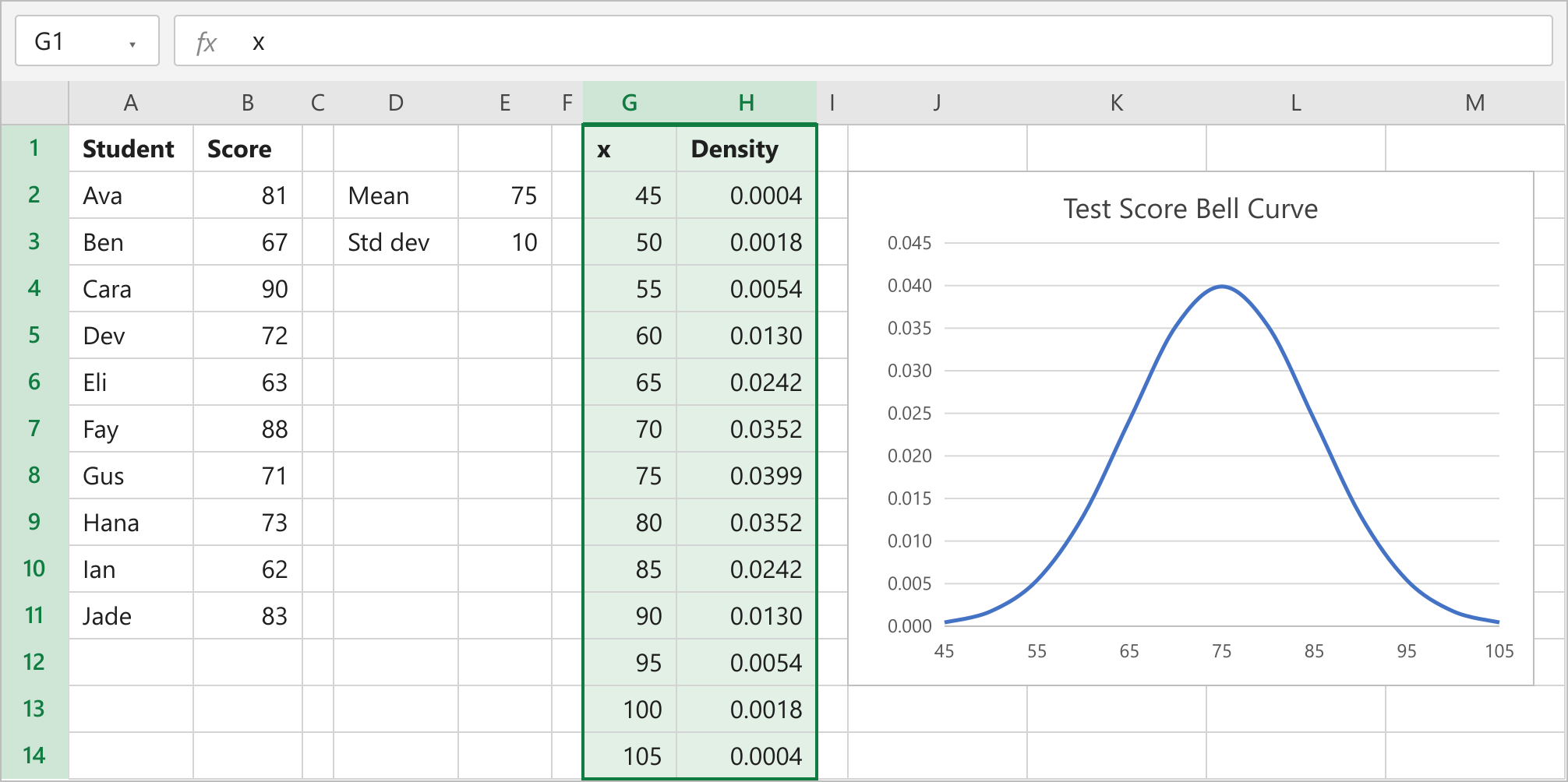
- Select G1:H14, then go to Insert > Insert Scatter (X, Y) or Bubble Chart > Scatter with Smooth Lines.
- Set the horizontal axis Minimum to 45 and Maximum to 105 in Format Axis, and rename the chart title.
=SEQUENCE(13,1,E2-3*E3,E3/2)
=NORM.DIST(G2#,$E$2,$E$3,FALSE)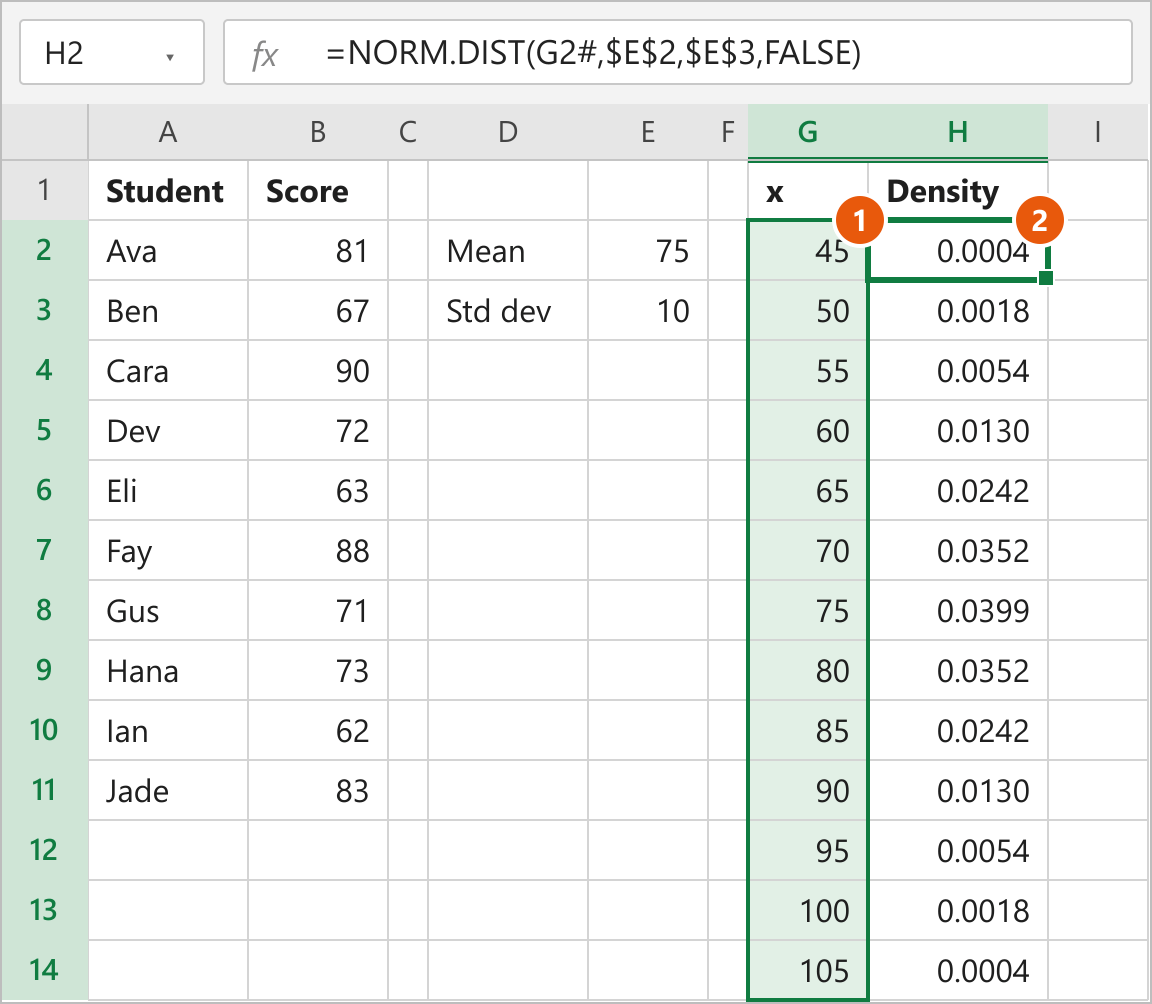
How This Works
SEQUENCE(13,1,E2-3*E3,E3/2) makes 13 rows and 1 column of numbers. It starts at the mean minus three standard deviations (75 - 30 = 45) and steps by half a standard deviation (5), so the last value is 105. You can read more about its arguments in this SEQUENCE formula guide.
G2# refers to the whole spilled range that starts in G2. Because NORM.DIST receives all 13 x values at once, it returns 13 heights, and the peak of 0.0399 lands on 75.
The benefit of this setup is that the curve follows your data. Add or change scores, update the ranges in E2 and E3, and the x values, heights and chart all move with them.
Note: SEQUENCE and the # spill reference need Microsoft 365 or Excel 2021 and later. In older versions, type the first x value in G2, enter =G2+$E$3/2 in G3, and fill it down to G14. Then use =NORM.DIST(G2,$E$2,$E$3,FALSE) in H2 and fill that down too.
If you would rather see how often each score actually occurs, a histogram is the better chart. This tutorial on making a histogram with a pivot table shows one way to build it.
FAQs
Why does my bell curve look jagged or lopsided?
What is the difference between FALSE and TRUE in NORM.DIST?
Should I use STDEV.S or STDEV.P?
Why are the density values so small?
Does NORM.DIST work in older versions of Excel?
Conclusion
A bell curve in Excel comes down to two things: NORM.DIST to calculate the heights, and a scatter chart with smooth lines to draw them. If you already know the mean and standard deviation, Method 1 is quick and works in any recent version. For real data, I'd use Method 2, because AVERAGE and STDEV.S keep the curve tied to your numbers and SEQUENCE builds the x values for you.