
Excel library
How to Move a Chart to a New Sheet in Excel (3 Easy Ways)
You build a chart next to your data, and a week later the sheet is crowded. The chart covers cells you need, or you want to print it on its own page, or a report needs it on a separate tab. Excel lets you move the chart without rebuilding it.
The chart keeps its link to the original data, so it still updates when the numbers change. In this tutorial, I'll show you how to move a chart to a new sheet in Excel, using three methods.
- Right-click the chart and choose Move Chart.
- Select New sheet and type a name for it.
- Click OK.
Choose Object in instead of New sheet if you want the chart to sit on a regular worksheet beside other cells.
Chart Sheet vs. Worksheet: What Is the Difference?
Excel can place a chart in two ways. An embedded chart floats on a normal worksheet, over the cells. A chart sheet is a separate tab that holds only the chart, and the chart fills the whole tab. You cannot type in cells on a chart sheet.
The first method below creates a chart sheet. The second and third put the chart on a regular worksheet, which is what most people mean by a "new sheet" when they want to add notes or other charts beside it.
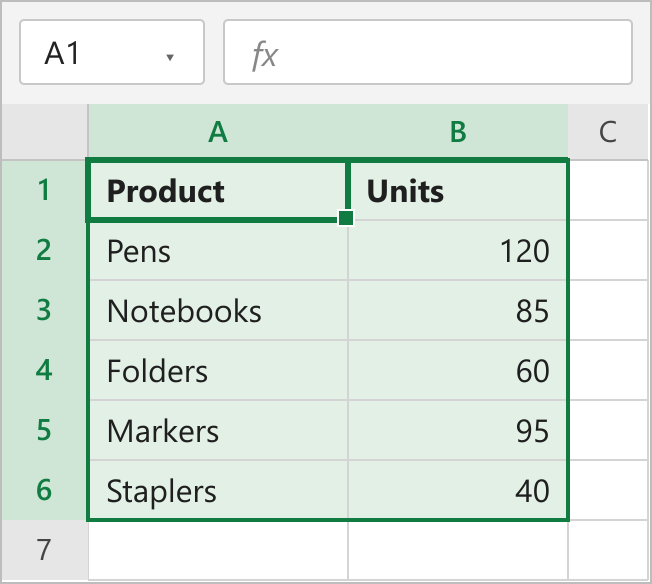
Our data is in A1:B6, with product names in column A and units sold in column B. The chart is a simple column chart built from that range.
Method 1: Using the Move Chart Dialog (New Sheet)
Use this when you want the chart on its own tab, for example to view or print it full size.
- Click an empty area inside the chart to select it. Make sure the whole chart is selected, not just a bar or the title.
- Right-click the chart and choose Move Chart. You can also open the Chart Design tab and click Move Chart in the Location group.
- In the Move Chart dialog box, select the New sheet option.
- Type a name in the box next to it, such as Units Chart. If you leave it alone, Excel names the tab Chart1.
- Click OK.
Excel adds a new tab with the chart filling the page. The data stays on the original sheet, and the chart still reads from it.
How this works
The dialog does not copy the chart. It changes where the chart lives, from an object floating over cells to a sheet of its own. Edit a number in B2:B6 and the chart on the new tab changes with it.
Note: A chart sheet has no cells, so you cannot add a text box of notes below the chart in a grid. If you need that, use Method 2 instead.
Method 2: Moving the Chart to a Worksheet with the Move Chart Dialog
Use this when the chart should sit on another regular worksheet. Add a blank worksheet first if you need one: click the + button next to the sheet tabs.
- Select the chart and open the Move Chart dialog, as in Method 1.
- Select the Object in option.
- Click the dropdown next to it and pick the worksheet you want, for example Sheet2.
- Click OK.
Excel switches to that worksheet and places the chart on top of the cells. Drag it to where you want it, and resize it by pulling a corner handle.
This same option also reverses Method 1. If a chart is on a chart sheet and you want it back among the cells, select it, open Move Chart, choose Object in and pick the worksheet.
Method 3: Cutting and Pasting the Chart
This is the fastest option when you only want the chart on another worksheet and do not need the dialog.
- Click an empty area inside the chart to select it.
- Press Ctrl+X to cut it.
- Click the tab of the worksheet where you want the chart.
- Select the cell where the chart's top-left corner should land, for example D2.
- Press Ctrl+V.
The chart appears on the new worksheet and is removed from the old one. Use Ctrl+C instead of Ctrl+X if you want a copy on both sheets.
Note: The pasted chart still points at the data on the first sheet. If you move the data to another workbook later, the chart will need its source range updated. For more on charts that are already built, see how to add an average line to an Excel chart.
FAQs
Does moving a chart change my data?
Is there a shortcut that makes a chart on a new sheet?
Why can't I select the whole chart to move it?
Can I move a chart back from a chart sheet to a worksheet?
Conclusion
Use the Move Chart dialog with New sheet when you want a full-page chart tab, and Object in when the chart belongs on a worksheet with other content. Cut and paste is quicker for a one-off move between worksheets. I would start with the dialog, since it covers both cases and is easy to reverse.