
Excel library
How to Merge Multiple Sheets in Excel to One Sheet: Easy Guide
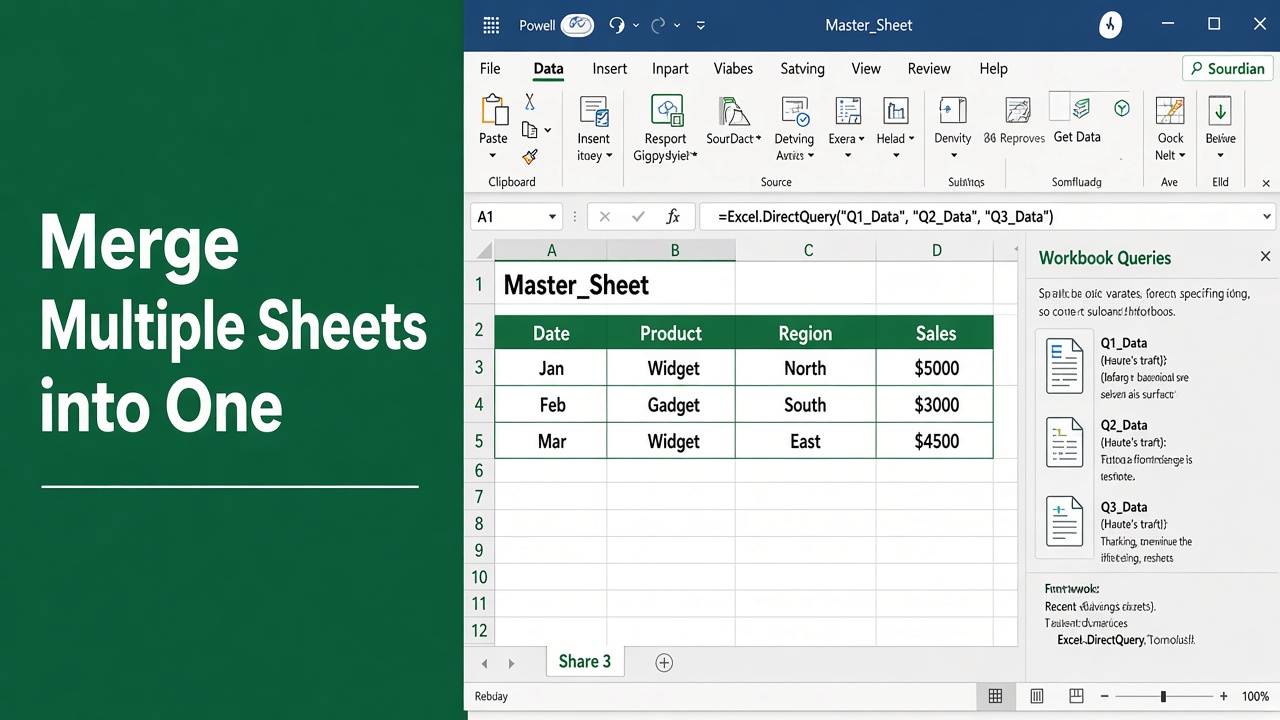
Managing data across separate tabs in a workbook can slow down your workflow. When working with monthly sales numbers, regional reports, or inventory tracking, combine datasets into a single location to speed up analysis.
In Microsoft 365, put this on a new sheet to stack every sheet from Sheet1 to Sheet3 into one list that updates by itself:
=VSTACK('Sheet1:Sheet3'!A2:D100)In older versions, or for data that grows every month, use Power Query (Data > Get Data > Combine Queries > Append). For a one-off job with two or three sheets, copy and paste the rows under each other.
Knowing how to merge multiple sheets in Excel into one sheet saves time and reduces manual errors.
In this guide, we will explain practical techniques to combine your data efficiently. You will learn simple copy-paste tricks, dynamic formulas, built-in features, and automated tools suited for different skill levels.
Method 1: Using the Copy and Paste Special Feature
For quick tasks involving just two or three tabs, standard copy-pasting is straightforward. Using Paste Special helps preserve formatting, cell values, and column widths.
Steps for Manual Merging
- Open your workbook and create a new worksheet named Master Sheet.
- Go to the first source tab, highlight your data range, and copy it using Ctrl + C.
- Switch to the Master Sheet, click cell A1, and paste the content using Ctrl + V.
- Move to the next worksheet, select the data rows without copying header titles, and press Ctrl + C.
- Return to the main summary tab, scroll to the first empty row beneath your pasted data, right-click, and select Paste Special to paste values.
- Repeat this process for all remaining tabs.
This technique works best for smaller files. However, if source values change later, manual updates will not sync automatically.
Method 2: Using the Excel Consolidate Tool
The built-in Consolidate tool combines numerical data from multiple worksheets by calculating sums, averages, or counts. It works well when all tabs follow identical layout structures.
How to Set Up the Consolidate Feature
- Create a blank destination worksheet and click cell A1.
- Navigate to the Data tab on the ribbon and click Consolidate in the Data Tools group.
- Select your preferred summary calculation function (such as Sum or Average) from the Function dropdown menu.
- Click the shrink button in the Reference field, select the range on your first worksheet, and click Add.
- Repeat this step for every worksheet you want to combine.
- Check the boxes for Top row and Left column under the “Use labels in” option to preserve labels.
- Select Create links to source data if you want automatic updates when source cells change, then click OK.
Method 3: Merge Worksheets Dynamically with Power Query
Power Query is the most reliable tool for combining datasets. It handles large datasets effortlessly, combines worksheets automatically, and updates instantly when new data arrives.
You can also merge Excel files with different columns.
Steps to Merge Sheets with Power Query
- Format your data on each worksheet as an official Excel Table by pressing Ctrl + T.
- Click inside the first table and go to Data > From Table/Range. The Power Query Editor opens.
- Click Close & Load > Close & Load To, choose Only Create Connection, and click OK. Repeat for every table.
- Go to Data > Get Data > Combine Queries > Append.
- Choose Three or more tables, move all the tables into the “Tables to append” box, and click OK.
- Click Close & Load on the Home tab to export the combined data into a fresh tab.
Pro Tip: When new rows or tabs are added in the future, simply navigate to the Data tab and click Refresh All. Power Query will automatically pull the new data into your consolidated table.
Method 4: Using Excel Formulas (VSTACK Function)
If you use Microsoft 365 or Excel 2024 (VSTACK is not in Excel 2021), the VSTACK function offers a quick way to combine ranges dynamically without writing complex code.
How to Write a VSTACK Formula
The VSTACK formula stacks array ranges vertically into one continuous dataset.
Use the following formula structure on your destination tab:
=VSTACK(Sheet1!A2:D10, Sheet2!A2:D10, Sheet3!A2:D10)If your tabs share identical column layouts and sit next to each other, use a 3D reference style formula:
=VSTACK('Sheet1:Sheet3'!A2:D10)This formula updates immediately whenever values in the source cells change.
Tip: make the ranges a little larger than your data so new rows are included, then drop the blank rows that VSTACK brings in (they show as 0) with FILTER:
=LET(data, VSTACK('Sheet1:Sheet3'!A2:D500), FILTER(data, CHOOSECOLS(data, 1)<>""))Comparing Excel Sheet Merging Methods
Choose the best approach based on your dataset size and workflow requirements:
| Method | Best For | Skill Level Needed | Automatic Updates? |
| Copy & Paste Special | Small files, one-time tasks | Beginner | No |
| Consolidate Tool | Numerical aggregation & summaries | Intermediate | Yes (Optional) |
| Power Query | Large files, recurring reports | Intermediate to Advanced | Yes (One-click Refresh) |
| VSTACK Formula | Quick dynamic arrays in Excel 365 | Intermediate | Yes (Instant) |
Best Practices for Clean Data Merging
To avoid calculation errors and formatting issues when consolidating tabs, follow these simple guidelines:
- Match Column Headers: Ensure header names, column orders, and data types match across all sheets.
- Remove Extra Empty Rows: Delete blank rows and columns in source sheets before merging.
- Convert Ranges to Tables: Turning ranges into named Excel tables prevents missing rows when new data is added.
- Backup Source Files: Always save a copy of your original file before running transformation scripts or queries.
Frequently Asked Questions
Can I automatically merge multiple sheets in Excel without using VBA?
Yes, you can automatically combine multiple worksheets without writing VBA code by using built-in Excel features like Power Query or dynamic array formulas such as VSTACK. Power Query allows you to refresh combined datasets with a single click, while VSTACK updates results instantly whenever source cells change.
What is the easiest way to combine sheets in Excel 365?
The simplest method in Excel 365 is using the =VSTACK() formula. It vertically combines ranges across tabs (e.g., =VSTACK('Sheet1:Sheet3'!A2:D10)) into one continuous table on a master summary worksheet.
Will updating data in source sheets automatically update the merged sheet?
It depends on the method used. Dynamic formulas like VSTACK update automatically in real time. Power Query updates upon clicking Refresh All under the Data tab. However, standard Copy and Paste Special will not update automatically.
How do I combine sheets with different column orders?
If your source worksheets have columns arranged in different orders, use Power Query. Inside the Power Query Editor, you can align, reorder, or match column headers before appending the tables into a single destination sheet.
What happens to duplicate rows when merging sheets in Excel?
Standard merging methods like VSTACK and Copy-Paste keep all rows, including duplicates. If you want to remove duplicates automatically during consolidation, use Power Query and apply the Remove Duplicates transformation step before loading the data into your master tab.
Can I combine sheets from different workbook files into one sheet?
Yes, you can aggregate sheets from multiple Excel files into a single master sheet using Power Query. Go to the Data tab > Get Data > From File > From Folder to select a folder containing multiple Excel workbooks and combine them all at once.