
Excel library
How to Create Sparklines in Excel: Easy Guide
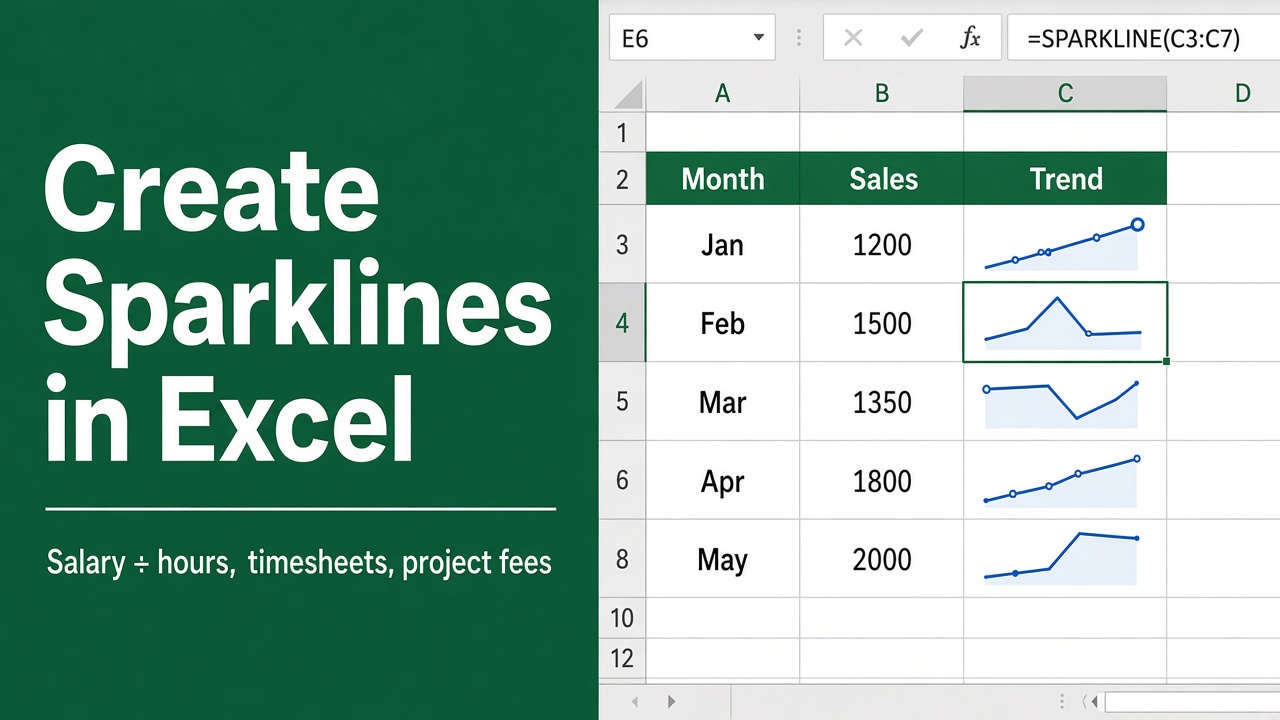
Microsoft Excel Sparklines are small charts that fit inside a single cell, offering a simple way to visualize data trends without adding large charts to your worksheet.
These compact visuals are especially useful for sales reports, budget spreadsheets, KPI dashboards, financial statements, and performance tracking, where quick pattern recognition matters.
By showing trends, seasonal increases or decreases, and high or low points at a glance, Excel sparklines make large sets of data easier to analyze while keeping your spreadsheet organized, clean, and professional.
Types of Sparklines in Excel
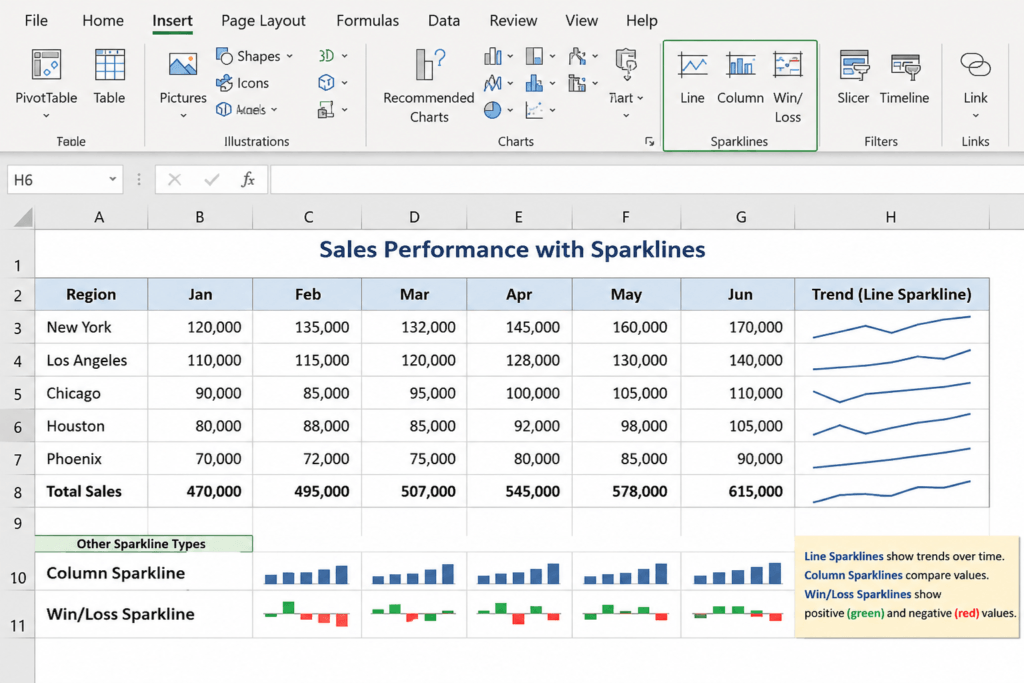
Excel offers three main sparkline types:
| Sparkline Type | Best For | Example Use |
|---|---|---|
| Line | Trends over time | Monthly sales growth |
| Column | Comparing values visually | Revenue by quarter |
| Win/Loss | Positive vs negative outcomes | Profit vs loss months |
Choosing the right type depends on the story your data tells.
How to Create Sparklines in Excel Step by Step
Creating sparklines is straightforward and works in most modern versions of Microsoft Excel.
Step 1: Select Your Data Range
Highlight the row or column containing the values you want to visualize.
For example:
| Region | Jan | Feb | Mar | Apr | May |
|---|---|---|---|---|---|
| Portland | 120 | 140 | 135 | 160 | 180 |
In this case, you would select the monthly sales values.
Step 2: Go to the Insert Tab
On the Excel Ribbon, click Insert.
Step 3: Choose a Sparkline Type
In the Sparklines group, choose one of the following:
- Line
- Column
- Win/Loss
Step 4: Select the Location Range
After choosing your sparkline type, Excel opens the Insert Sparklines dialog box.
- Data Range: The selected data values
- Location Range: The cell where the sparkline will appear
Important Tip
Your location range dimensions must match your data structure. For example:
- If your data has one row, choose one adjacent row of cells
- If your data has multiple rows, select the same number of destination rows
If dimensions do not match, Excel displays an error.
Step 5: Click OK
Your sparkline appears instantly inside the selected cell.
How to Add Sparklines for Multiple Rows
If you want sparklines for several products, cities, or categories:
- Select all source data rows
- Go to Insert > Sparklines
- Select matching destination cells
- Click OK
Excel automatically creates separate sparklines for each row, making comparison easy.
Mark Important Data Points on Sparklines
One major advantage of Excel sparkline charts is the ability to highlight specific values.
Show Markers for:
- High Point
- Low Point
- First Point
- Last Point
- Negative Points
How to Add Markers
- Click the sparkline
- Open the Sparkline Design tab
- In the Show group, check the markers you want
Markers make trends easier to interpret, especially for reports and dashboards.
Change Sparkline Style and Color
Excel includes built-in style presets to match your spreadsheet design.
To Change Style:
- Select the sparkline
- Go to Sparkline Design
- Choose a style from the gallery
To Customize Colors:
- Click Sparkline Color for line or bar color
- Click Marker Color for highlighted points
Using consistent colors across your workbook improves readability.
Handle Empty or Hidden Cells
Real-world spreadsheets often contain blanks or hidden values.
To Manage Empty Cells:
- Select your sparkline
- Go to Sparkline Design > Edit Data > Hidden and Empty Cells
- Choose whether empty cells should display as:
- Gaps
- Zero values
- Connected points
This setting is especially useful for financial forecasting and trend analysis.
Best Practices for Using Sparklines
1) Position Sparklines Near Source Data
Placing sparklines beside your data improves clarity.
2) Use Consistent Scaling
For accurate comparisons, use the same axis settings across all sparklines.
3) Avoid Overformatting
Too many colors or markers can make reports harder to read.
4) Combine with Conditional Formatting
Using Excel conditional formatting alongside sparklines creates stronger dashboards.
How to Delete Sparklines in Excel
Removing sparklines does not delete your original data.
Steps:
- Select the sparkline cell
- Go to Sparkline Design
- Click Clear
- Choose whether to clear selected sparklines or an entire group
Sparklines vs Traditional Excel Charts
| Feature | Sparklines | Standard Charts |
|---|---|---|
| Space Usage | Minimal | Larger |
| Detail | Basic trend view | Full analysis |
| Dashboard Use | Excellent | Good |
| Labels and Axes | No | Yes |
Frequently Asked Questions
What are sparklines in Excel?
Sparklines in Excel are small charts that fit inside a single worksheet cell. They help show trends, patterns, increases, decreases, and changes in a series of values without using a full-size chart.
How do I create sparklines in Excel?
To create sparklines in Excel, select your data range, go to the Insert tab, choose Line, Column, or Win/Loss under Sparklines, select the location cell, and click OK.
What are the different types of sparklines in Excel?
Excel offers three main sparkline types: Line, Column, and Win/Loss. Line sparklines are best for trends, Column sparklines compare values, and Win/Loss sparklines show positive and negative results.
Can I customize sparklines in Excel?
Yes, you can customize sparklines using the Sparkline Design tab. You can change the style, color, marker color, axis settings, and highlight high points, low points, first points, last points, and negative points.
Do Excel sparklines update automatically?
Yes, Excel sparklines update automatically when the source data changes. This makes them useful for dashboards, reports, sales tracking, and financial spreadsheets.
How do I delete sparklines in Excel?
To delete sparklines, select the sparkline cell, go to the Sparkline Design tab, click Clear, and choose whether to clear the selected sparkline or the entire sparkline group.