
Excel library
How to Copy Formulas in Excel Without External Links (Easy Guide)
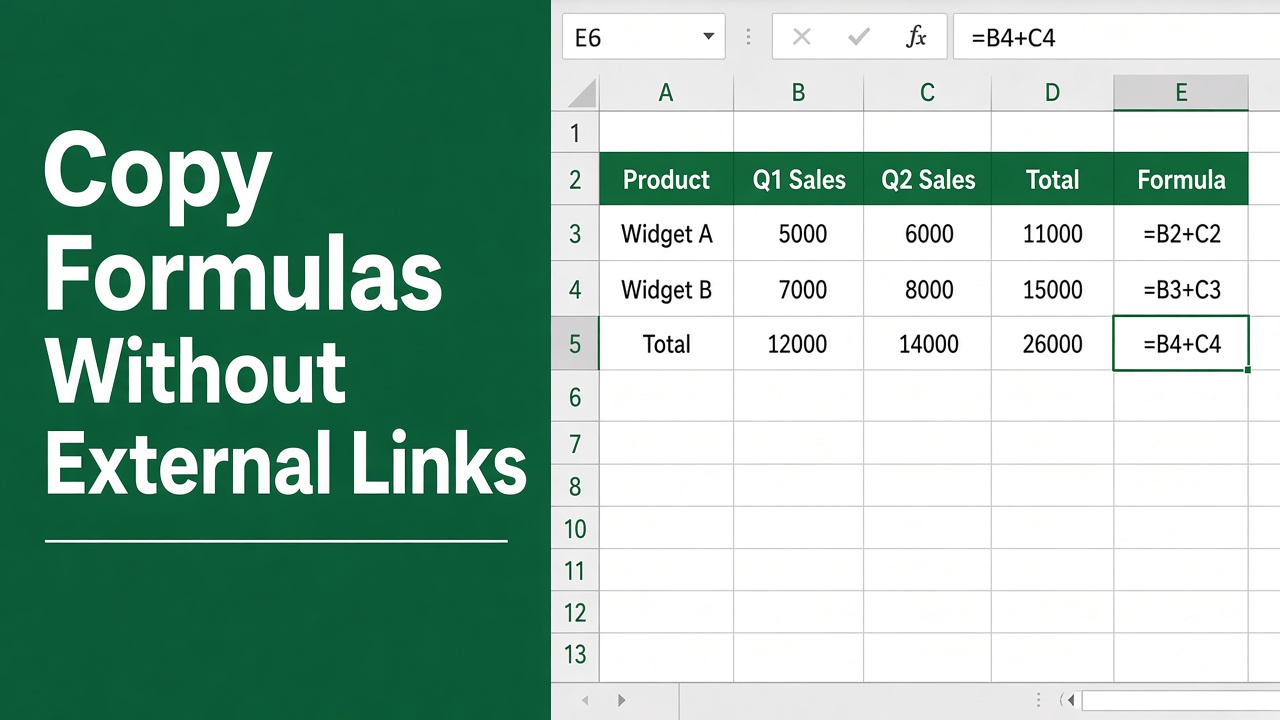
Working across multiple files in Microsoft Excel is common, but copying formulas can quickly create unwanted links to an old workbook. These external references can break when files are moved or deleted.
In this guide, we will explain how to copy formulas from one Excel workbook to another without linking to the original file, keeping your data clean and independent.
Why Avoid External References in Excel?
When you copy formulas between workbooks, Excel often adds a file path like:
='[OldWorkbook.xlsx]Sheet1'!A1This creates a dependency on another file. Avoiding this is important because:
- Files may be deleted or renamed
- Links can slow down performance
- Sharing files becomes complicated
- Errors like #REF! may appear
Using the right method ensures your Excel formulas remain self-contained.
Method 1: Copy Formulas Using the Formula Bar
This is the most reliable way to avoid external links.
Steps:
- Open both workbooks.
- Select the cell with the formula.
- Copy the formula from the formula bar.
- Go to the destination workbook.
- Paste it into the formula bar and press Enter.
Why It Works:
- Excel treats it as a new formula
- No source file path is included
- Keeps formulas completely independent
Method 2: Use Move or Copy Sheet Feature
If you need to copy many formulas at once, this method is ideal.
Steps:
- Right-click the sheet tab in the source workbook.
- Click Move or Copy.
- Choose the destination workbook.
- Check Create a copy.
- Click OK.
Benefits:
- Preserves internal references
- Avoids external links automatically
- Saves time for large datasets
Method 3: Remove Links Using Find and Replace
If you already copied formulas and they contain links, you can fix them quickly.
Steps:
- Press Ctrl + H to open Find and Replace.
- In “Find what”, enter the workbook name like:
[OldWorkbook.xlsx] - Leave “Replace with” blank.
- Click Replace All.
Result:
| Before | After |
|---|---|
| ='[OldWorkbook.xlsx]Sheet1′!A1 | =Sheet1!A1 |
This removes the dependency on the original file.
Method 4: Use Paste Special Carefully
Paste Special can help, but it still requires attention.
Steps:
- Copy the formula cells.
- Right-click in the destination workbook.
- Select Paste Special → Formulas.
Important:
- This method may still create external links
- Use Find and Replace afterward if needed
Understanding Cell References in Excel
To copy formulas correctly, you must understand cell references.
Types of References:
| Type | Example | Behavior |
|---|---|---|
| Relative | A1 | Changes when copied |
| Absolute | $A$1 | Stays fixed |
| Mixed | A$1 or $A1 | Partial lock |
Why It Matters:
Incorrect references can lead to wrong calculations after copying.
Common Errors When Copying Formulas
Here are frequent issues and how to fix them:
| Error | Cause | Solution |
|---|---|---|
| #REF! | Broken reference | Update cell references |
| #VALUE! | Invalid data type | Check input values |
| External links | Linked workbook | Remove file name using Find & Replace |
Best Practices for Copying Formulas Without Links
Follow these tips to keep your workbook clean:
- Always check formulas after pasting
- Prefer copying via the formula bar
- Use Move or Copy sheet for bulk transfer
- Remove links using Find and Replace
- Avoid unnecessary external references
- Test formulas before sharing files
Quick Comparison of Methods
| Method | Creates External Links | Recommended Use |
|---|---|---|
| Formula bar copy | No | Best for accuracy |
| Move or Copy sheet | No | Large data transfer |
| Paste Special | Sometimes | Use with caution |
| Direct copy paste | Yes | Avoid |
FAQs
How can I copy formulas in Excel without linking to the original workbook?
The best way is to copy the formula directly from the formula bar and paste it into the destination workbook. This prevents Excel from adding external references to the original file.
Why does Excel create external links when copying formulas?
Excel creates external links to maintain the connection between the source and destination workbooks. This happens when formulas are copied normally between files, causing them to reference the original workbook path.
How do I remove external links from formulas in Excel?
You can remove external links using Find and Replace. Press Ctrl + H, enter the workbook name in the Find field, leave Replace blank, and click Replace All to remove the file reference from formulas.
Is it better to copy a sheet instead of copying formulas?
Yes, using the Move or Copy sheet feature is often better for large datasets. It preserves internal references and avoids creating external links, making the process faster and more reliable.
Does Paste Special help avoid external references in Excel?
Paste Special can copy only formulas, but it may still include external links. You may need to use Find and Replace afterward to fully remove any references to the original workbook.
What causes REF errors after copying formulas to another workbook?
REF errors usually occur when formulas reference cells that do not exist in the new workbook or when external links are broken. Updating the references to match the correct cells will fix the issue.