
Excel library
How to Write Scientific Notation in Excel (4 Easy Ways)
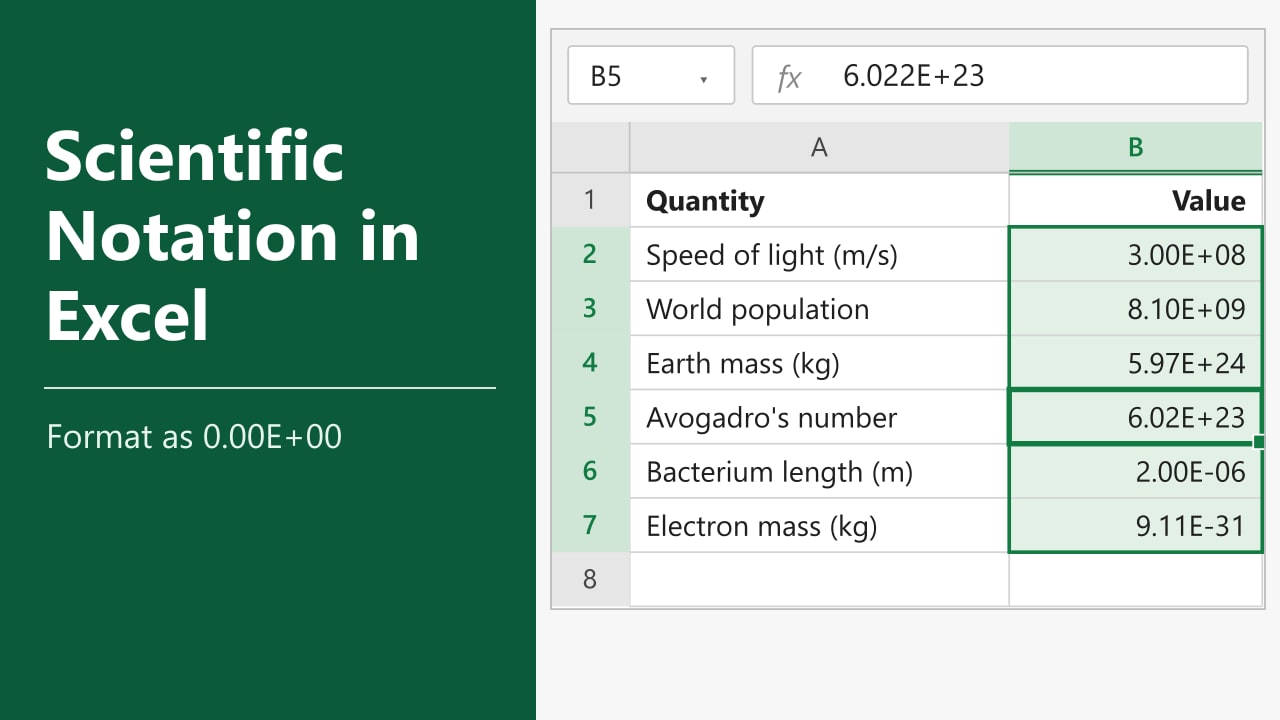
You are filling in a lab sheet or a physics homework table, and values like 0.000002 or 299,792,458 are hard to read and easy to mistype. Scientific notation writes them as a short number times a power of 10, so 299,792,458 becomes 3.00E+08 in Excel, which means 3.00 × 10^8. In this tutorial, I'll show you how to write scientific notation in Excel, both as real numbers you can calculate with and as text for reports.
- Type the number with an E for the power of 10, for example 6.022E23 or 2E-6.
- Or select existing numbers, go to Home and pick Scientific from the Number Format dropdown.
- To change the decimals, press Ctrl+1, choose Scientific and set Decimal places.
The Scientific format in Method 2 suits most people, because the cells stay numbers that formulas can use.
How Excel Writes Scientific Notation
Excel does not use the × 10 form. It uses E notation, where the letter E stands for "times 10 to the power of". So 6.02E+23 means 6.02 × 10^23, and 2.00E-06 means 2.00 × 10^-6, or 0.000002. A plus sign after E means a large number and a minus sign means a small one.
Our example data is in A1:B7: six quantities in column A and their values in column B, typed in as plain numbers. Some are long, some are tiny, and Excel's default General format shows them inconsistently.
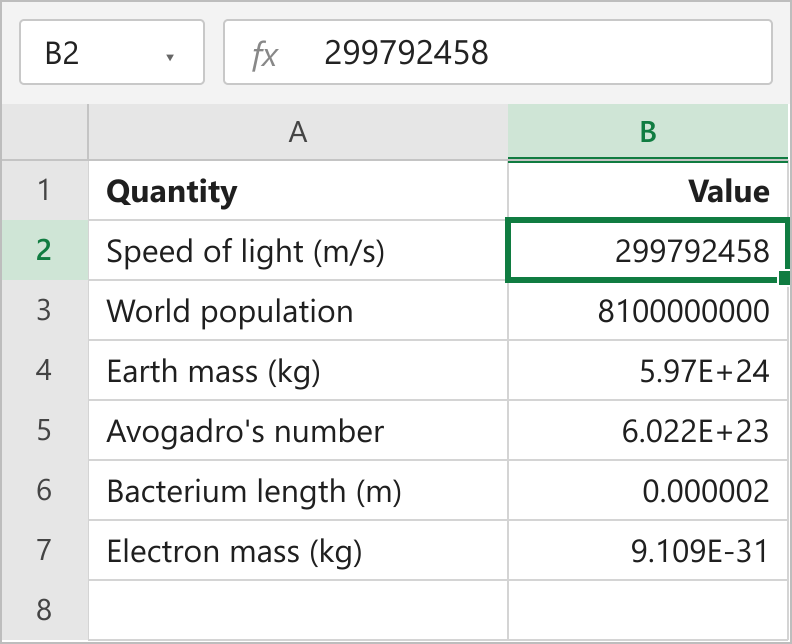
Method 1: Type the Number with E
Use this when you are entering new values and already know the power of 10. You do not need to change any settings first.
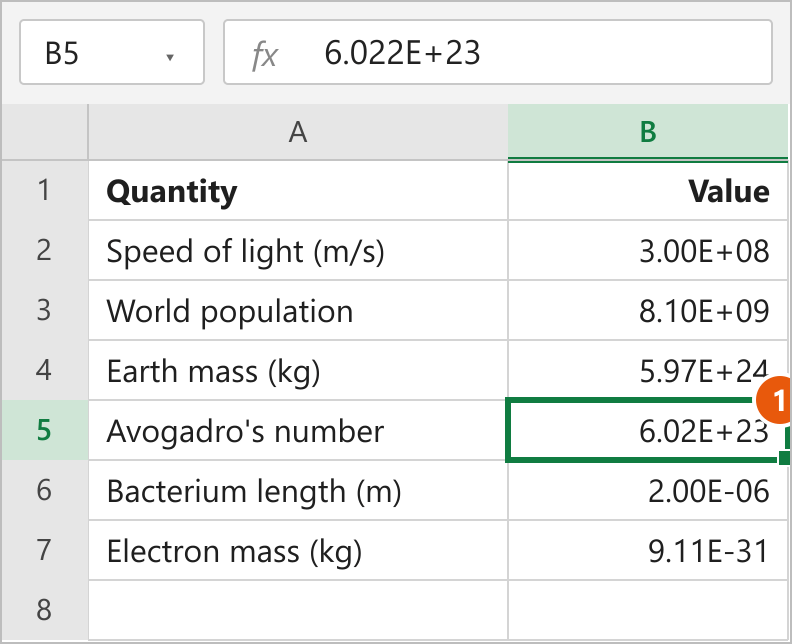
- Select cell B5.
- Type the number part, the letter E, and the power of 10, with no spaces.
- Press Enter.
- Select B5 again and check the formula bar.
6.022E23Excel recognises the entry as a number and shows it in scientific notation with two decimals, as 6.02E+23. For a small value, put a minus sign after the E: 2E-6 gives 2.00E-06 and 9.109E-31 gives 9.11E-31.
How this works
Excel treats the E as part of the number, the same way it treats a decimal point. The cell holds the full value 6.022 × 10^23, and only the display is rounded to two decimals. You can add, multiply or chart the cell like any other number.
Note: This works against you too. A code like 1E5 that is meant to be a product ID turns into 1.00E+05. Format those cells as Text before you type, or start the entry with an apostrophe.
Method 2: Apply the Scientific Number Format
Use this when the numbers are already in the sheet, or when they come from a formula. The values stay the same; only the way they look changes.
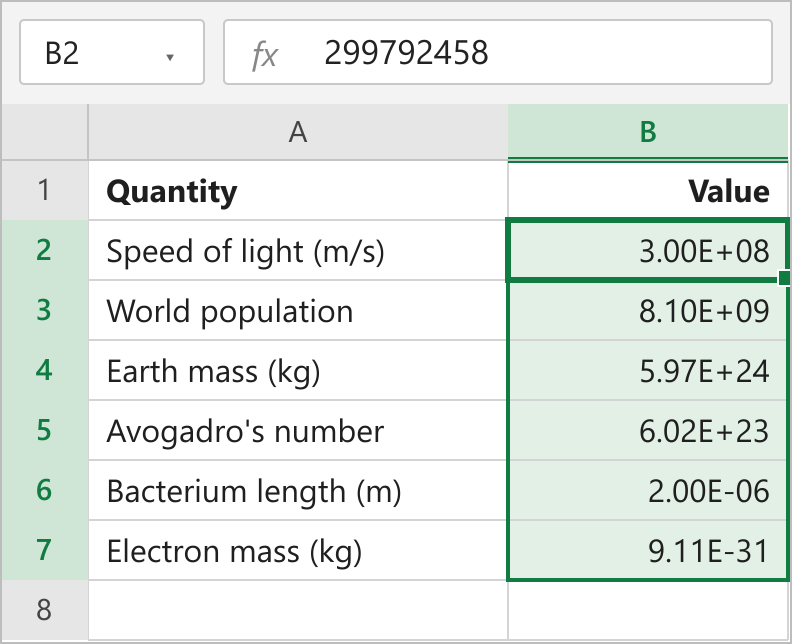
- Select the cells to format, here B2:B7.
- Go to the Home tab.
- In the Number group, open the Number Format dropdown, which usually says General.
- Click Scientific.
Every value in B2:B7 now uses the same style. The speed of light in B2 shows 3.00E+08, while the formula bar still shows 299792458.
Change the number of decimal places
The Scientific option in the dropdown uses two decimals. To show more or fewer, use the Format Cells dialog:
- Select B2:B7 and press Ctrl+1 on Windows to open Format Cells.
- On the Number tab, click Scientific in the Category list.
- Set Decimal places to the number you want, for example 3.
- Click OK.
With three decimals, B2 shows 2.998E+08 and B5 shows 6.022E+23. You can also click Increase Decimal or Decrease Decimal in the Number group, or use the shortcut to reduce decimal places.
How this works
A number format is a display rule. Scientific moves the decimal point until one digit sits in front of it, then writes the number of places it moved as the exponent after E. Calculations always use the stored value, not the rounded one you see.
Method 3: Use a Custom Format for Engineering Notation
Engineers often want exponents in steps of 3, so values line up with kilo, mega, micro and nano. The built-in Scientific format cannot do that, but a custom number format can.
- In C2, type =B2 and copy it down to C7, so you can compare the two styles.
- Select C2:C7 and press Ctrl+1.
- On the Number tab, click Custom.
- In the Type box, enter the format code below.
- Click OK.
##0.00E+0The speed of light in C2 now shows 299.79E+6, Avogadro's number shows 602.20E+21, and the electron mass shows 910.90E-33.
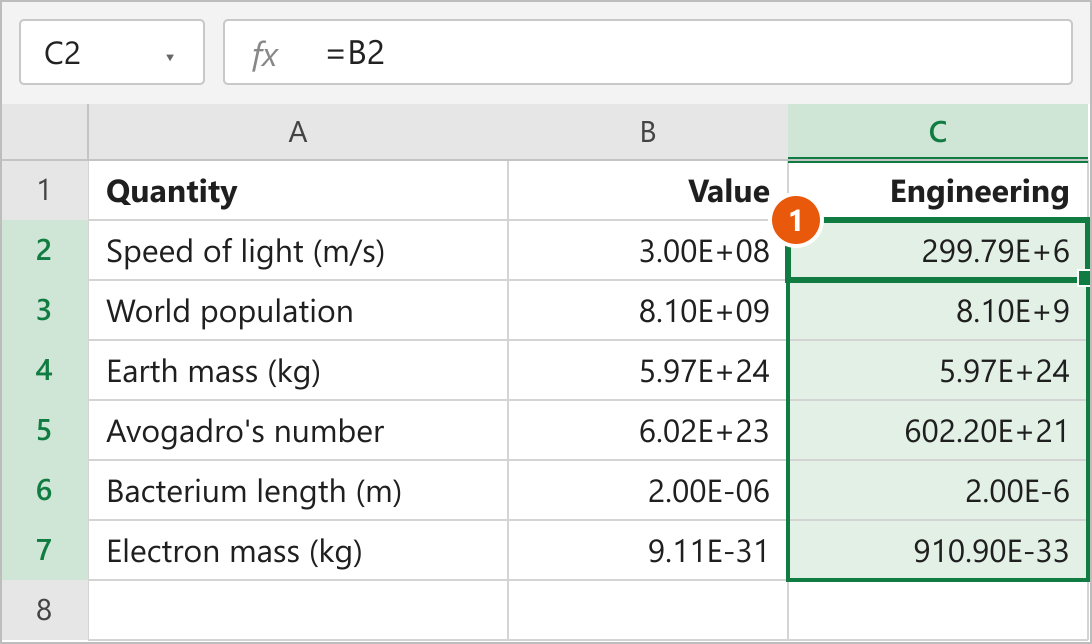
How this works
In a custom format, E+ tells Excel to use exponent form, and the zeros after it set the minimum number of digits in the exponent. The three placeholders before the decimal point, ##0, make Excel pick an exponent divisible by 3, with up to three digits in front. For ordinary scientific notation with a two-digit exponent, the code is 0.00E+00, the same one the Scientific option uses. If custom codes are new to you, the guide on showing negative numbers in brackets walks through the Custom box in more detail.
Method 4: Use the TEXT Function
Use this when you need scientific notation inside a sentence, a label or a joined string. TEXT turns a number into text in the format you give it.
- Select cell C2.
- Type the formula below and press Enter.
- Drag the fill handle down to C7.
=TEXT(B2,"0.00E+00")C2 returns 3.00E+08, left-aligned because it is now text. You can join it to a label, for example ="c = "&TEXT(B2,"0.00E+00")&" m/s", which gives c = 3.00E+08 m/s.
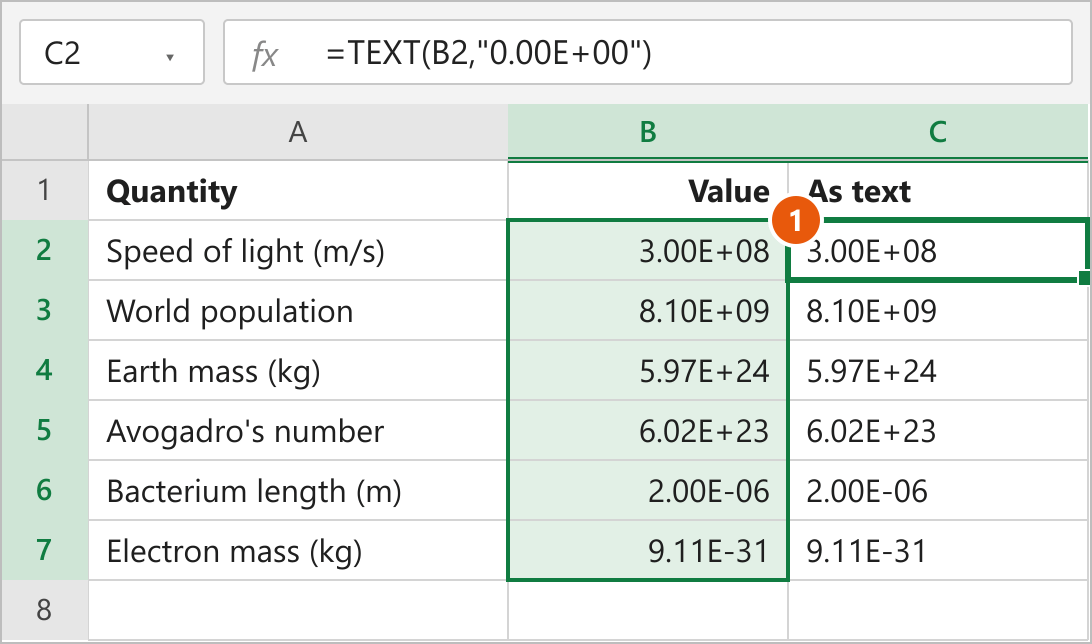
Write it as × 10 instead of E
Some teachers and journals want the × 10 form. This formula builds it from the value in B2 and works for any positive number:
=TEXT(B2/10^INT(LOG10(B2)),"0.00")&" × 10^"&INT(LOG10(B2))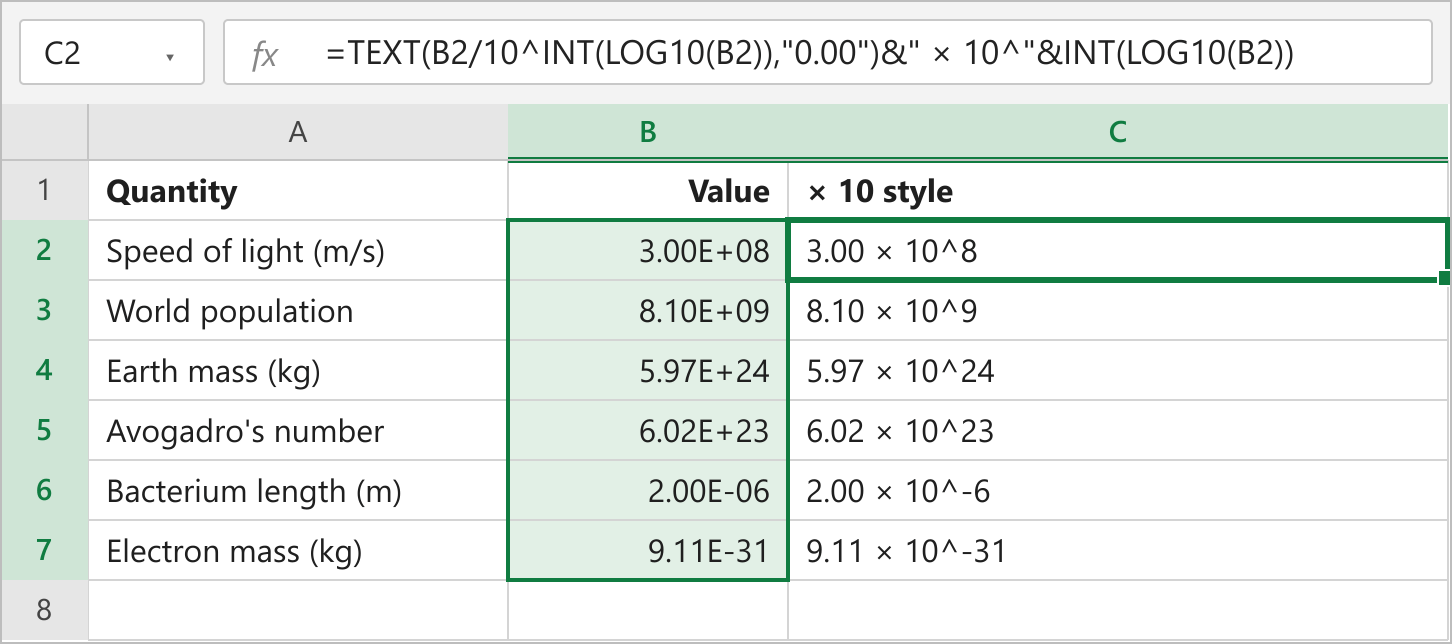
How this works
LOG10 returns the power of 10 a number sits at, so LOG10(299792458) is about 8.48. INT rounds that down to 8, the exponent. Dividing B2 by 10^8 gives 2.998, which TEXT rounds to 3.00. The & signs join the pieces into 3.00 × 10^8. For the bacterium length, the exponent comes out as -6, giving 2.00 × 10^-6.
Note: Both formulas return text, so SUM and other maths functions skip the results. Keep the original numbers in column B for calculations. The × 10 formula also fails on zero and negative values, because LOG10 needs a positive number.
FAQs
Why does Excel change my long number to scientific notation?
How do I stop Excel from changing IDs or card numbers to E notation?
How do I convert scientific notation back to a normal number?
Can I type a lowercase e?
Does the Scientific format reduce the accuracy of my numbers?
Conclusion
To enter new values, type them with an E, such as 6.022E23. For numbers already in the sheet, apply the Scientific format, which is the method I'd use for most people because the cells stay numbers and the decimals are easy to adjust. Pick the custom ##0.00E+0 format when you need engineering notation, and use TEXT only when the result has to sit inside a label or sentence.