
Excel library
How to Quickly Remove Gridlines in Excel (Easy Shortcut)
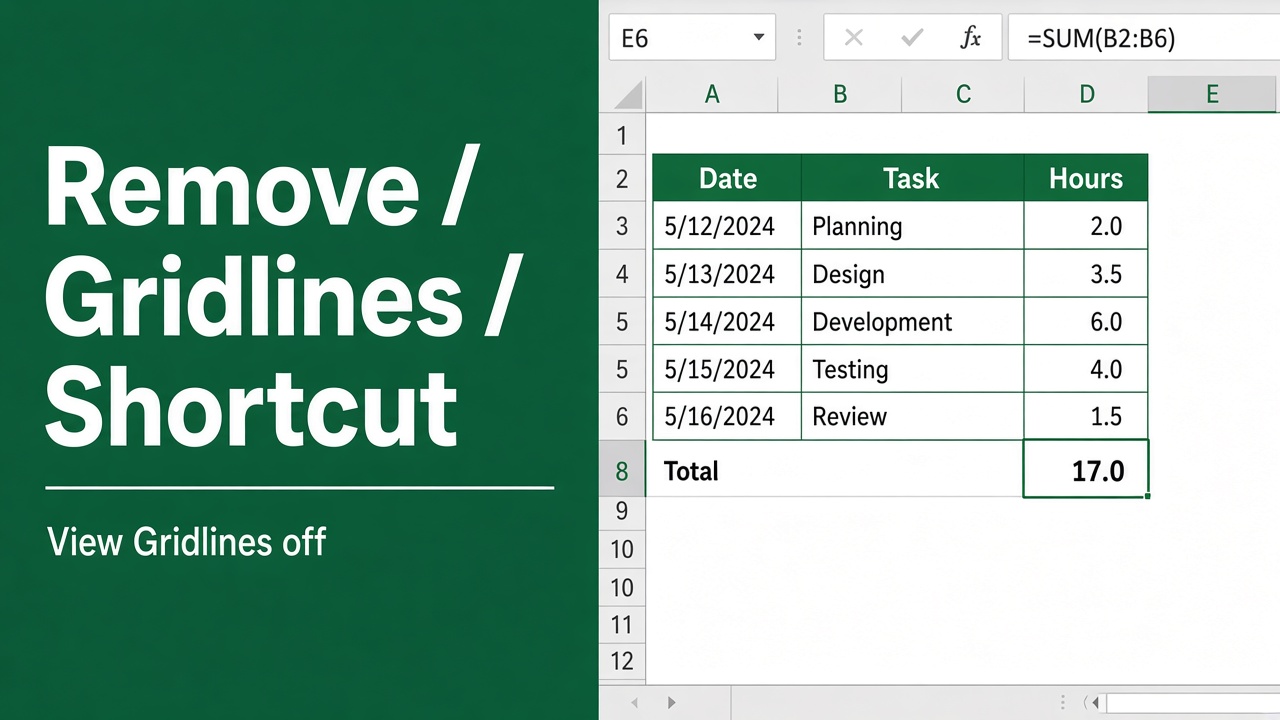
Are you looking for a quick and easy way to hide gridlines in Microsoft Excel? Gridlines are the faint gray lines that appear around each cell in an Excel worksheet. While gridlines can be helpful for visually separating data, sometimes you may want to remove them for a cleaner look, especially when printing.
On Windows, press Alt, W, V, G one key after another (View > Gridlines). Press the same keys again to bring the gridlines back. On a Mac, untick Gridlines on the View tab.
This only changes the current sheet on your screen. Gridlines are not printed unless you tick Page Layout > Gridlines > Print.
The fastest way to turn off gridlines in Excel is to use a simple keyboard shortcut. Just press Alt, W, V, G on Windows, or untick Gridlines on the View tab on a Mac. This will instantly hide all gridlines in the current worksheet.
Using the Keyboard Shortcut to Remove Gridlines
The quickest way to hide gridlines in Excel is with a keyboard shortcut:
| Platform | Shortcut |
|---|---|
| Windows | Alt + W + V + G |
| Mac | No shortcut: View tab > untick Gridlines |
Here’s how it works:
- Open your Excel worksheet
- Press the shortcut keys for your platform:
- On Windows: press and release
Alt, then pressW,V,Gone after another - On Mac: there is no built-in shortcut; untick Gridlines on the View tab
- Excel will instantly remove all gridlines from the current worksheet
That’s it! This shortcut is the fastest way to turn gridlines off in Excel. It works in all versions of Excel for Microsoft 365, Excel 2021, 2019, 2016, 2013, and 2010.
Restoring Gridlines with the Shortcut
What if you change your mind and want to unhide gridlines? No problem – just press the same shortcut again to toggle gridlines back on:
Alt, W, V, G (Windows), or tick Gridlines on the View tab again (Mac)
Other Ways to Remove Gridlines in Excel
In addition to the keyboard shortcut, there are a couple of other ways to hide grid lines in Excel:
Using the View Tab
You can also turn off gridlines from the ribbon in Excel:
- Go to the View tab
- In the Show group, uncheck the box next to Gridlines
Excel will hide the gridlines in the current worksheet. To show gridlines again, just re-check the Gridlines box.
Using Page Layout View
Another option is to switch to Page Layout view and disable gridlines there:
- Go to the View tab
- Click Page Layout to switch to Page Layout view
- Go to the Page Layout tab
- In the Sheet Options group, uncheck the box for View under Gridlines
This View checkbox is the same setting as View > Gridlines, so it hides gridlines for the sheet in every view. The Print checkbox next to it controls whether gridlines appear on paper.
Hiding Gridlines in Specific Areas
Gridlines can only be switched off for a whole sheet. To make them disappear in part of a sheet, give those cells a white fill, which covers the gridlines:
- Select the cells.
- Go to Home > Fill Color (the paint bucket) and choose White.
Setting borders to None does not hide gridlines; it only removes borders you added. To bring the gridlines back, choose Fill Color > No Fill.
Using a VBA Macro to Hide Gridlines
For more control over gridlines, you can use a VBA macro. This lets you hide gridlines on multiple sheets at once or toggle gridlines on/off with a button.
Here’s a sample macro to remove gridlines from every worksheet in a workbook:
Sub HideAllGridlines()
    Dim ws As Worksheet
    For Each ws In ActiveWorkbook.Worksheets
        ws.DisplayGridlines = False
    Next ws
End Sub
And here’s a macro to toggle gridlines in the current worksheet:
Sub ToggleGridlines()
    ActiveWindow.DisplayGridlines = Not ActiveWindow.DisplayGridlines
End Sub
To use these macros:
- Press
Alt + F11to open the Visual Basic Editor - Go to Insert > Module to add a new module
- Paste in the macro code
- Press
F5or click the Run button to run the macro
You can attach these macros to a button or custom ribbon tab for easy access.
Printing Without Gridlines
By default, Excel does not print gridlines, even when you see them on screen. If your printout shows a grid, printing was switched on for that sheet, or the lines are cell borders.
To print without gridlines:
- Go to the Page Layout tab
- In the Sheet Options group, uncheck the box for Print under Gridlines
- Print your worksheet as usual
Excel will print the worksheet without any gridlines. The gridlines will still appear on screen, but they won’t show up on the printed page.
You can also set this option in the print preview window:
- Go to File > Print to open the Print screen
- Click Page Setup at the bottom of the Settings list
- On the Sheet tab, uncheck Gridlines under Print
- Click Print to print the gridline-free worksheet
Summary
Excel’s gridline shortcut makes it easy to hide and unhide gridlines with a quick keystroke. Just press Alt, W, V, G (Windows) or use the View tab (Mac) to instantly remove gridlines from the current worksheet.
We’ve also looked at other ways to remove gridlines in Excel, including:
- Using the View tab on the ribbon
- Hiding gridlines in Page Layout view
- Changing border formatting for specific cells
- Using VBA macros to control gridlines across multiple worksheets
Finally, we saw how to print Excel worksheets without gridlines by adjusting options in Page Layout view or the print settings.
With these tips and shortcuts, you can easily hide gridlines to create clean, professional-looking Excel worksheets. Whether you’re prepping a spreadsheet for printing or just want to declutter your workspace, you now have the tools to quickly turn off gridlines in Excel.
FAQs
What is the keyboard shortcut to remove gridlines in Excel?
The keyboard shortcut to remove gridlines on Windows is Alt + W + V + G. On Mac there is no built-in shortcut; untick Gridlines on the View tab.
How do I remove gridlines using the ribbon in Excel?
Go to the View tab on the ribbon and uncheck the Gridlines box in the Show group.
Can I hide gridlines in specific areas of a worksheet?
Not directly, because gridlines are a sheet-wide setting. Give the cells a white fill (Home > Fill Color > White) to cover the gridlines in that area; setting borders to None does not hide them.
How can I remove gridlines from multiple worksheets at once?
You can use a VBA macro to remove gridlines from all worksheets in a workbook. Press Alt + F11 to open the Visual Basic Editor, insert a new module, paste in the macro code, and run the macro.
How do I print an Excel worksheet without gridlines?
Go to the Page Layout tab, uncheck the Print box under Gridlines in the Sheet Options group, and then print your worksheet as usual.
Will removing gridlines in Excel delete my data?
No, hiding or removing gridlines only affects the visual appearance of your worksheet. It does not delete or modify any of your data.