
Excel library
How to Create a Button in Excel? (Easy Guide)
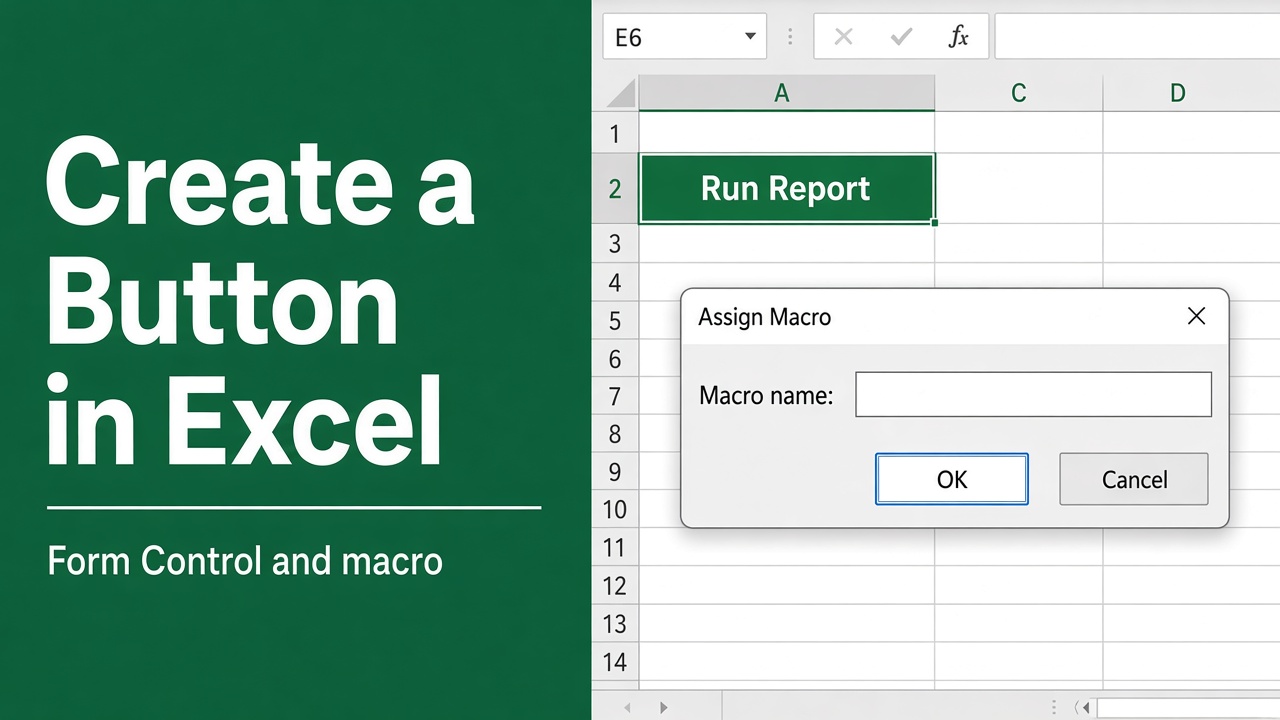
Microsoft Excel is widely used for data analysis, reporting, automation, and dashboard creation. One useful feature that can improve usability is the ability to create buttons in Excel.
Buttons allow users to perform actions such as running macros, refreshing data, navigating worksheets, or executing automated tasks with a single click.
Whether you’re building an Excel dashboard, a data entry form, or an automated spreadsheet, adding a button can make your workbook more user-friendly and professional.
Types of Buttons Available in Excel
Excel offers several ways to create clickable buttons.
| Button Type | Best Use Case |
|---|---|
| Form Control Button | Running macros and simple automation |
| Shape Button | Custom-designed buttons for dashboards |
| ActiveX Control Button | Advanced VBA functionality |
| Hyperlink Button | Navigating to sheets, files, or websites |
For most users, the Form Control Button is the easiest option.
How to Create a Button in Excel Using Form Controls
Follow these steps to add a basic button.
Step 1: Enable the Developer Tab
The Developer tab contains tools for creating buttons and working with VBA.
- Open Excel.
- Click File > Options.
- Select Customize Ribbon.
- Check the box next to Developer.
- Click OK.
The Developer tab will now appear in the Excel ribbon.
Step 2: Insert a Button
- Go to the Developer tab.
- Click Insert in the Controls group.
- Under Form Controls, select Button.
- Click and drag on the worksheet to draw the button.
Excel will immediately prompt you to assign a macro.
Step 3: Assign a Macro
If you already have a macro:
- Select the macro from the list.
- Click OK.
If no macro exists yet:
- Click New.
- Excel will open the Visual Basic Editor.
- Write or paste your VBA code.
- Save and close the editor.
Now, clicking the button will execute the assigned macro.
How to Rename a Button
The default button text is usually “Button 1.”
To change it:
- Right-click the button.
- Select Edit Text.
- Enter a descriptive name.
Examples include:
- Refresh Report
- Submit Data
- Generate Invoice
- Clear Form
Using meaningful button names improves the user experience.
How to Create a Button Using Shapes
Many Excel dashboard designers prefer shapes because they offer greater design flexibility.
Insert a Shape
- Click the Insert tab.
- Select Shapes.
- Choose a shape such as a rectangle or rounded rectangle.
- Draw it on the worksheet.
Add Text
Right-click the shape and choose Edit Text.
Enter your desired label, such as:
- Update Dashboard
- Export Data
- Run Analysis
Assign a Macro
- Right-click the shape.
- Select Assign Macro.
- Choose the desired macro.
- Click OK.
The shape now functions as a button.
How to Create an ActiveX Button in Excel
An ActiveX Command Button provides more advanced functionality and customization.
Steps to Insert an ActiveX Button
- Open the Developer tab.
- Click Insert.
- Under ActiveX Controls, select Command Button.
- Draw the button on the worksheet.
Customize the Button
- Enable Design Mode.
- Right-click the button.
- Select Properties.
You can modify:
- Font style
- Button color
- Caption text
- Size
- Position
ActiveX buttons are commonly used in advanced Excel applications and VBA projects.
How to Assign a Macro to a Button
A macro is a recorded or written set of instructions that automates tasks.
Assign an Existing Macro
- Right-click the button.
- Select Assign Macro.
- Choose the macro.
- Click OK.
Example VBA Macro
Sub ClearData()
    Range("A2:D100").ClearContents
End Sub
When connected to a button, this macro clears the specified data range instantly.
Best Practices for Excel Buttons
To create professional-looking workbooks, follow these recommendations:
Use Clear Labels
Button names should clearly explain their function.
Good examples:
- Refresh Data
- Save Report
- Print Invoice
Avoid vague labels like:
- Click Here
- Run
- Button 1
Maintain Consistent Design
Use consistent:
- Colors
- Fonts
- Sizes
- Alignment
This creates a cleaner and more professional interface.
Place Buttons Strategically
Position frequently used buttons where users can easily find them, such as:
- Top of worksheets
- Dashboard header sections
- Data entry forms
Test Every Button
After assigning macros, test each button to ensure it performs the intended action without errors.
Common Issues When Creating Buttons in Excel
| Problem | Solution |
|---|---|
| Button does not work | Verify that a macro is assigned |
| Macro security warning | Enable macros in Excel settings |
| Button text not editable | Right-click and select Edit Text |
| Developer tab missing | Enable it from Excel Options |
| ActiveX button not responding | Exit Design Mode |
Addressing these issues quickly helps maintain a smooth user experience.
Frequently Asked Questions
How do I create a button in Excel?
You can create a button in Excel by enabling the Developer tab, selecting Insert, choosing Button under Form Controls, and drawing it on your worksheet. You can then assign a macro to make the button perform an action.
Where is the Developer tab in Excel?
The Developer tab is hidden by default. To enable it, go to File, select Options, choose Customize Ribbon, and check the Developer option. After that, it will appear in the Excel ribbon.
Can I create a button in Excel without using VBA?
Yes, you can create a button-like object using shapes or hyperlinks without VBA. However, if you want the button to run automated tasks, you will usually need to assign a macro.
What is the difference between Form Control and ActiveX buttons?
A Form Control button is simpler and works well for basic macros. An ActiveX button offers more advanced formatting and VBA control, but it may be more complex for beginners.
Can I use a shape as a button in Excel?
Yes, you can use a shape as a button in Excel. Insert a shape, add text to it, right-click the shape, choose Assign Macro, and select the macro you want it to run.
Why is my Excel button not working?
Your Excel button may not work if no macro is assigned, macros are disabled, the file is not saved as a macro-enabled workbook, or ActiveX Design Mode is still turned on.